How do I manually add a new lead?
Introduction
In this tutorial, you will learn how to manually add a new lead in UpMLM. By the end of this guide, you will be able to create a lead record and start managing follow-up activities immediately.
1. ### Open the Leads Section
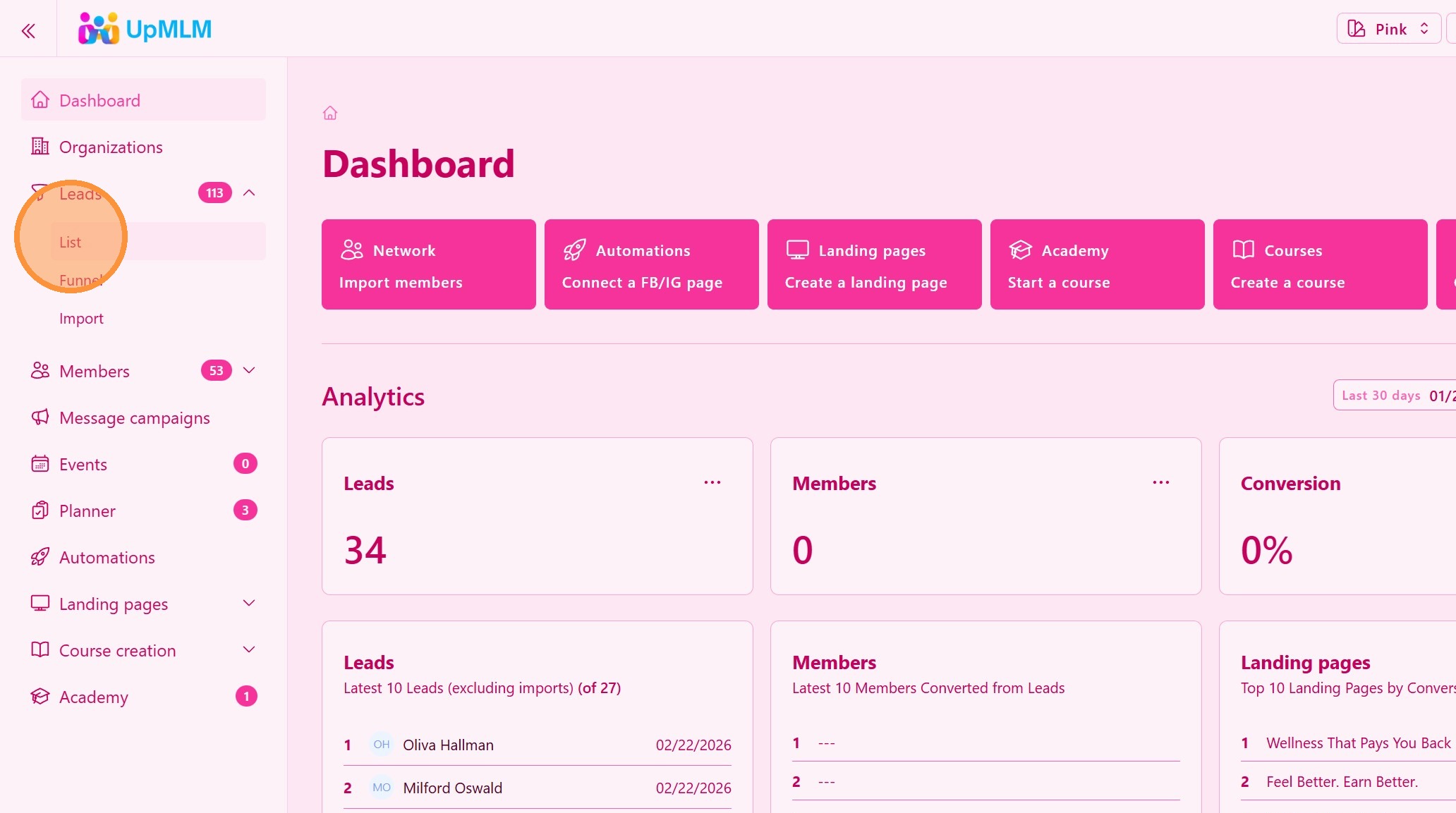
From the main navigation menu, click on Leads and then List.
> This section displays all leads currently stored in your system.
2. ### Start Adding a New Lead
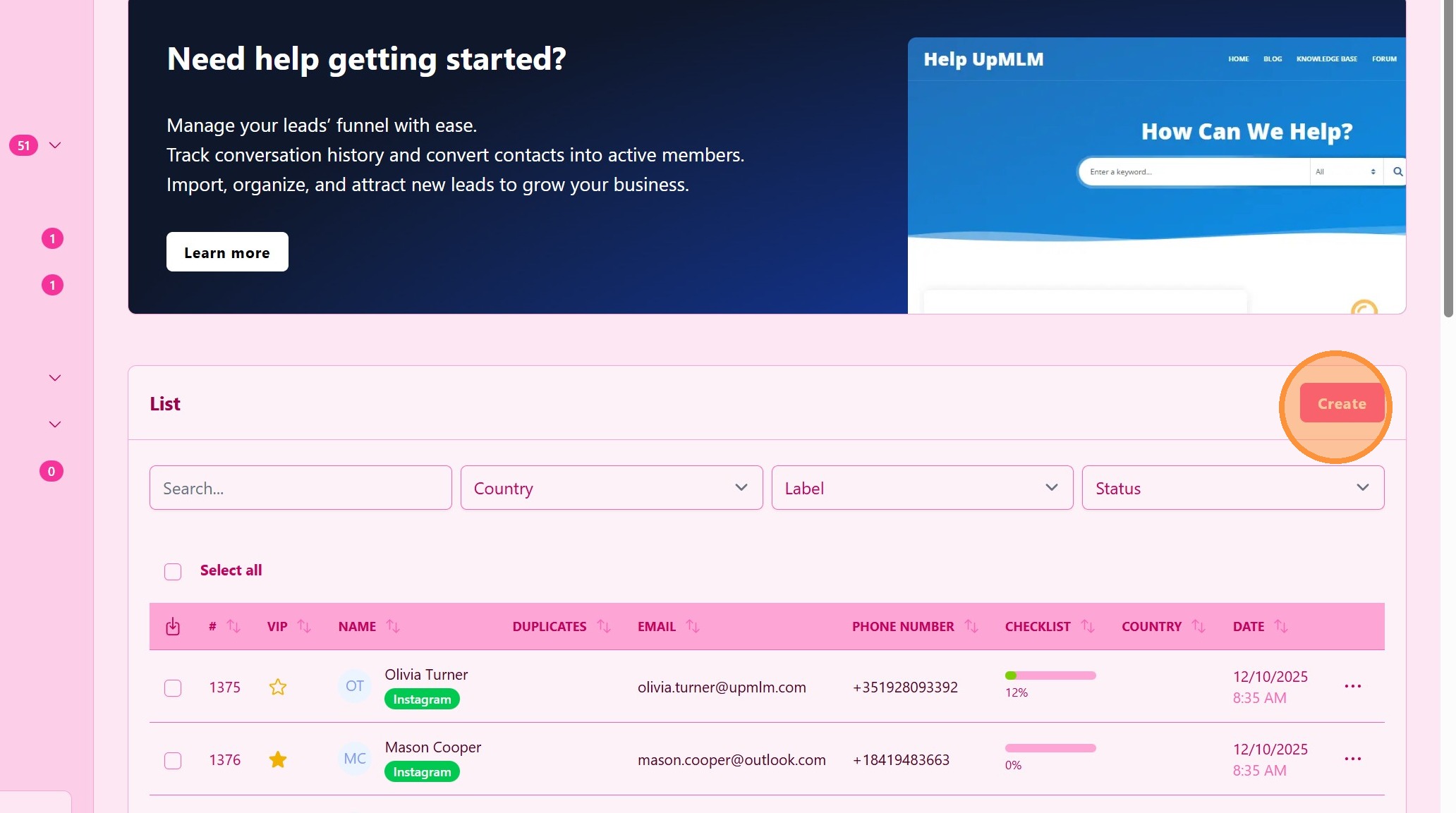
Click Create to add a new lead.
> This opens the lead creation form.
3. ### Enter Lead Information
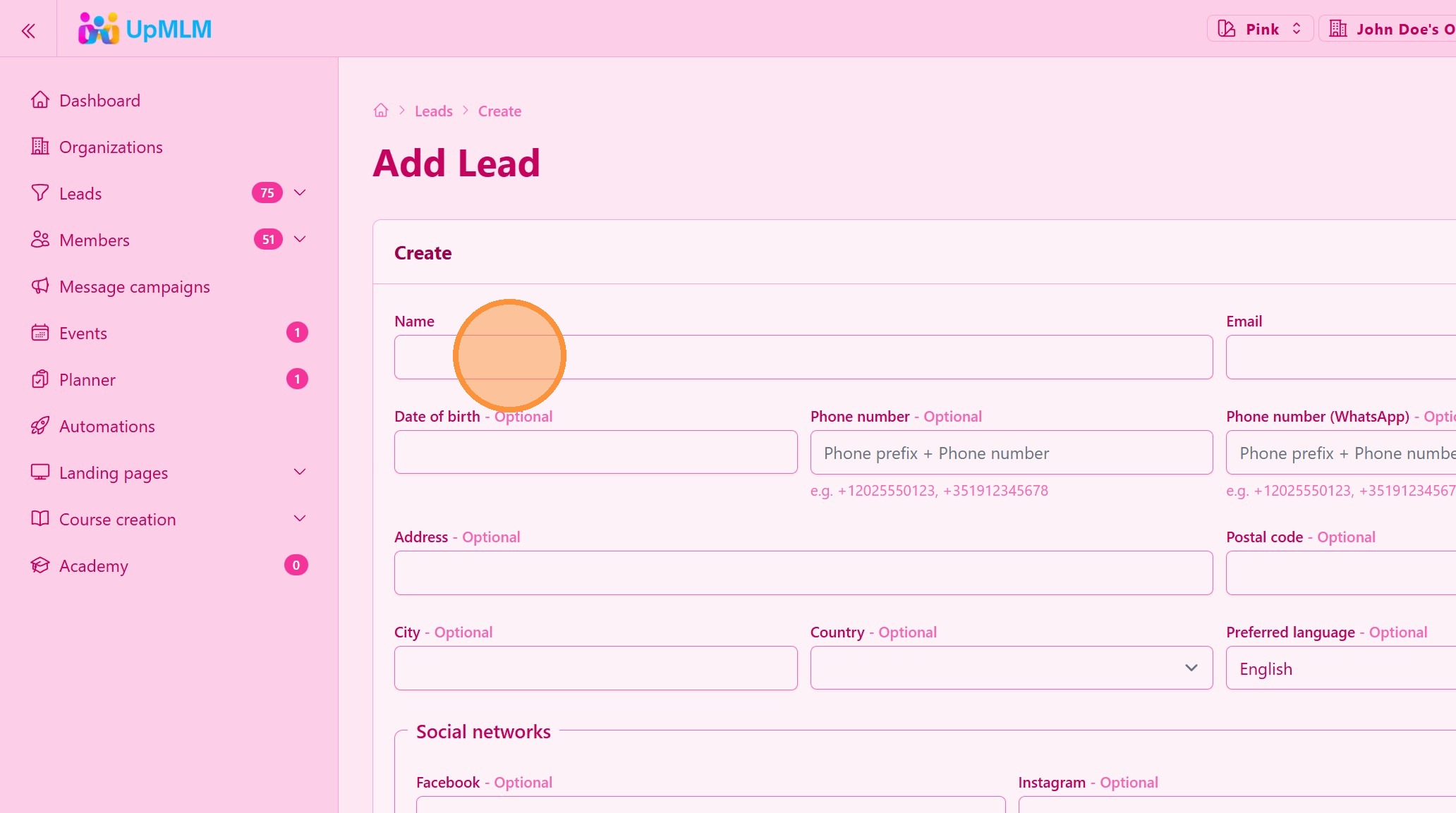
Fill in the required lead details, such as:
-
Name
-
Email address
-
Phone number
-
Other available fields
> Accurate information ensures effective communication and follow-up.
4. ### Save the Lead
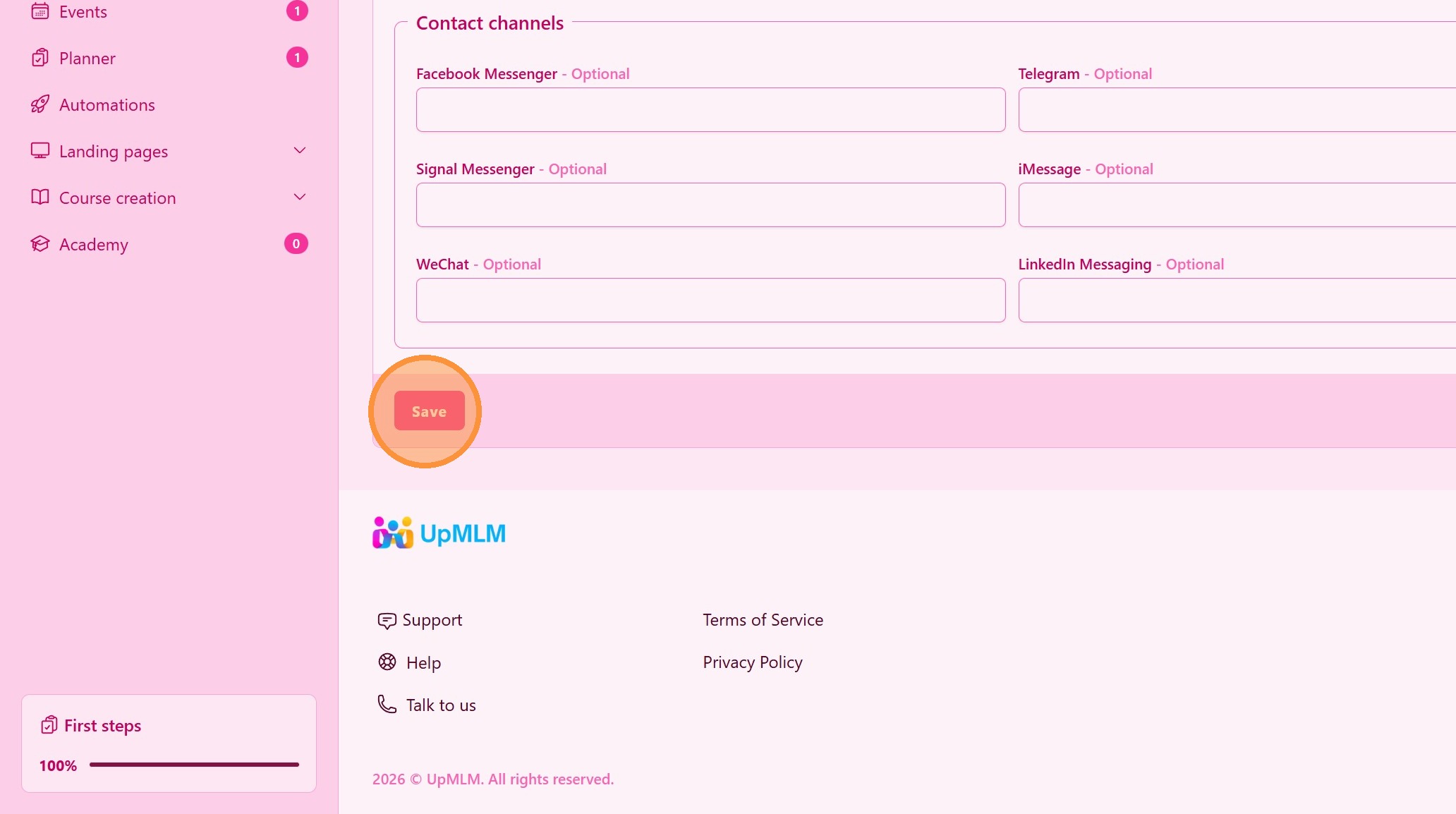
Click Save.
> The new lead will be added to your lead list and ready for follow-up.
Tip: ## Practical Tips
-
Add notes immediately: Capture context about how you met the lead.
-
Use consistent statuses: This helps track lead progress clearly.
-
Follow up quickly: Prompt follow-up increases engagement and conversion.
Tip: ## Conclusion
Manually adding leads in UpMLM ensures no contact is lost, even when leads come from offline or personal interactions. This feature supports complete lead tracking and effective relationship management.