Learn how to create new courses, add chapters and lessons, and manage content in multiple languages. This guide covers editing existing content and setting up language options for your course material.
Tip: ## Introduction
In this tutorial, you will learn how to create and edit course content in UpMLM, as well as how to manage different language versions. By the end of this guide, you will be able to build structured training materials and adapt them for multilingual MLM teams.
1. ### Go to the Dashboard or Main Menu
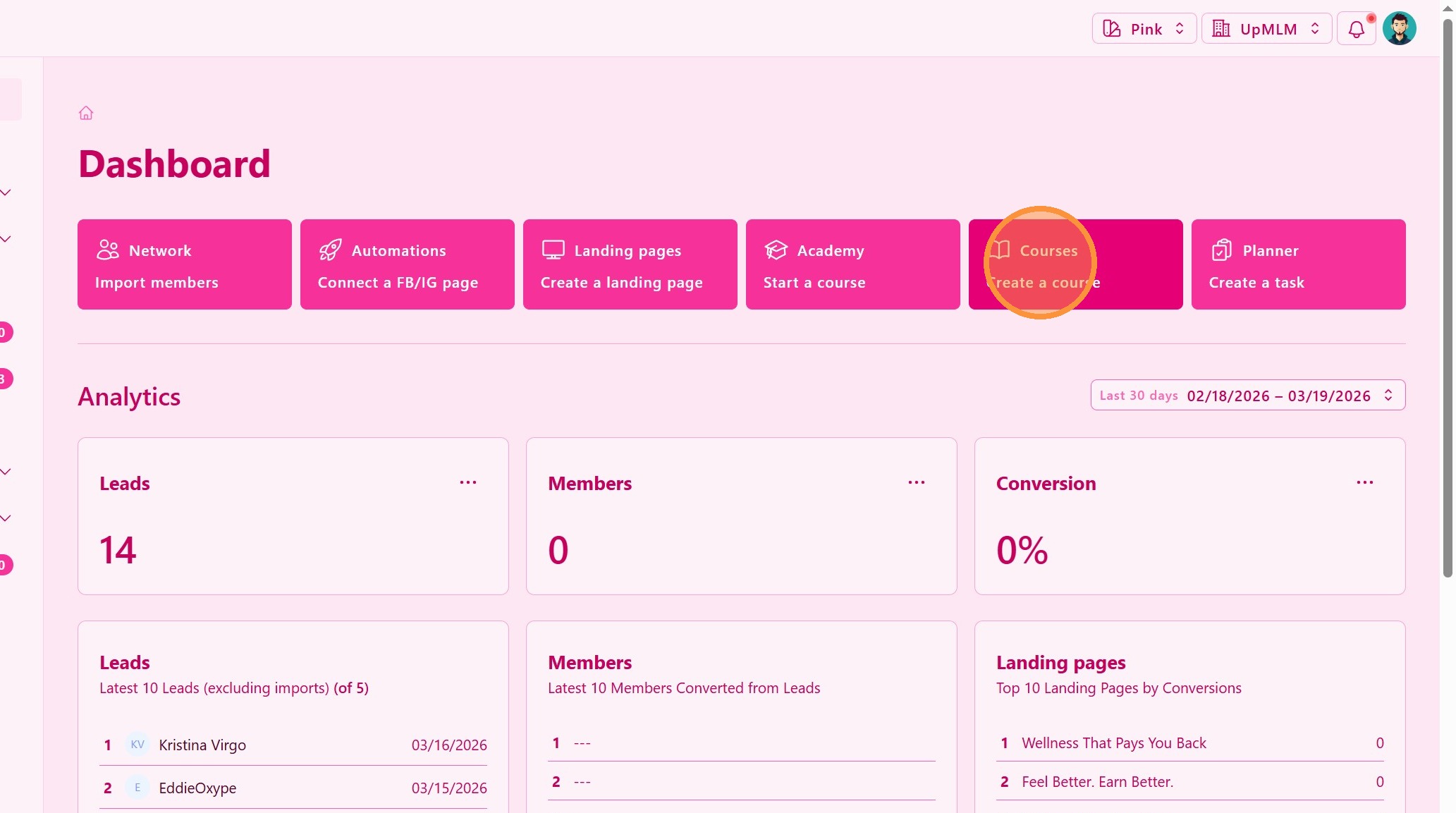
From the main navigation menu, click on Courses.
> This is where all your training content is managed.
2. ### Edit Course Content
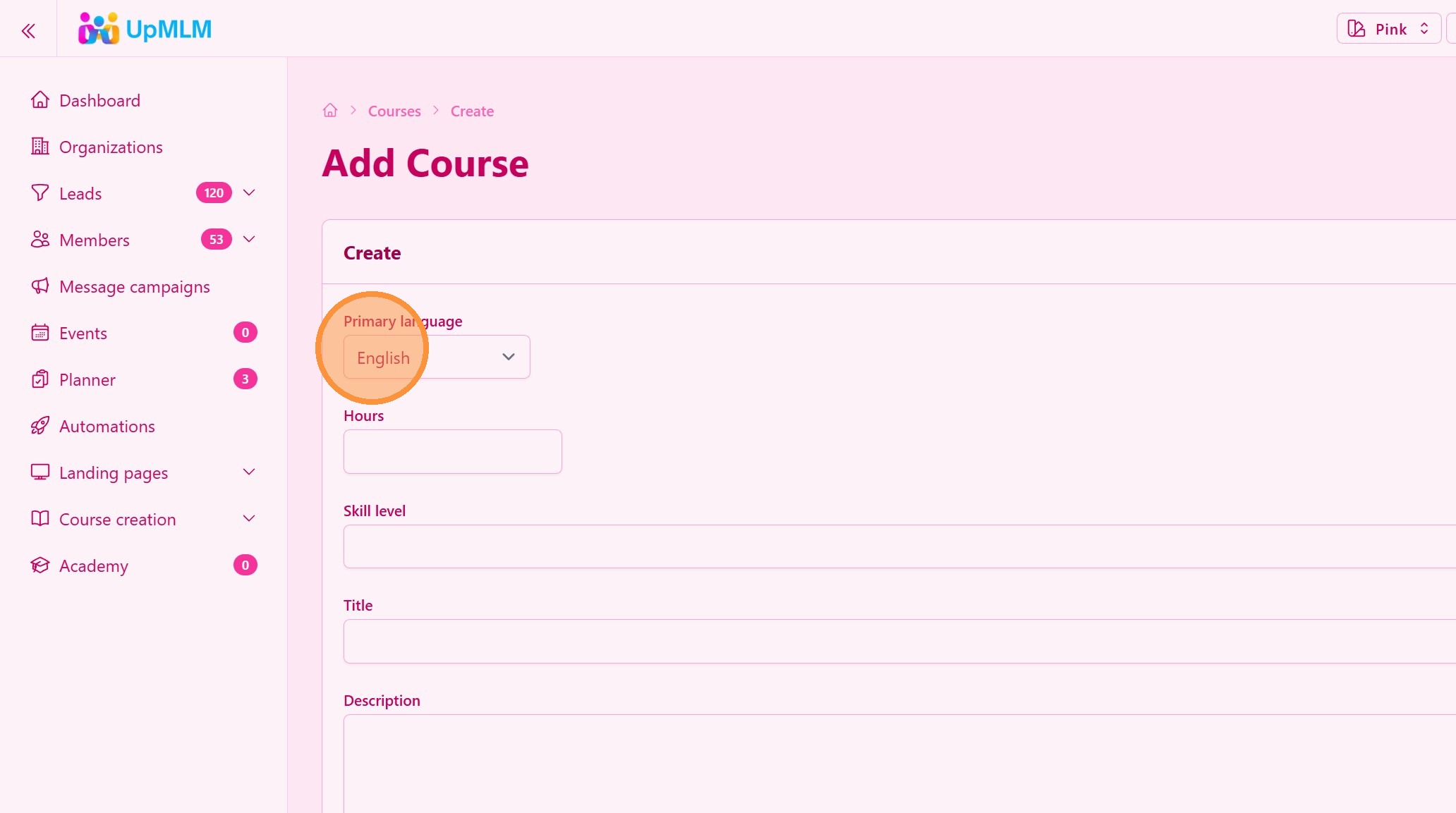
Inside the course editor, you can:
-
Set the primary language
-
Course hours
-
Skill level
-
Title
-
Description
> Structure your content in a clear, step-by-step format for better learning.
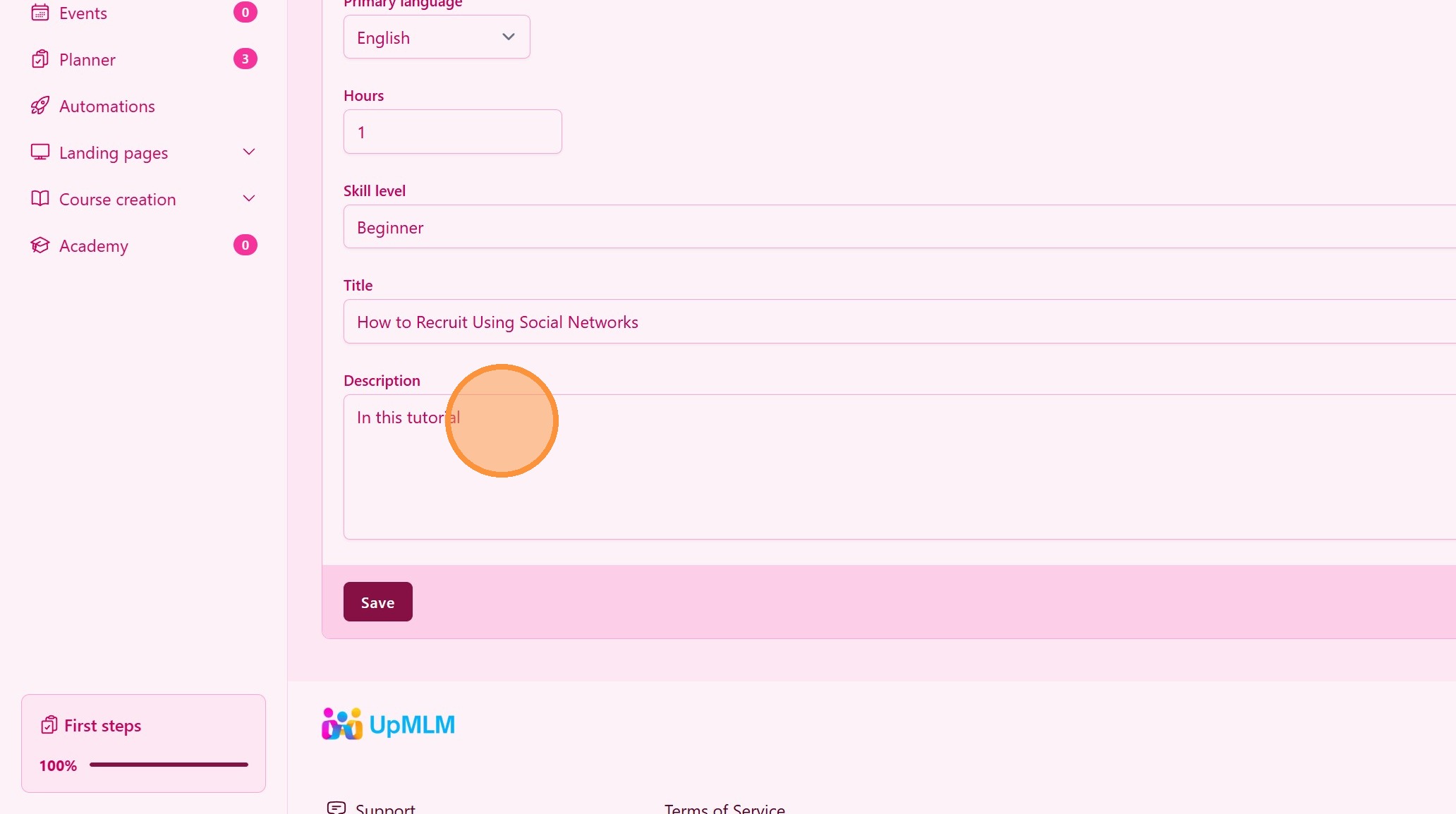
3. Save Course
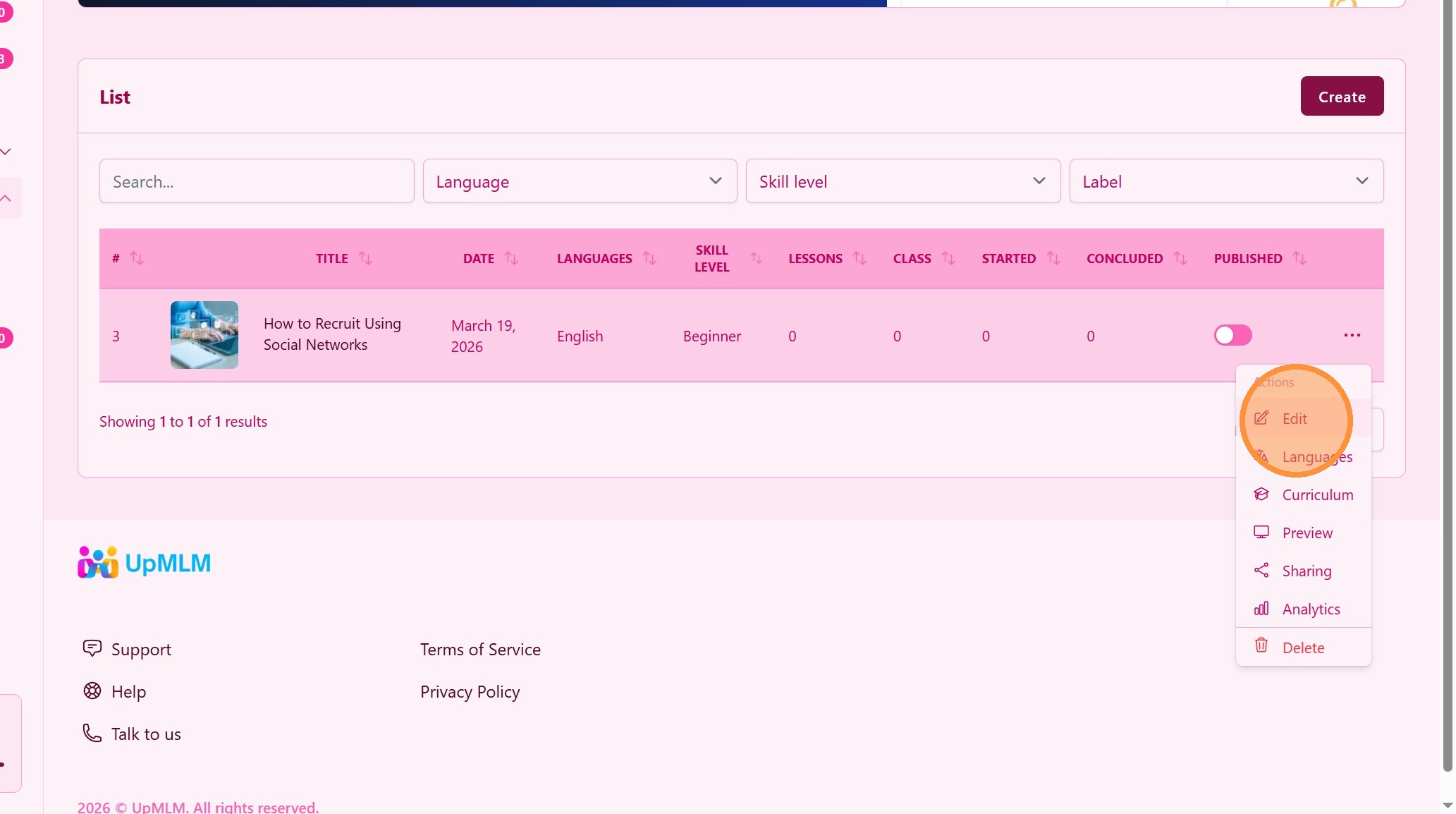
4. Click Edit
Inside the course editor, you can edit more details
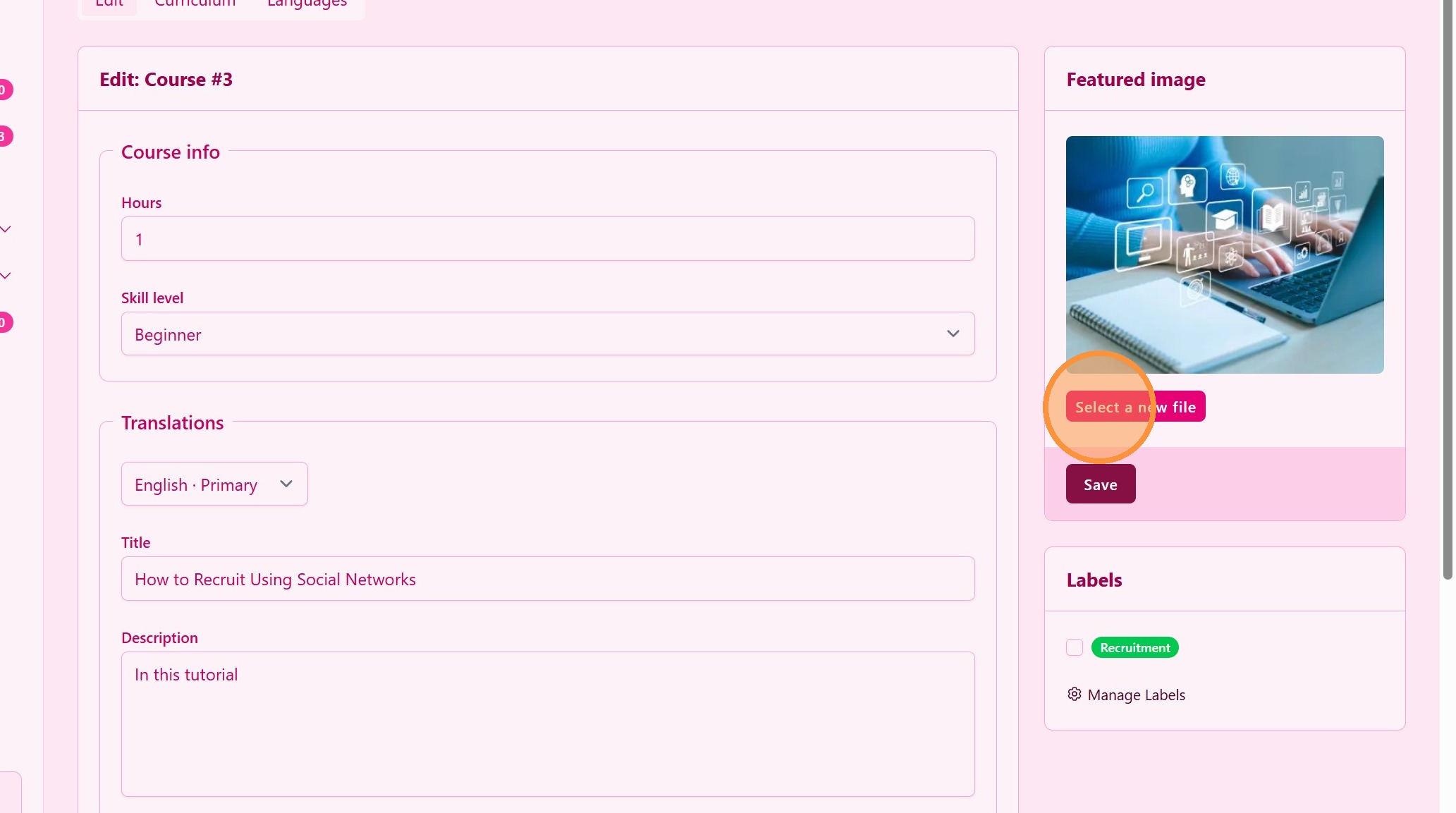
5. Course Cover
Choose a course image cover
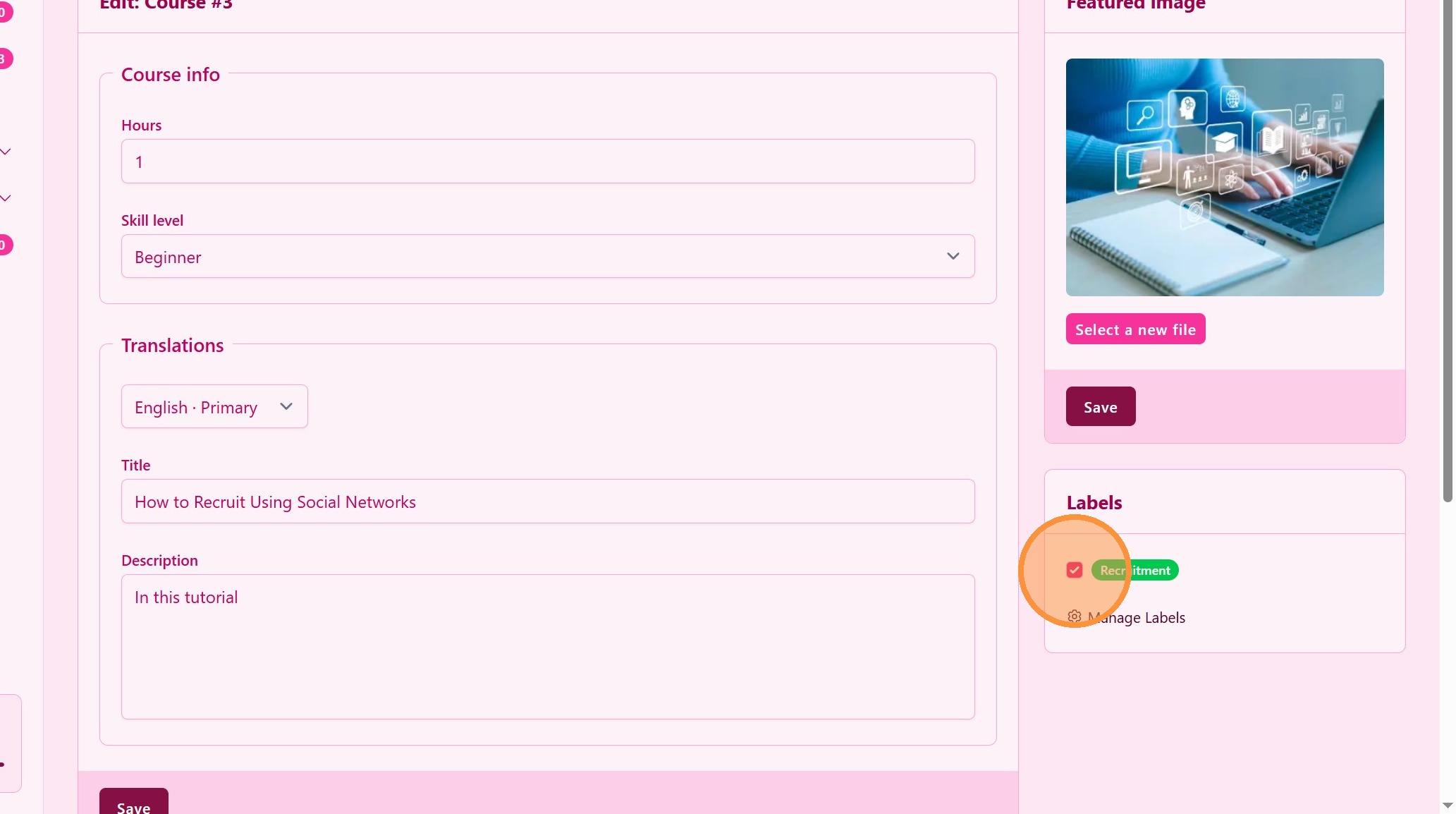
6. Course Labels
Keep your courses organized using labels
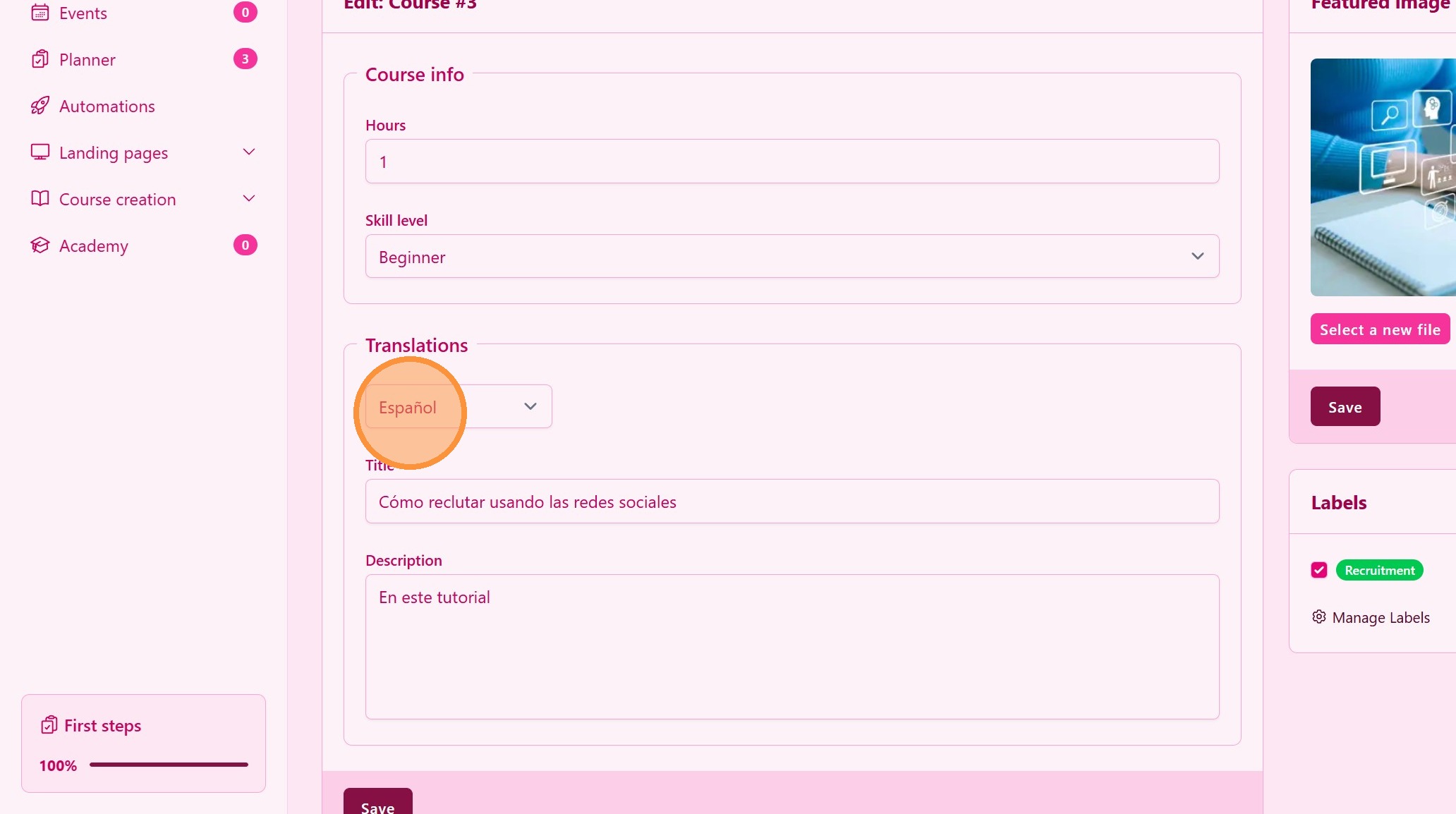
7. ### Manage Languages
Locate the Translations option.
Add new language versions.
When you select a new language you get a draf from the primary language version.
Manualy translate the content or use de AI translation tool.
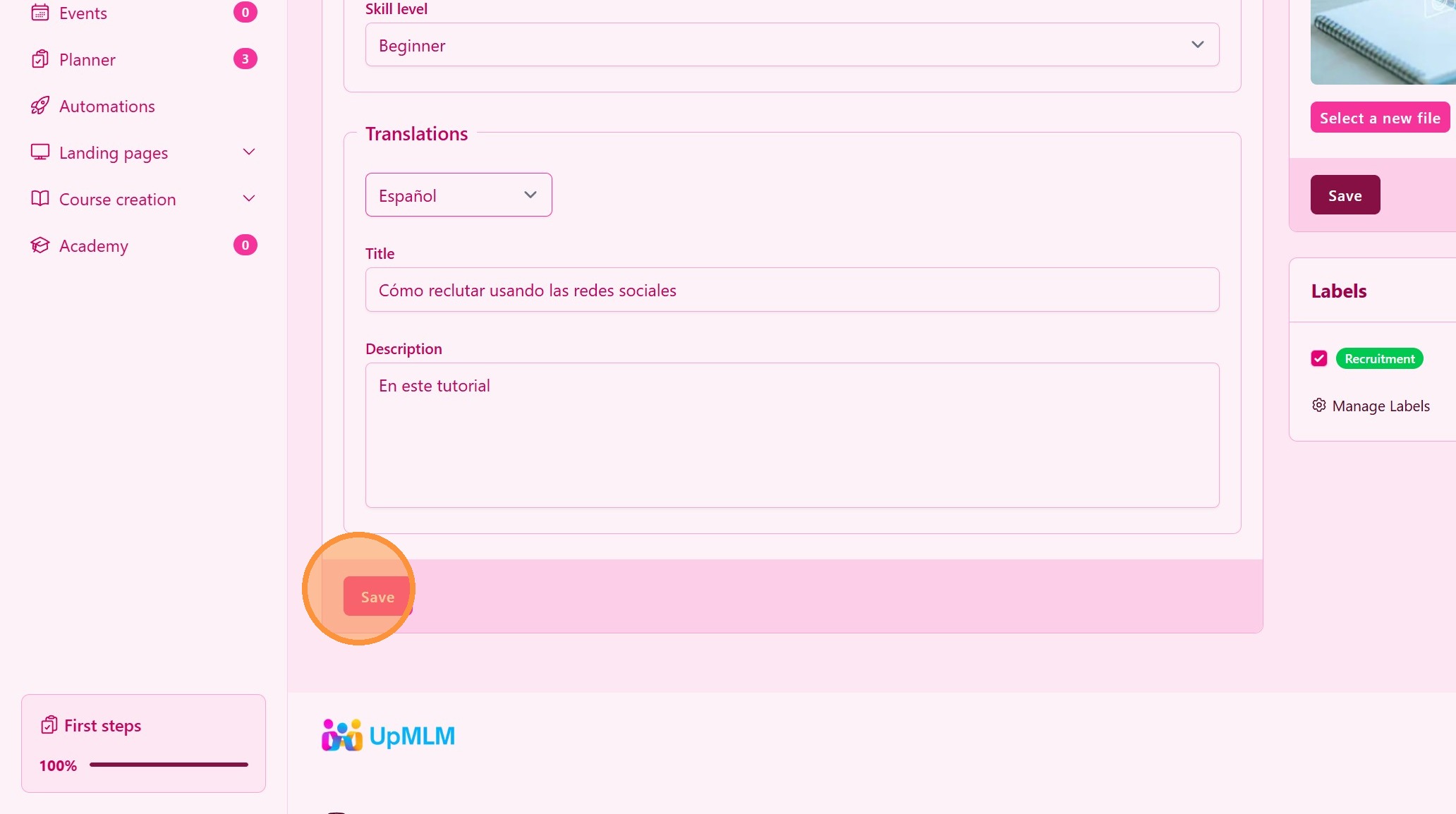
8. ### Save and Publish
Once your content and languages are ready, click Save.
> Your course will be available to your team in the selected languages.
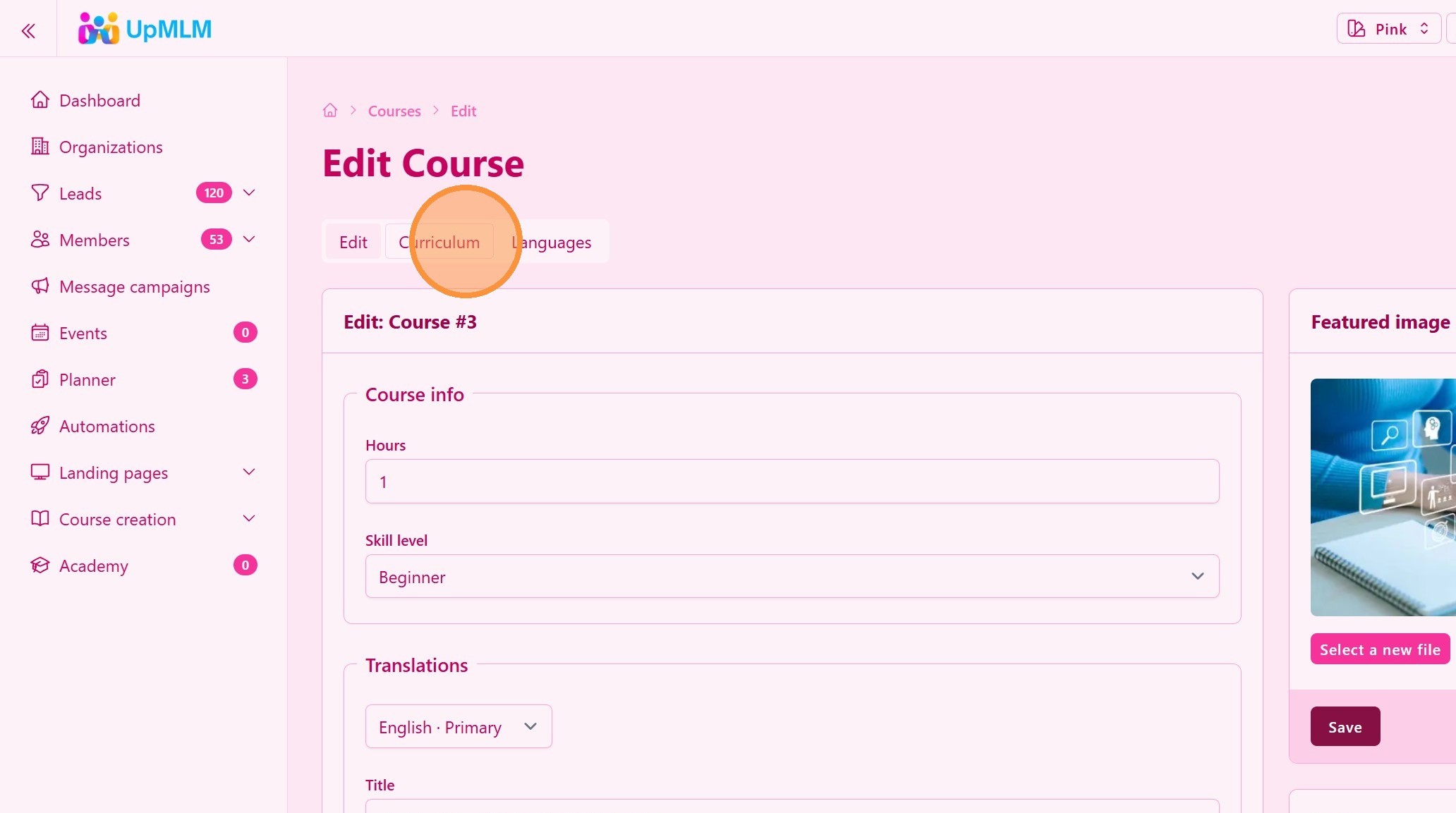
9. Create Course Curriculum
Click Curriculum
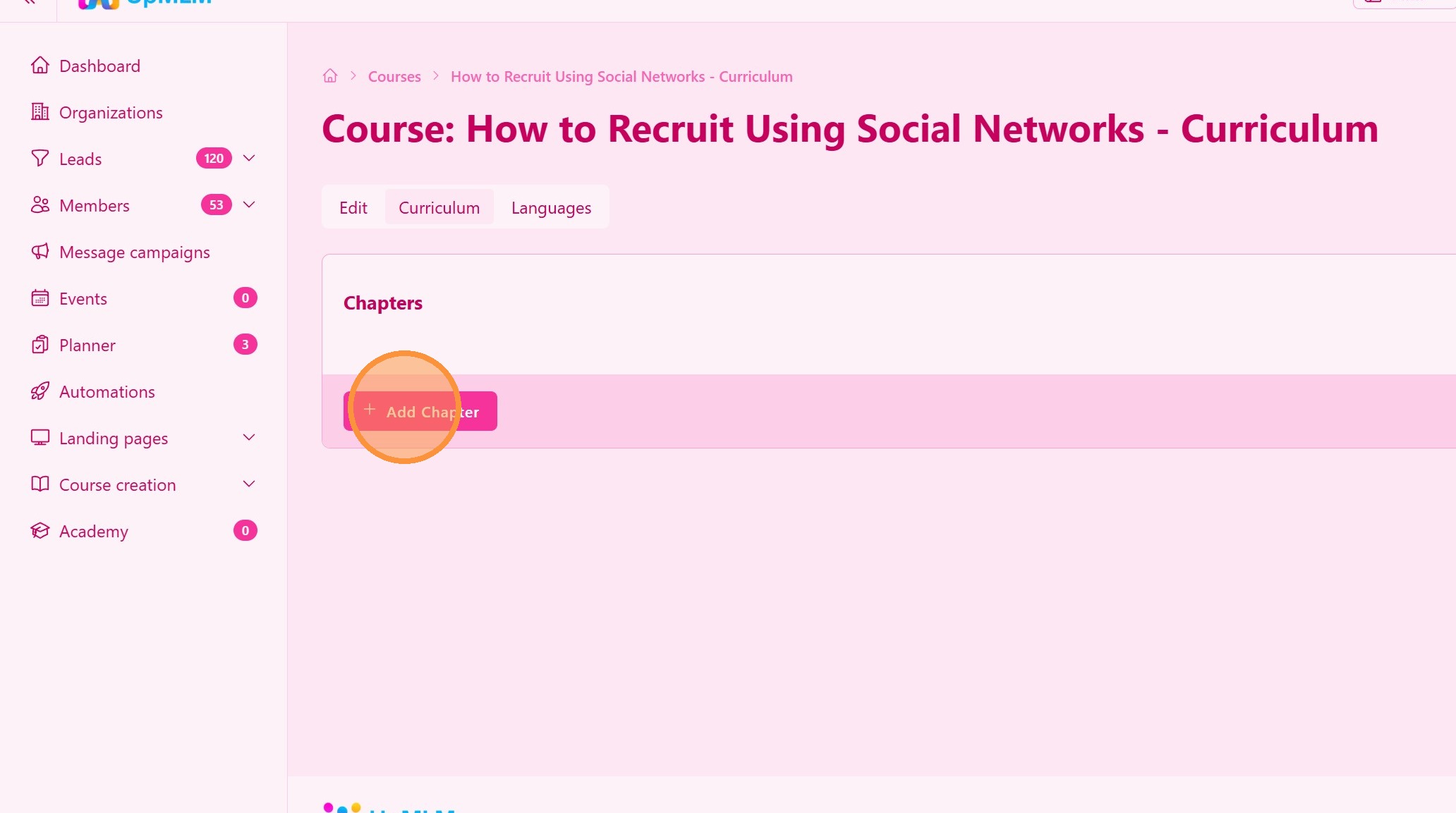
10. Click “Add Chapter”
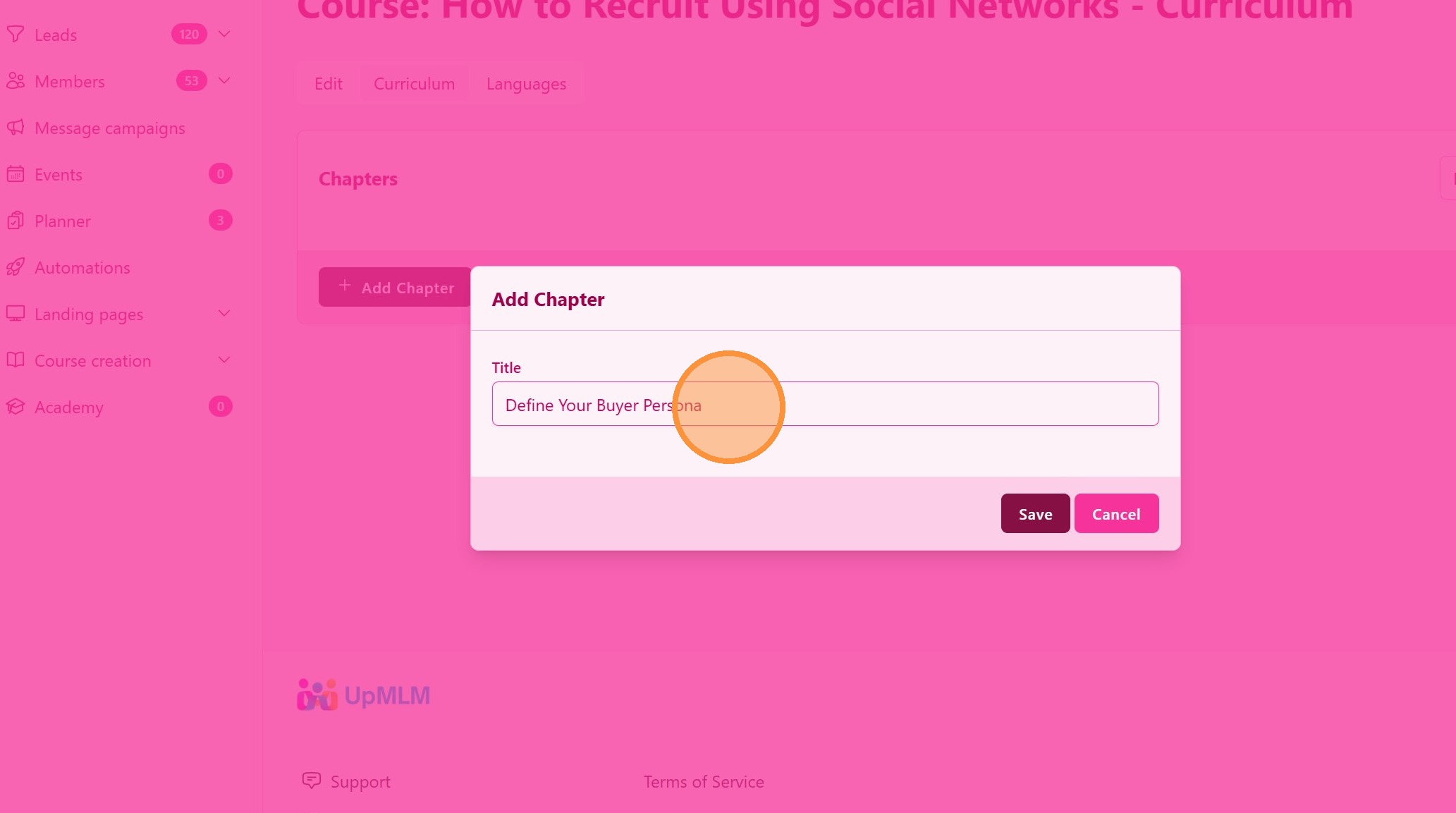
11. Chapter Title
Keep your courses organized using Chapters
You can add multiple chapters and change the order they appear
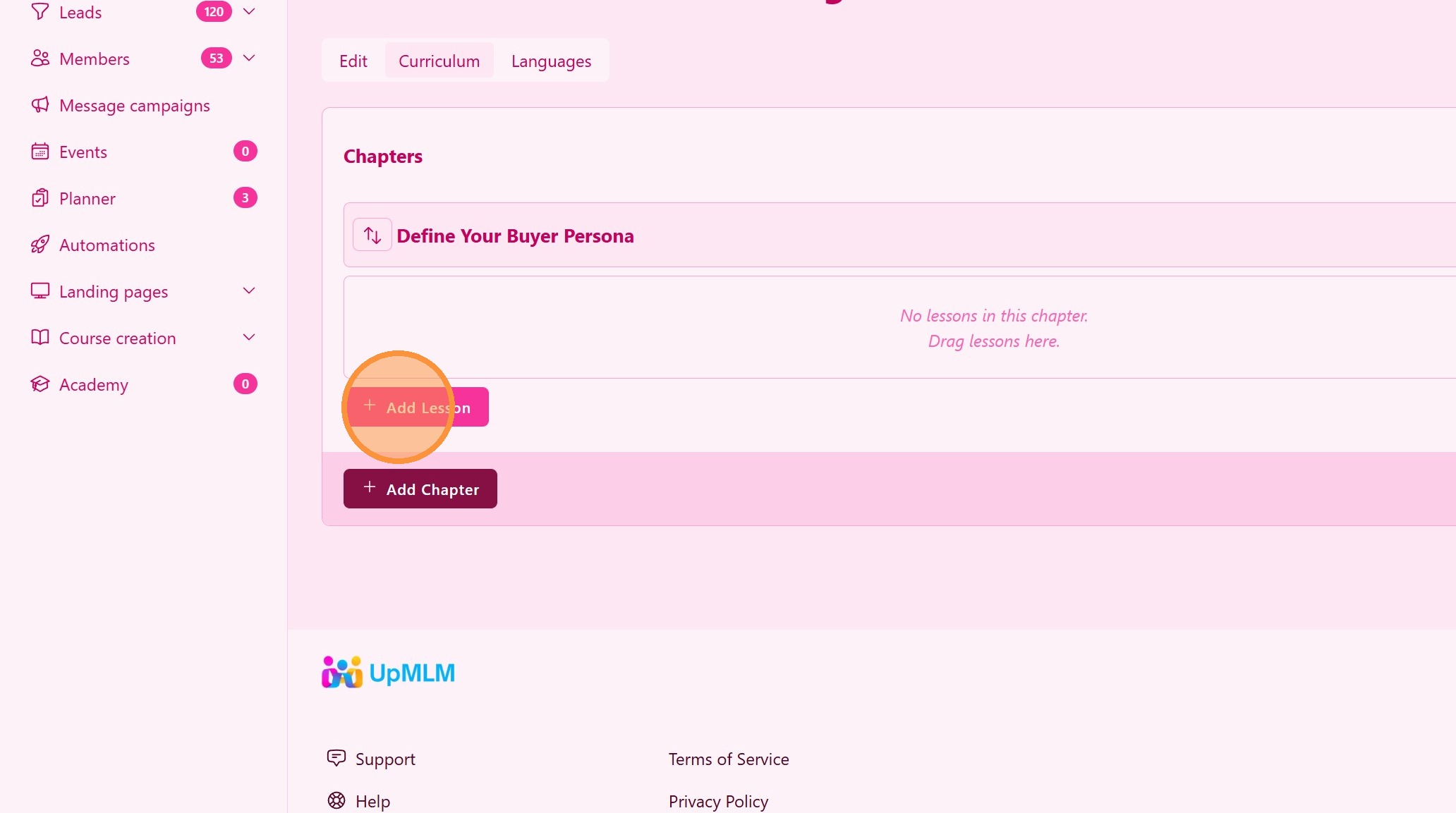
12. Click “Add Lesson”
Here you can:
- Add multiple lessons
- Organize the lesson order
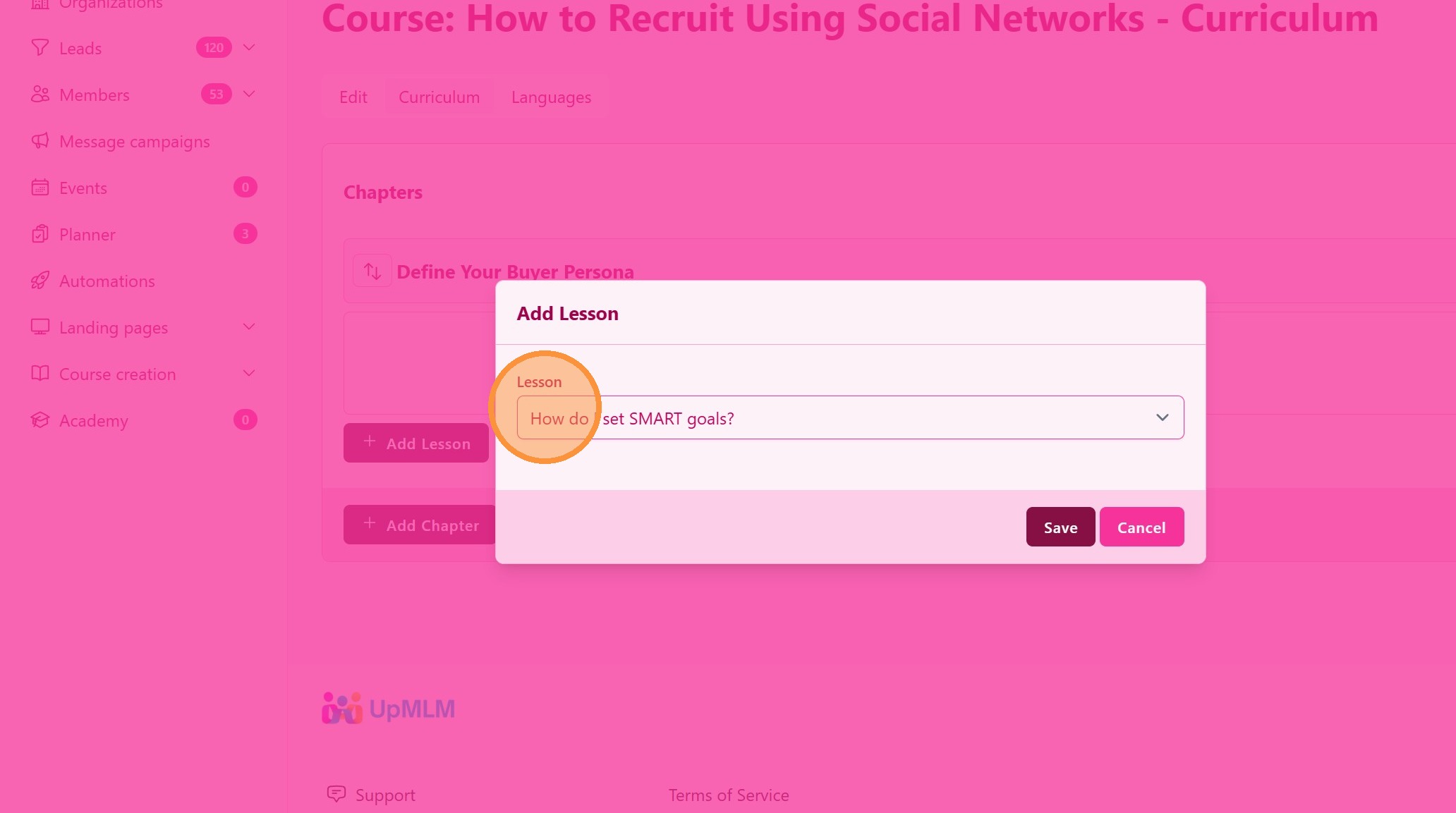
13. Select Lesson
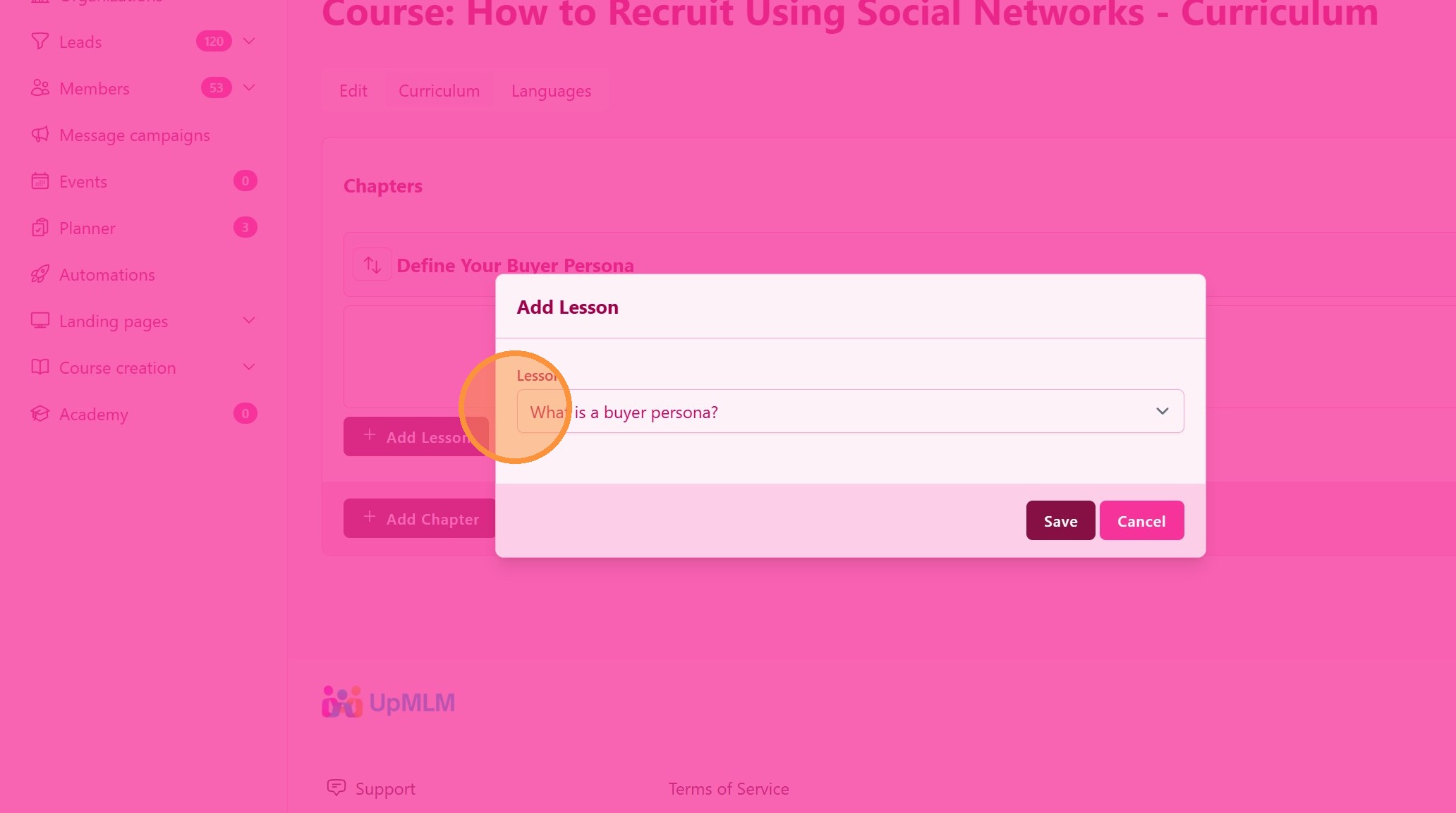
Here you select the lesson from the list of lessons you created
On the next steps you will learn how to create and add lessons to this list
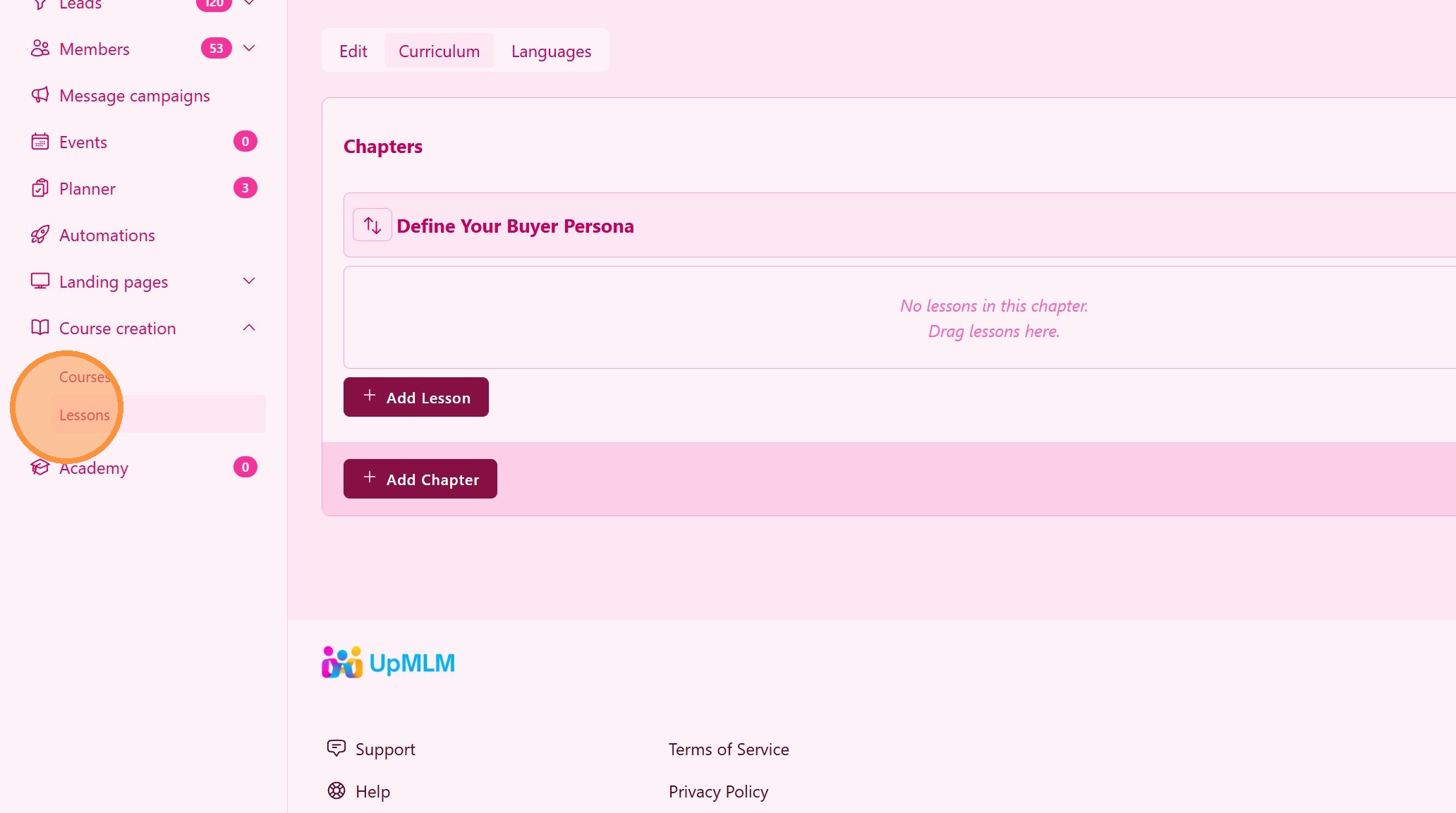
14. How to create lessons
Click “Lessons”
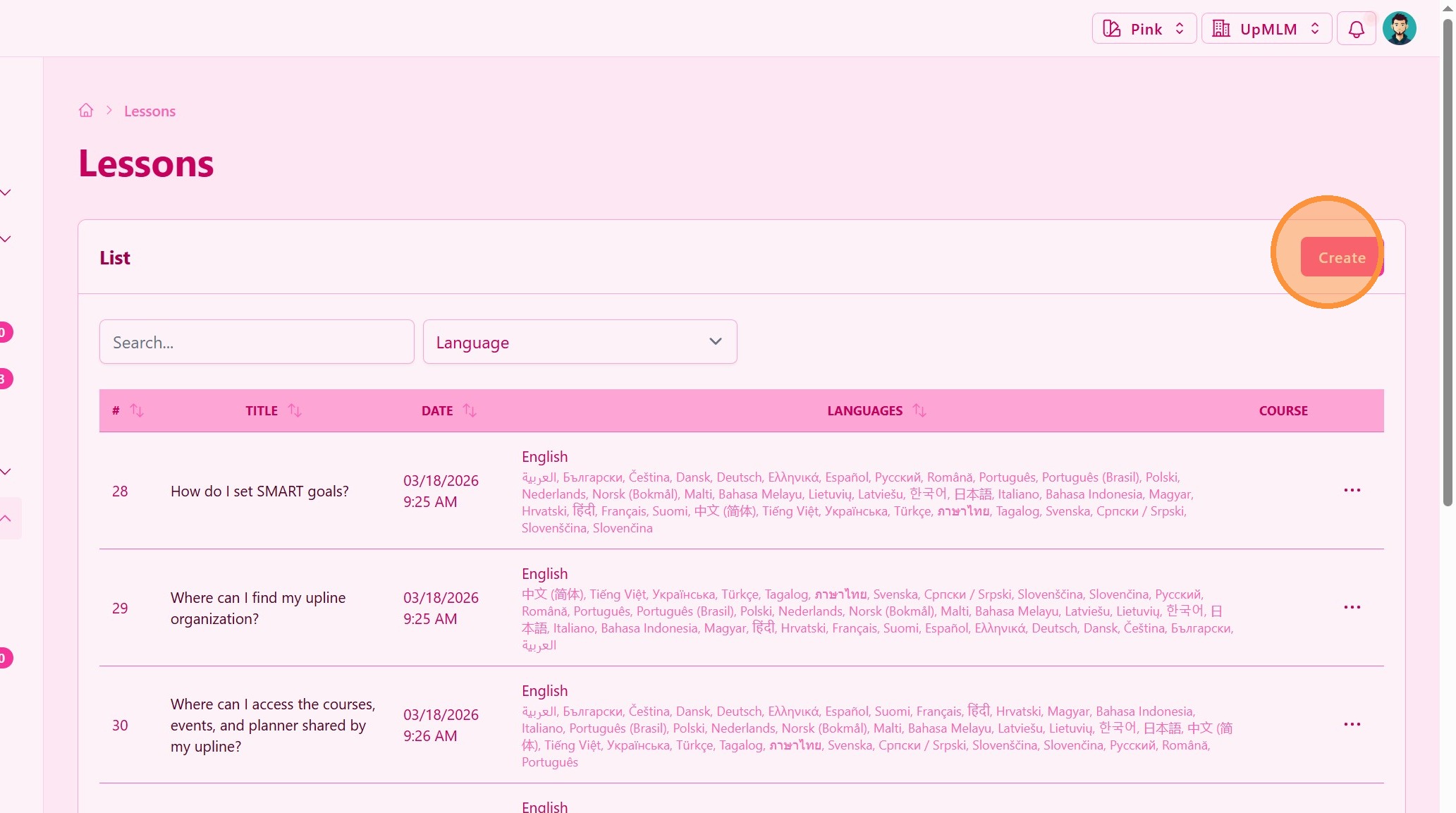
15. Click “Create”
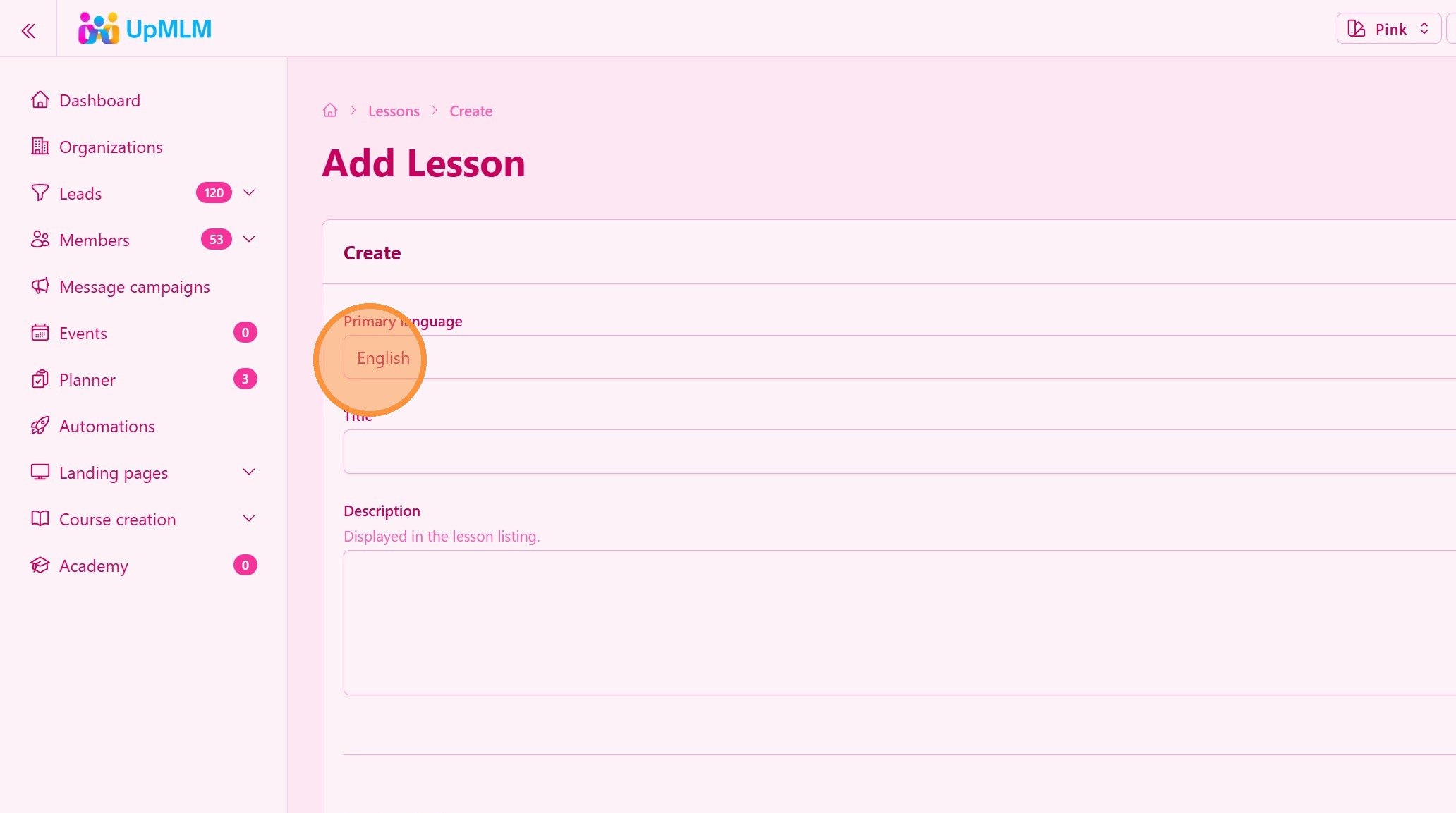
16. ### Edit Lesson Content
Inside the lesson editor, you can:
-
Set the primary language
-
Title
-
Description
-
Main content
> Structure your content in a clear, step-by-step format for better learning.
17. Click “Save”
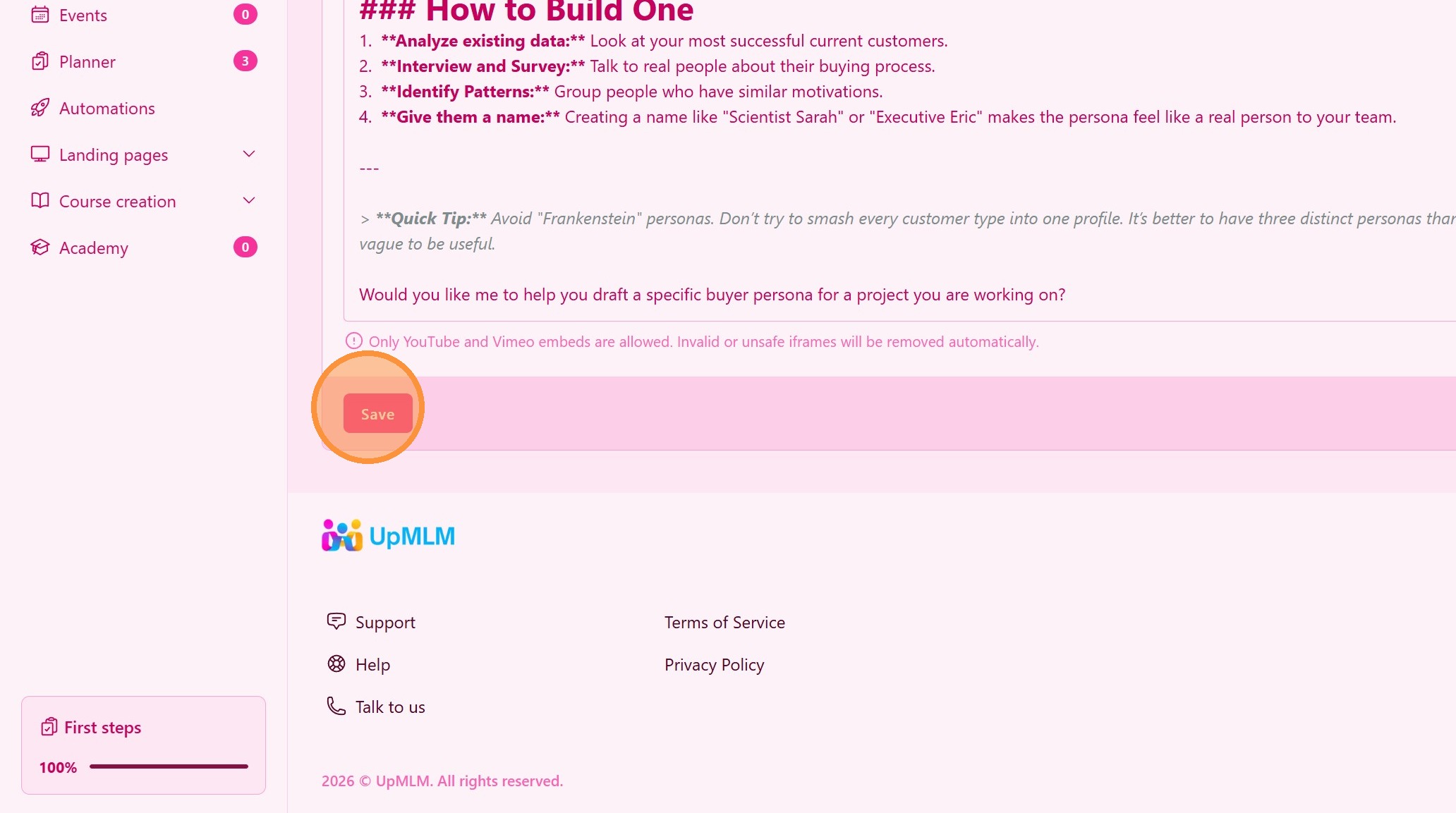
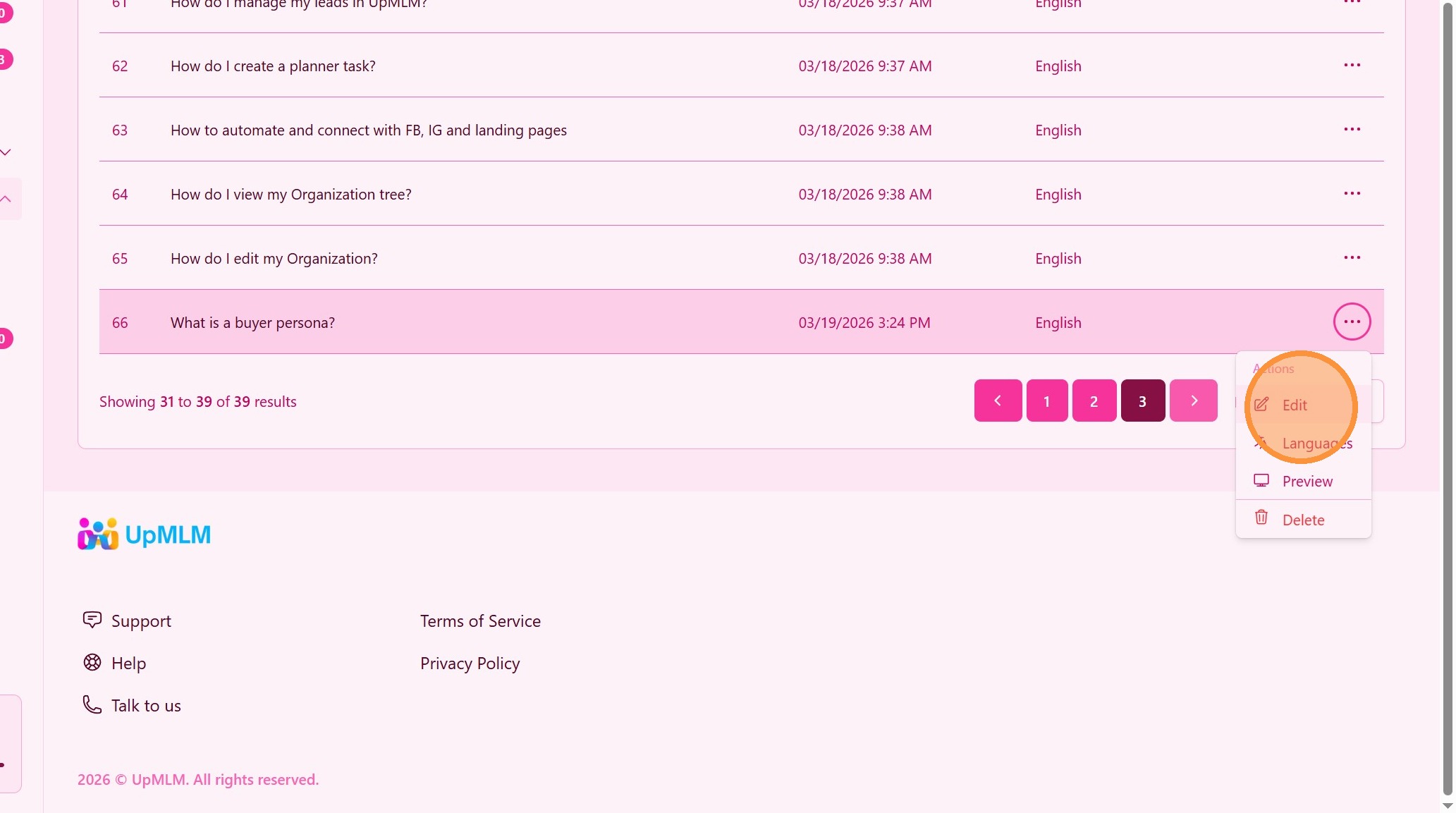
18. Add new language translation
Click lesson “Edit”
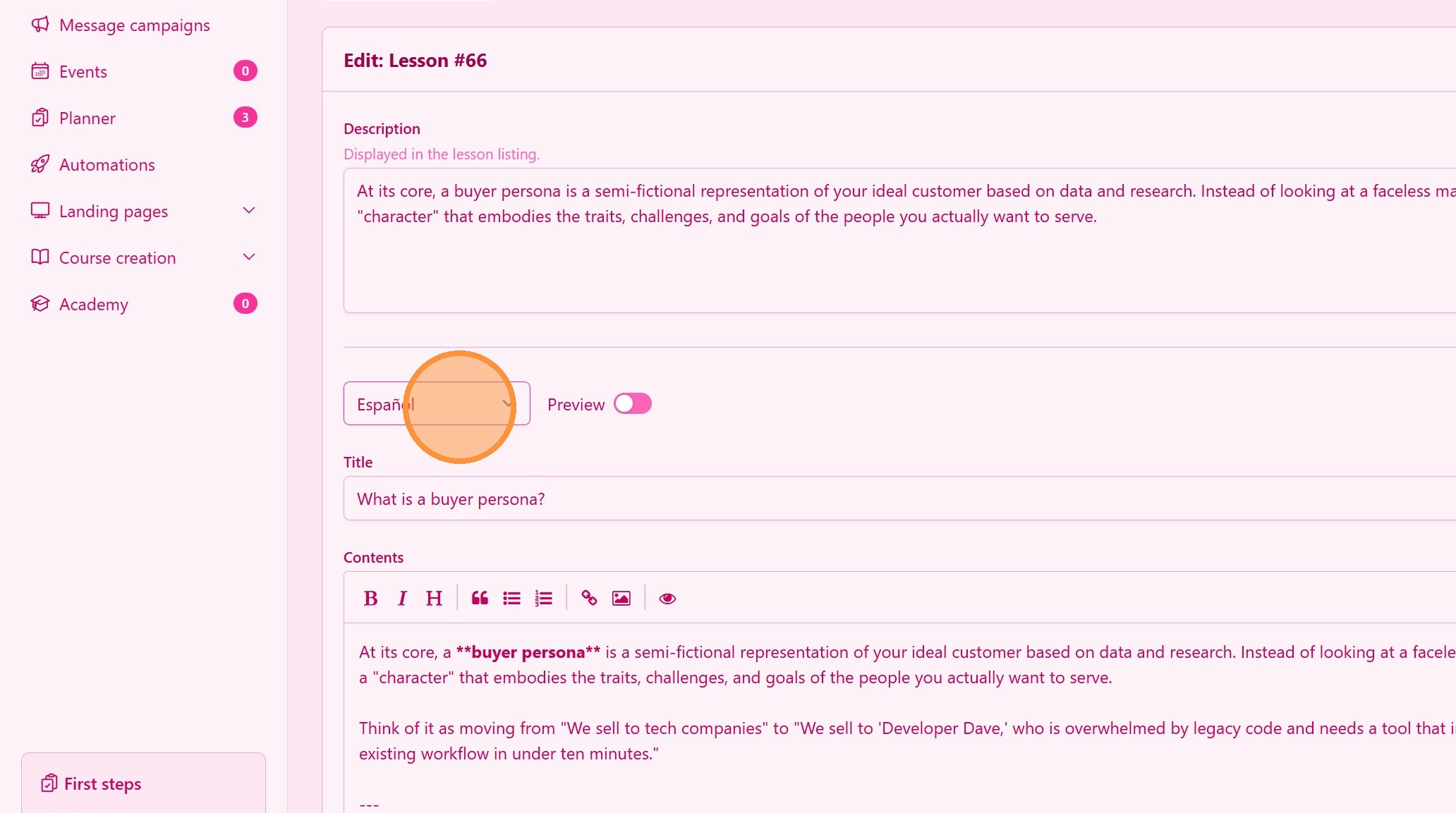
19. Translate a lesson
- Select the new language option.
- Translate lesson content (you will see a copy of the lesson in the primary language)
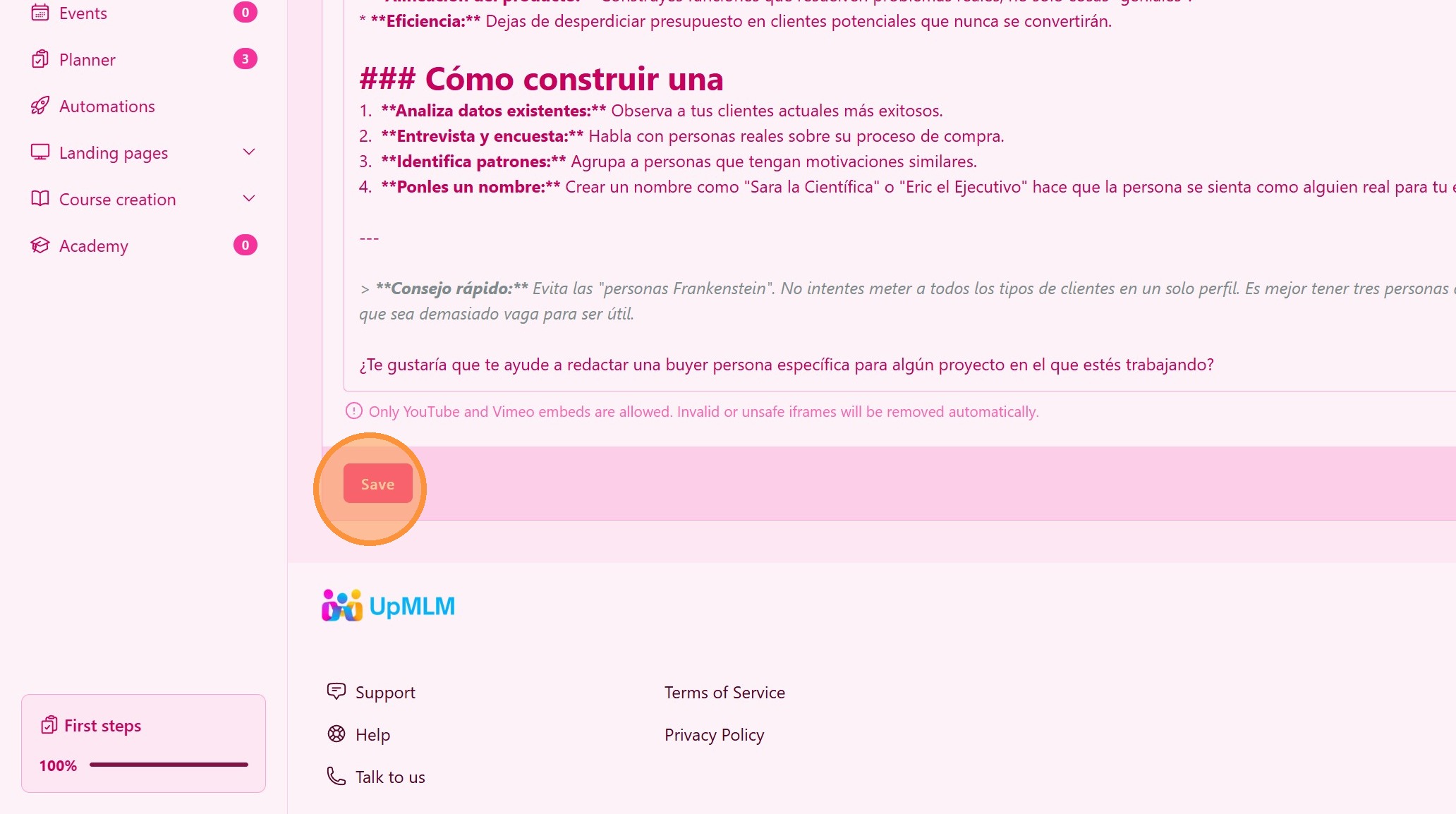
20. Click “Save”
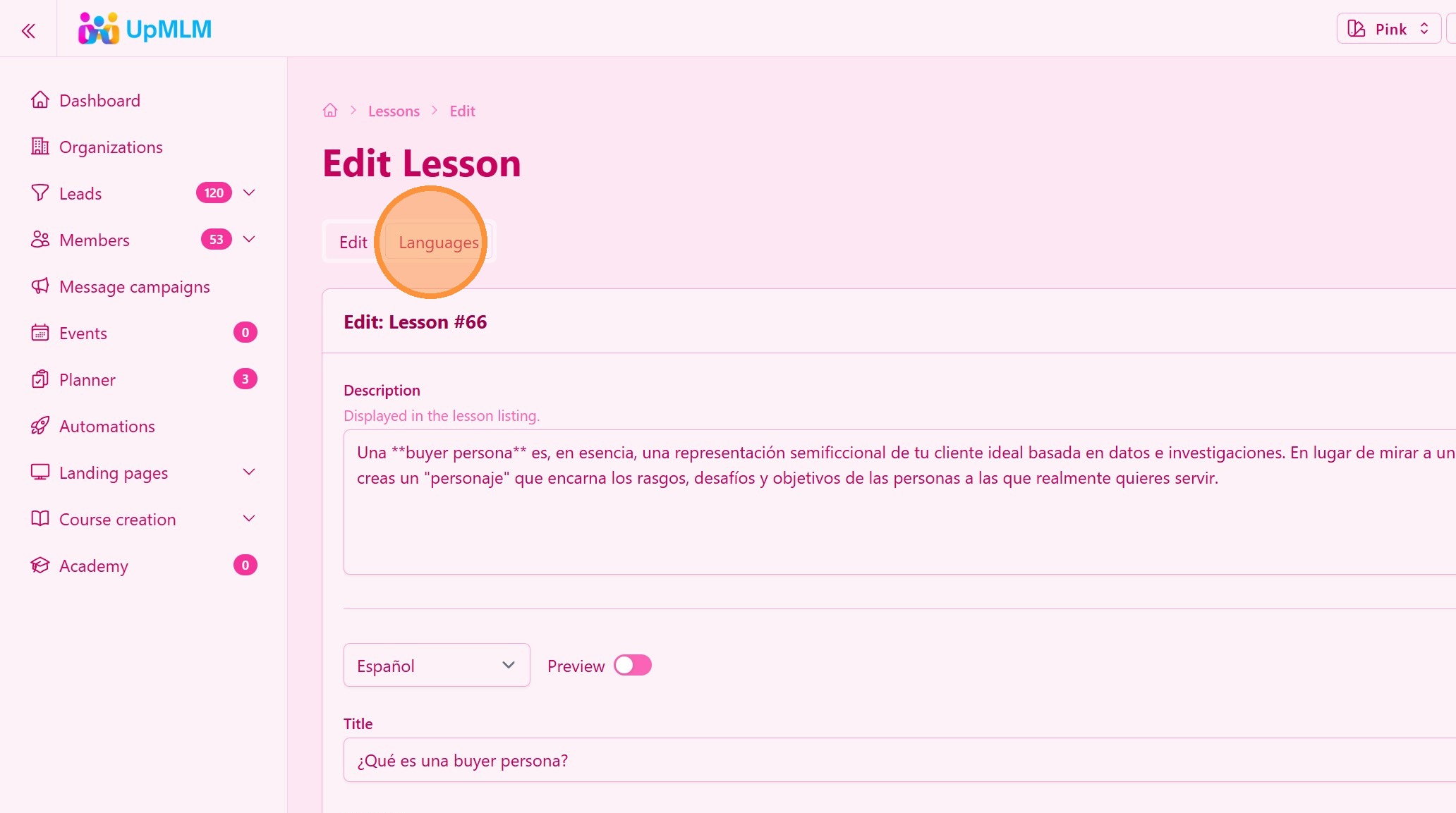
21. Publish the new language translation
The lesson content is in draf mode, to make it visible click “Languages”
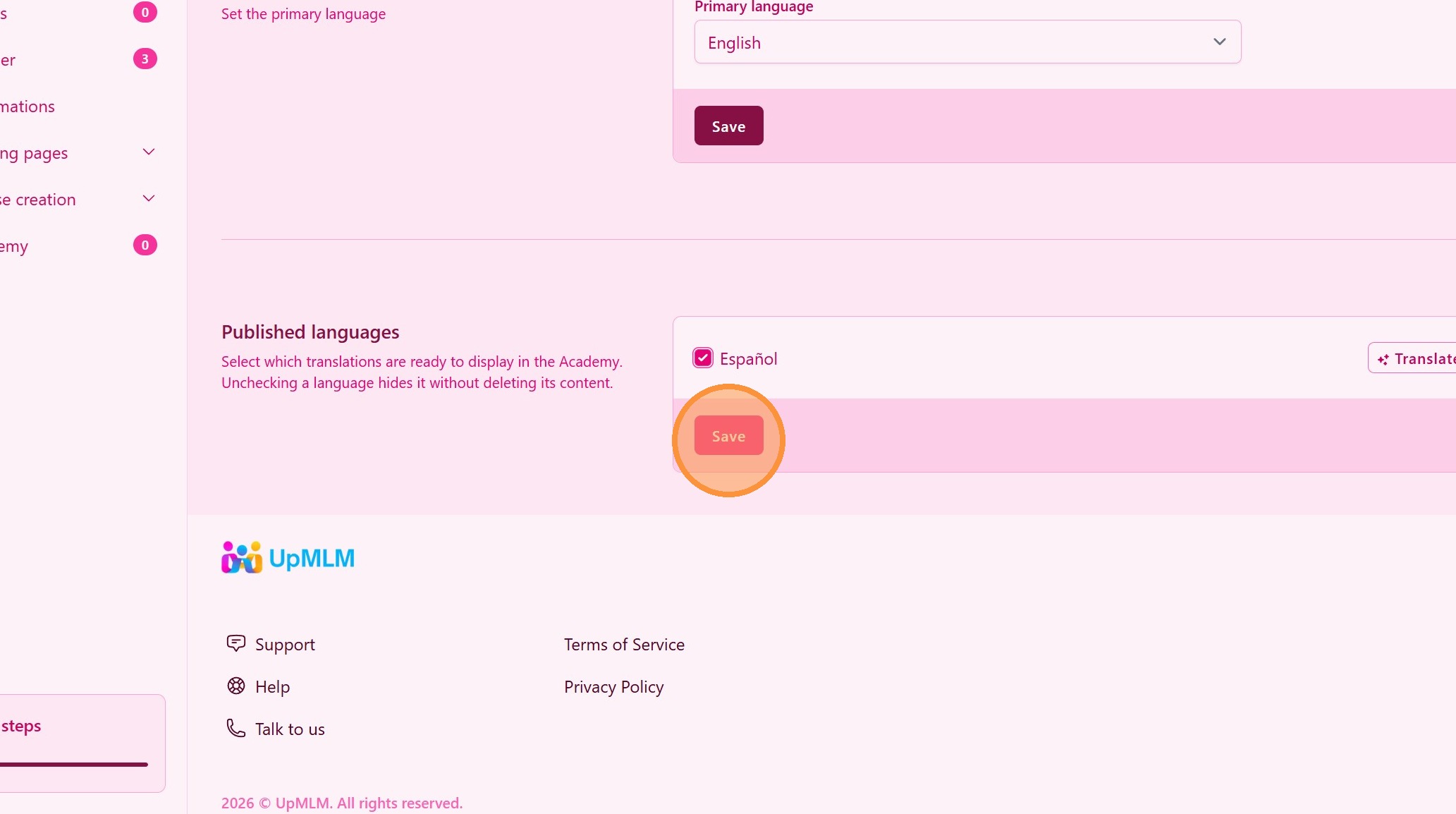
22. Enable translation
Select the language version you want to publish and click “Save”
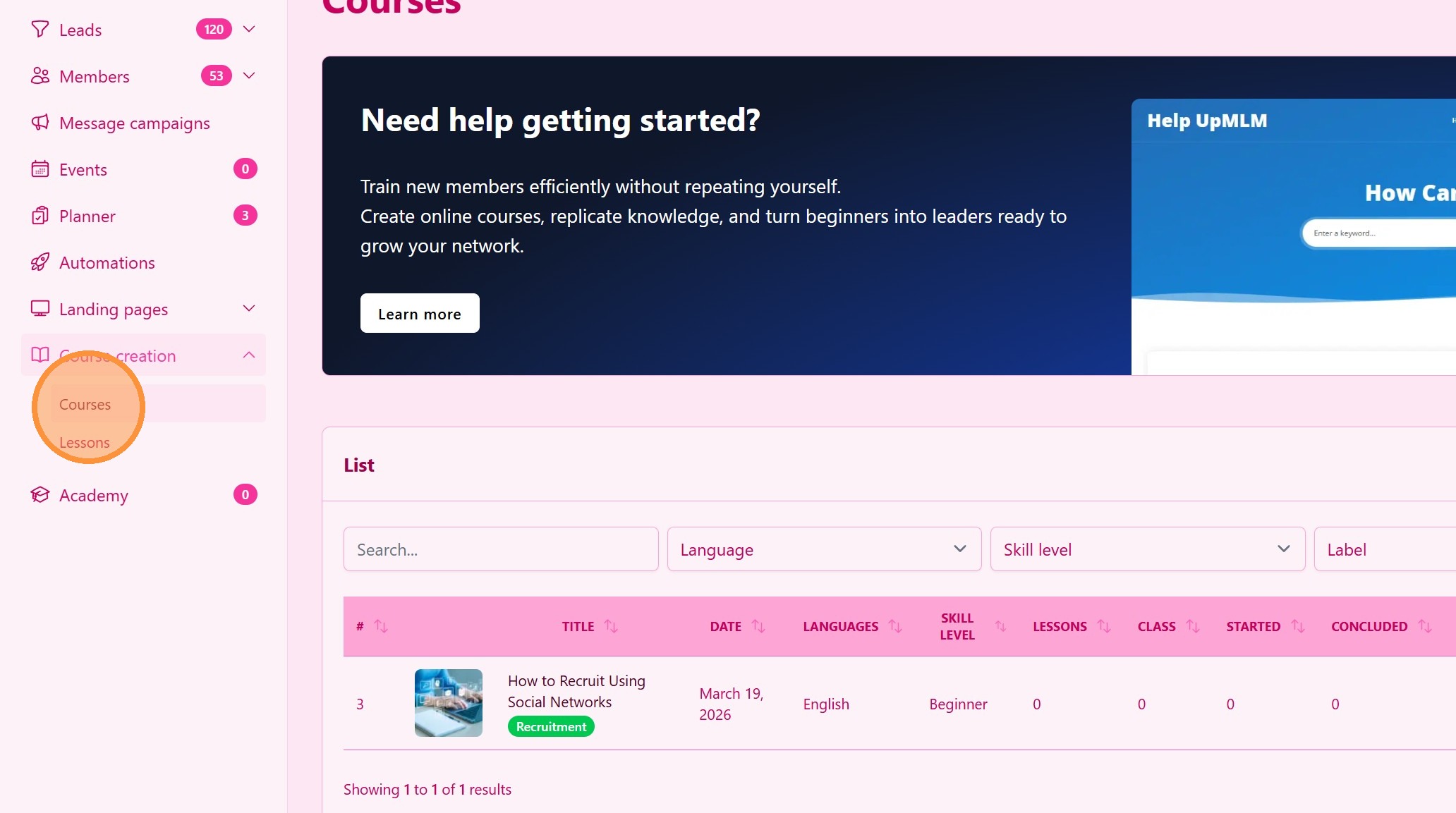
23. Add lesson to course curriculum
Click “Courses”
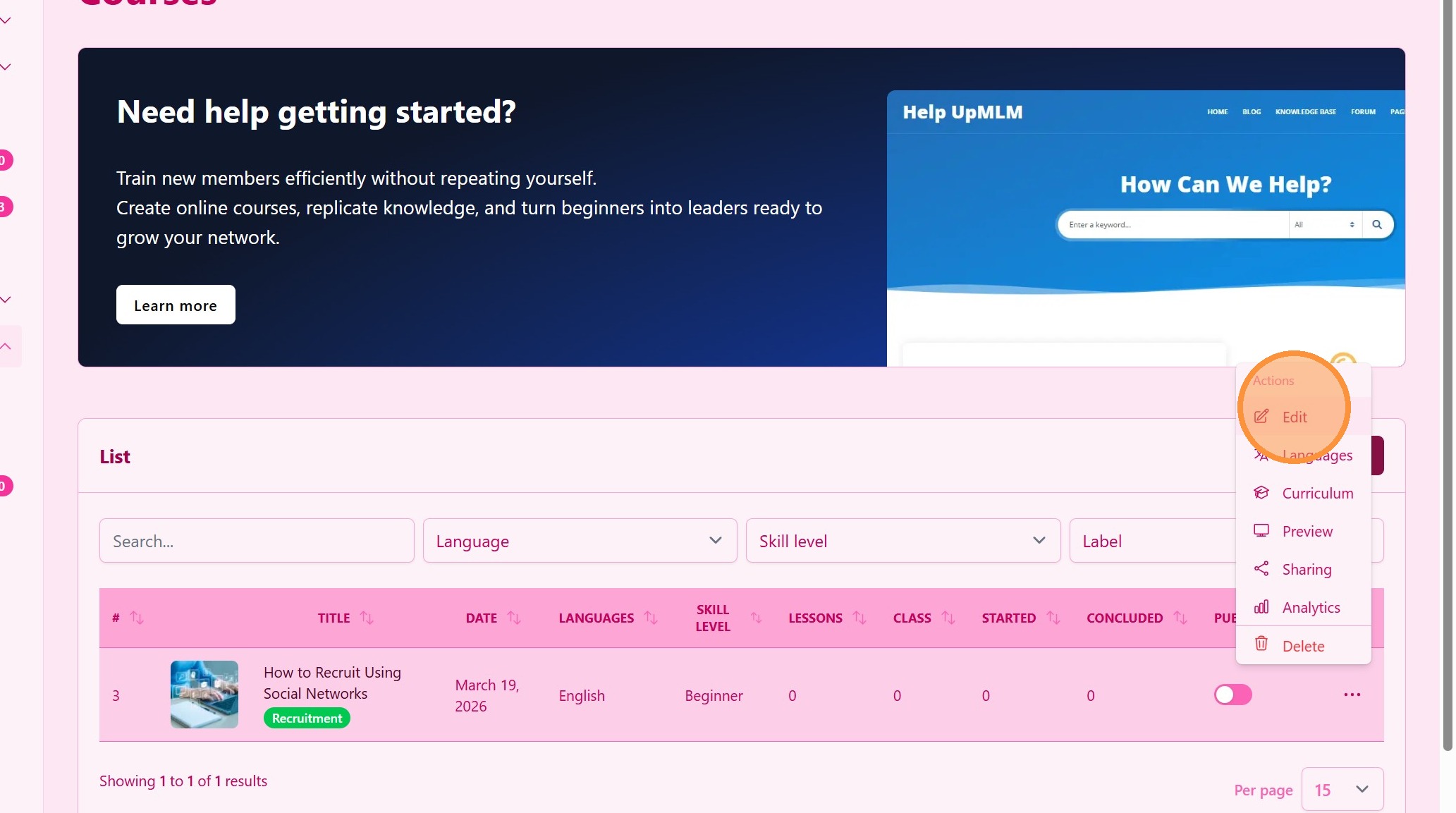
24. Click “Edit”
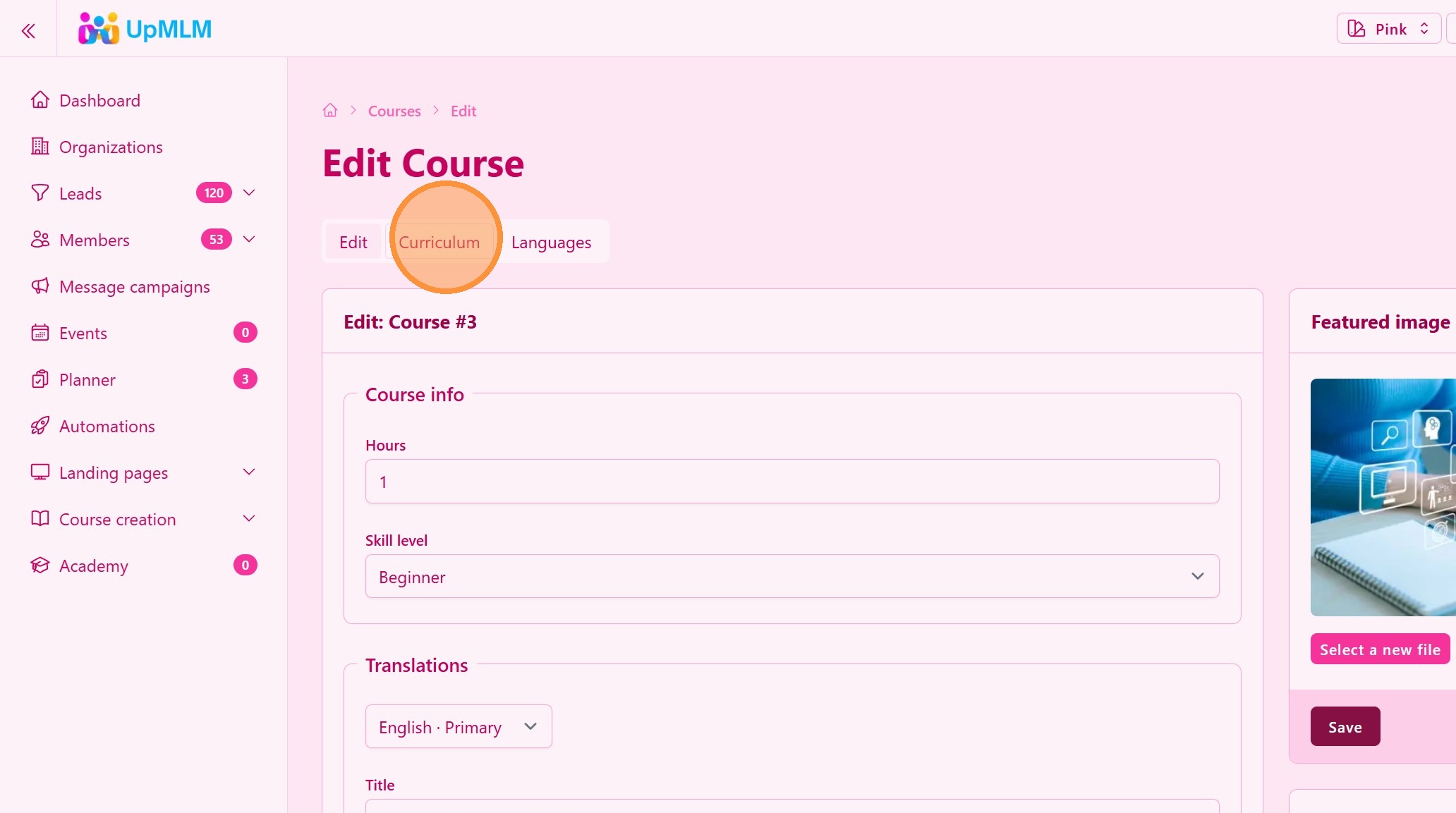
25. Click “Curriculum”
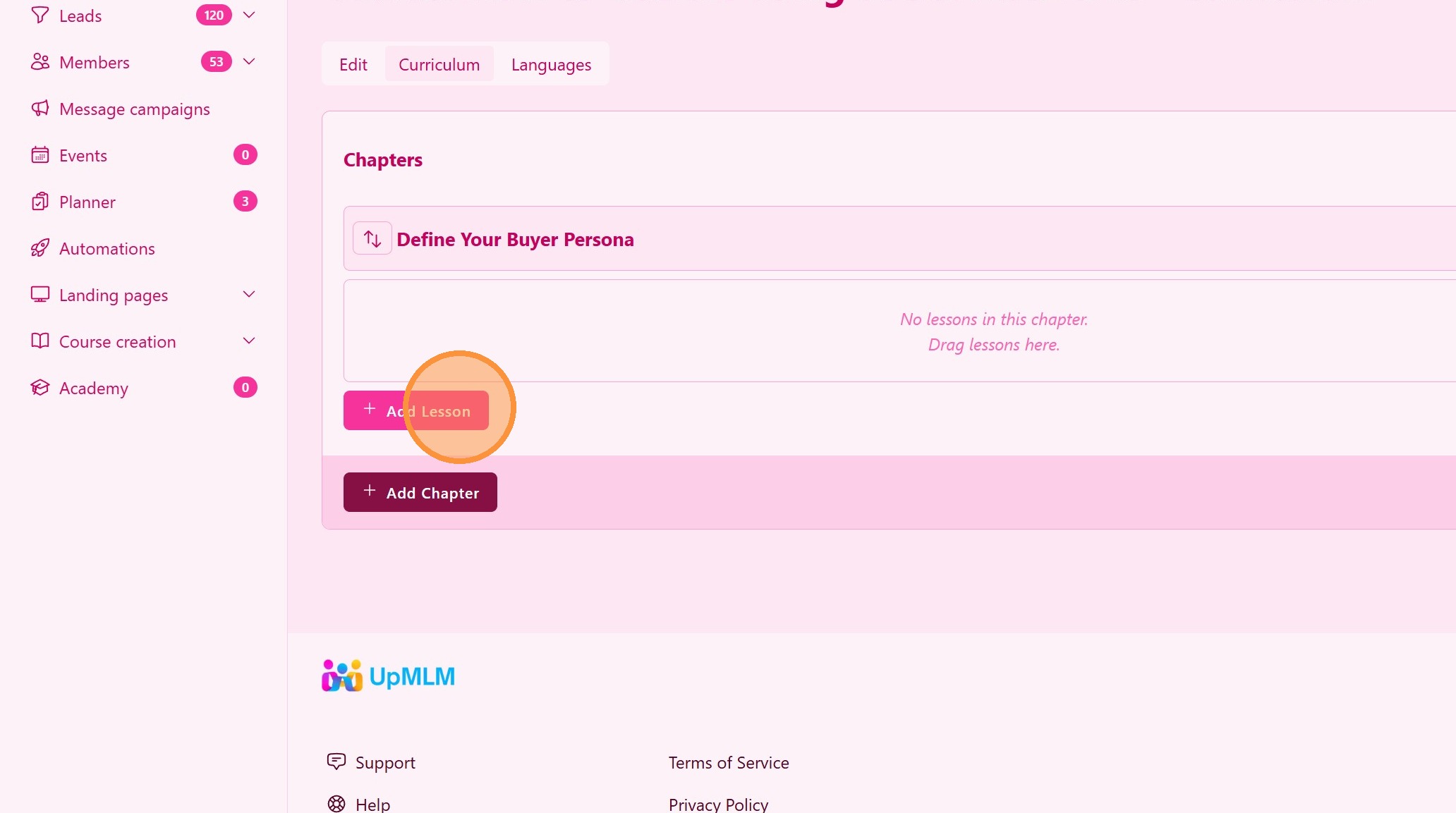
26. Click “Add Lesson”
27. Select lesson and save
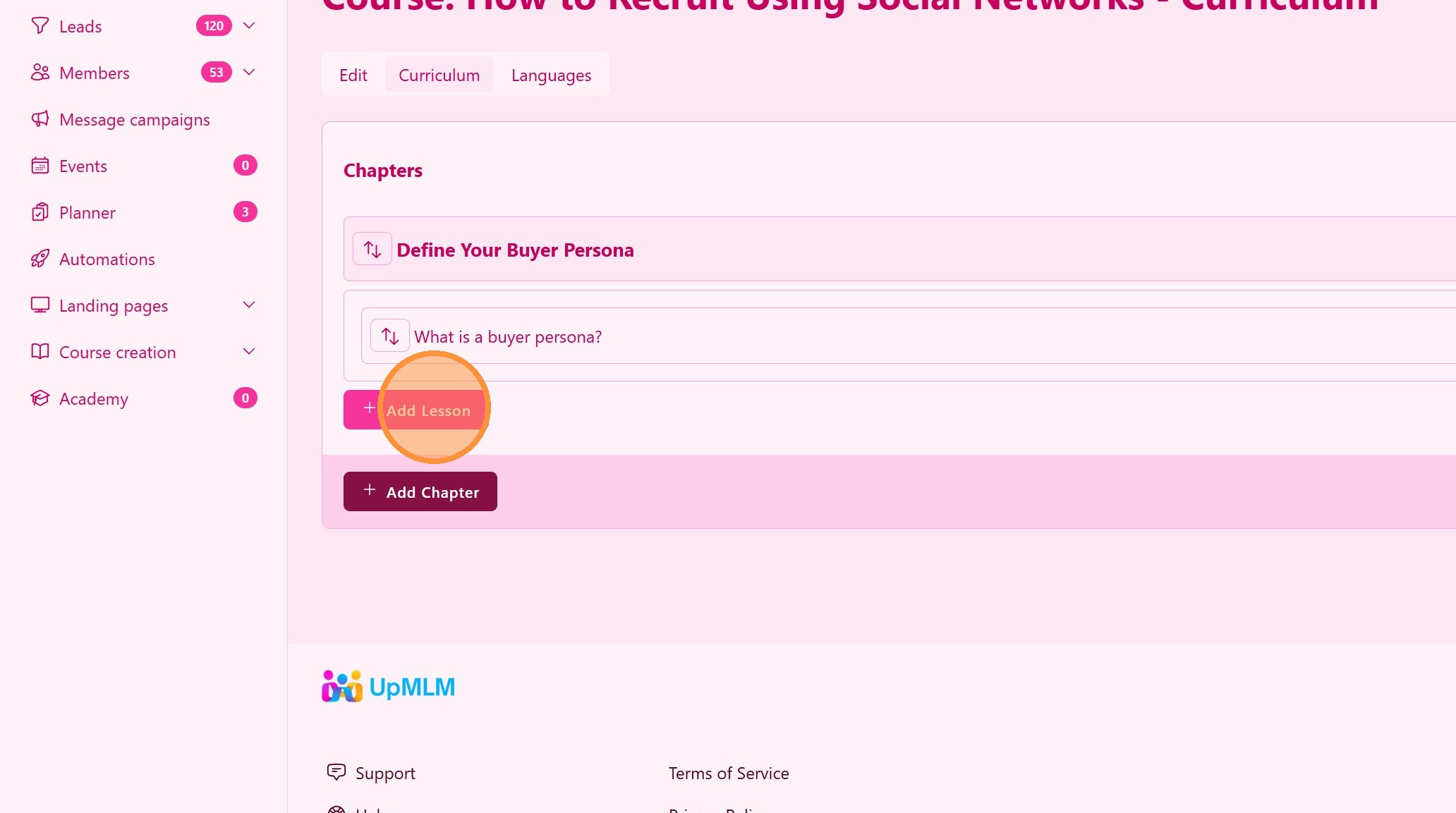
28. Add more lessons
Click “Add Lesson” to add more lessons, you can reuse lessons from other courses
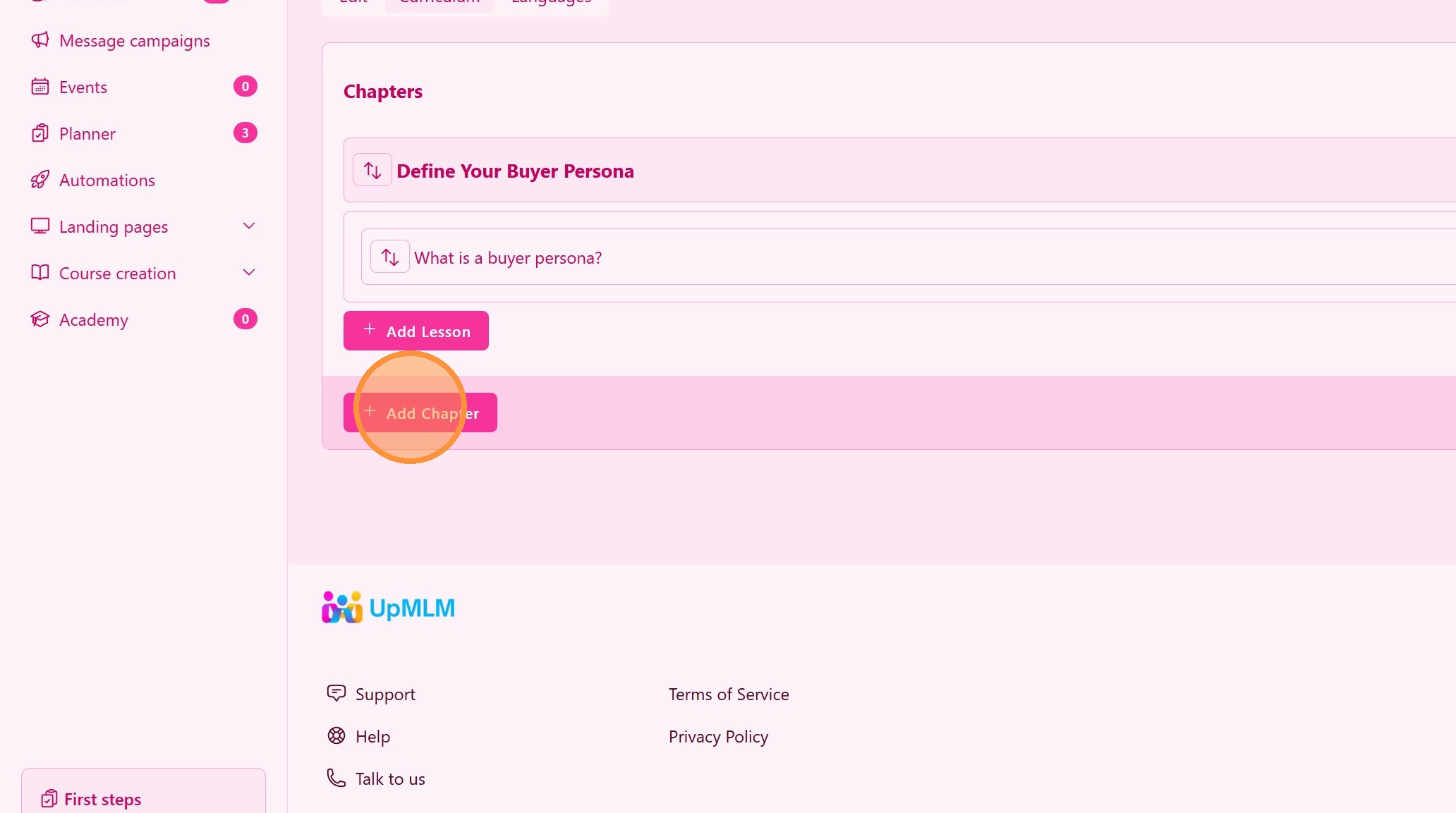
29. Add Chapter
Click “Add Chapter” to create new chapter and add more lessons.
Chapters and lessons can be reorganized
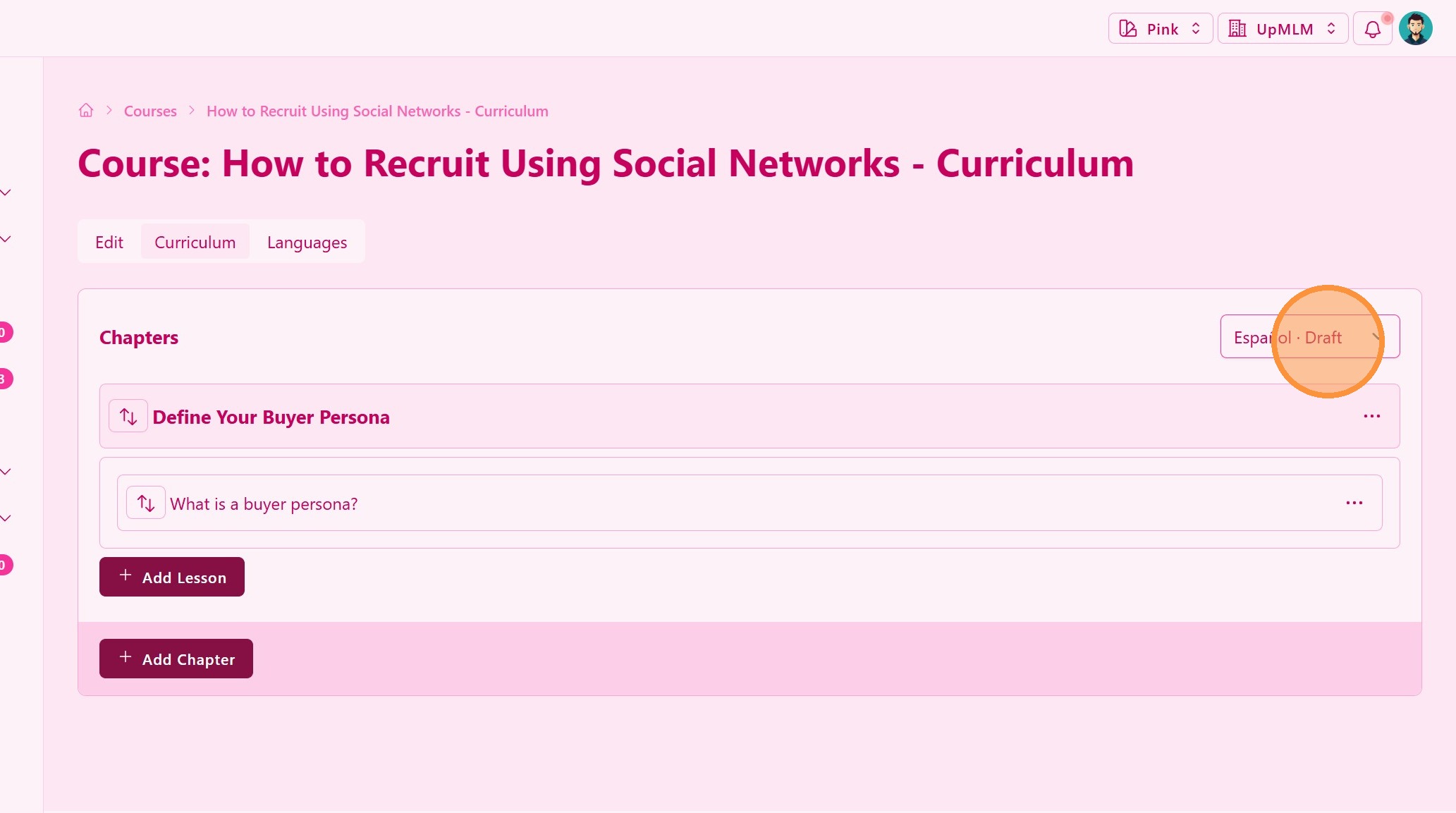
30. Check Translations
Course translations are in draft mode, see next steps on how to make this transation public
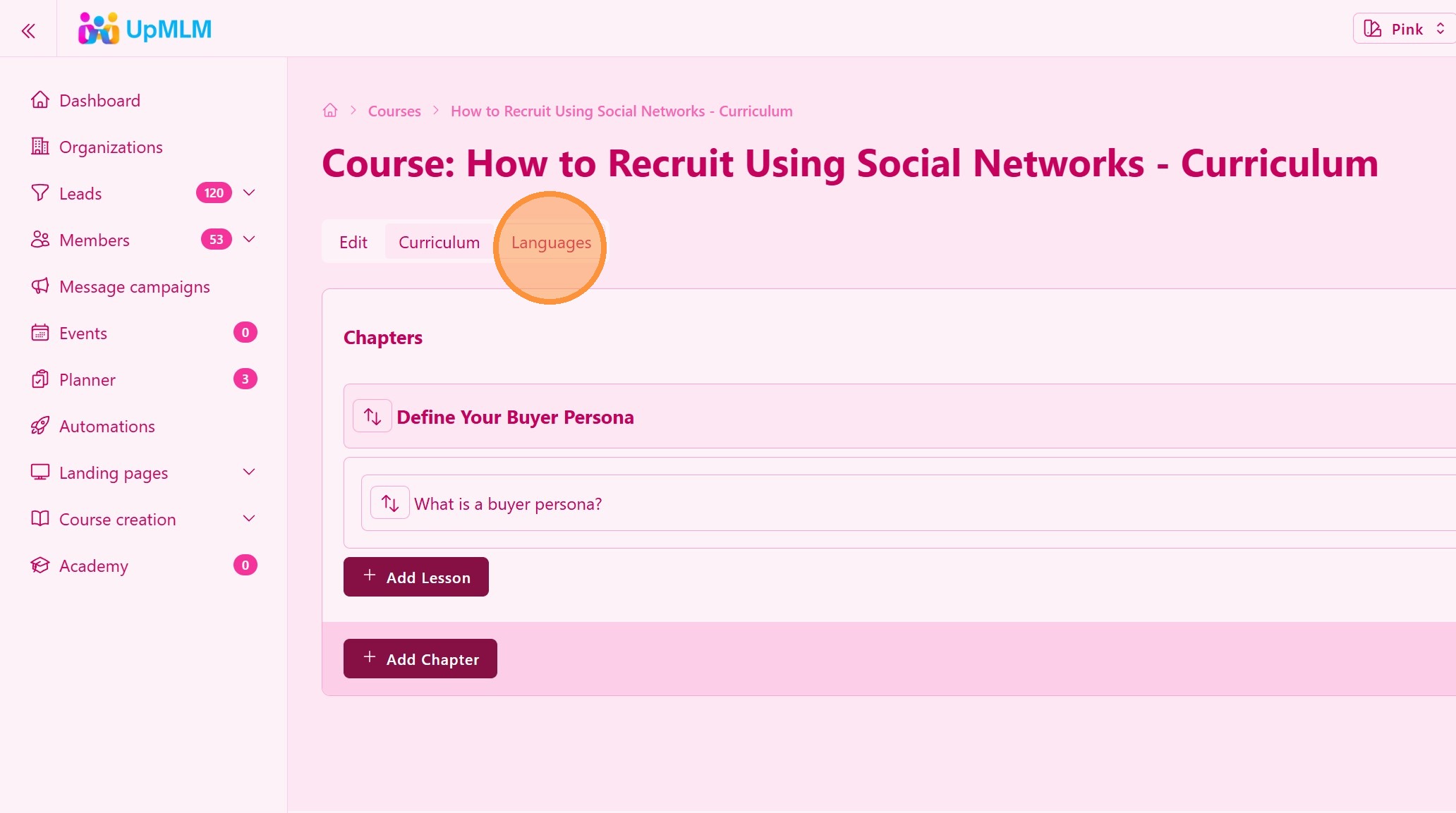
31. Enable course languages
Click “Languages”
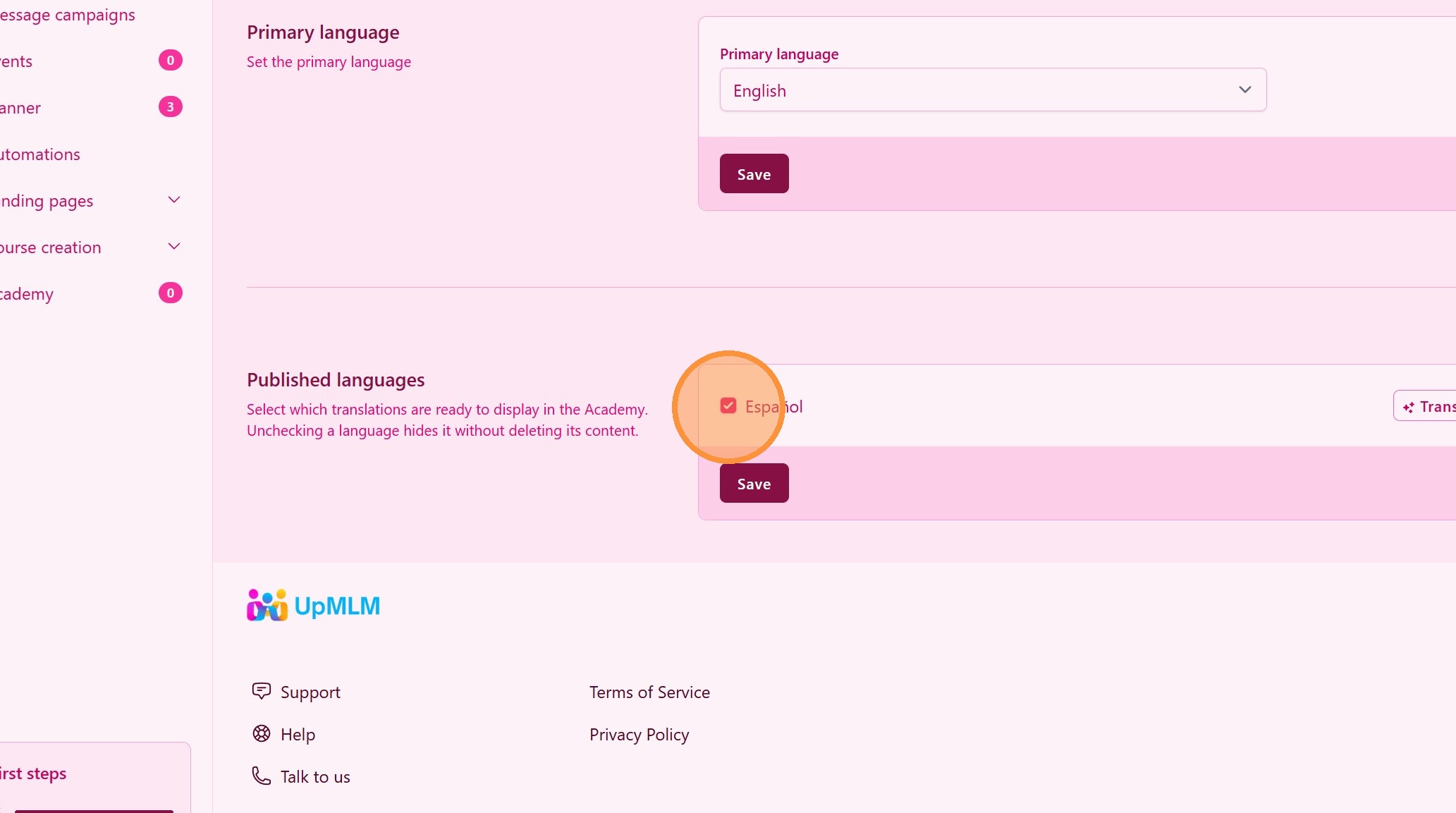
32. Enable course translations
Select the languages you wish to make them public and click “Save”
33. Check course listing and translations available
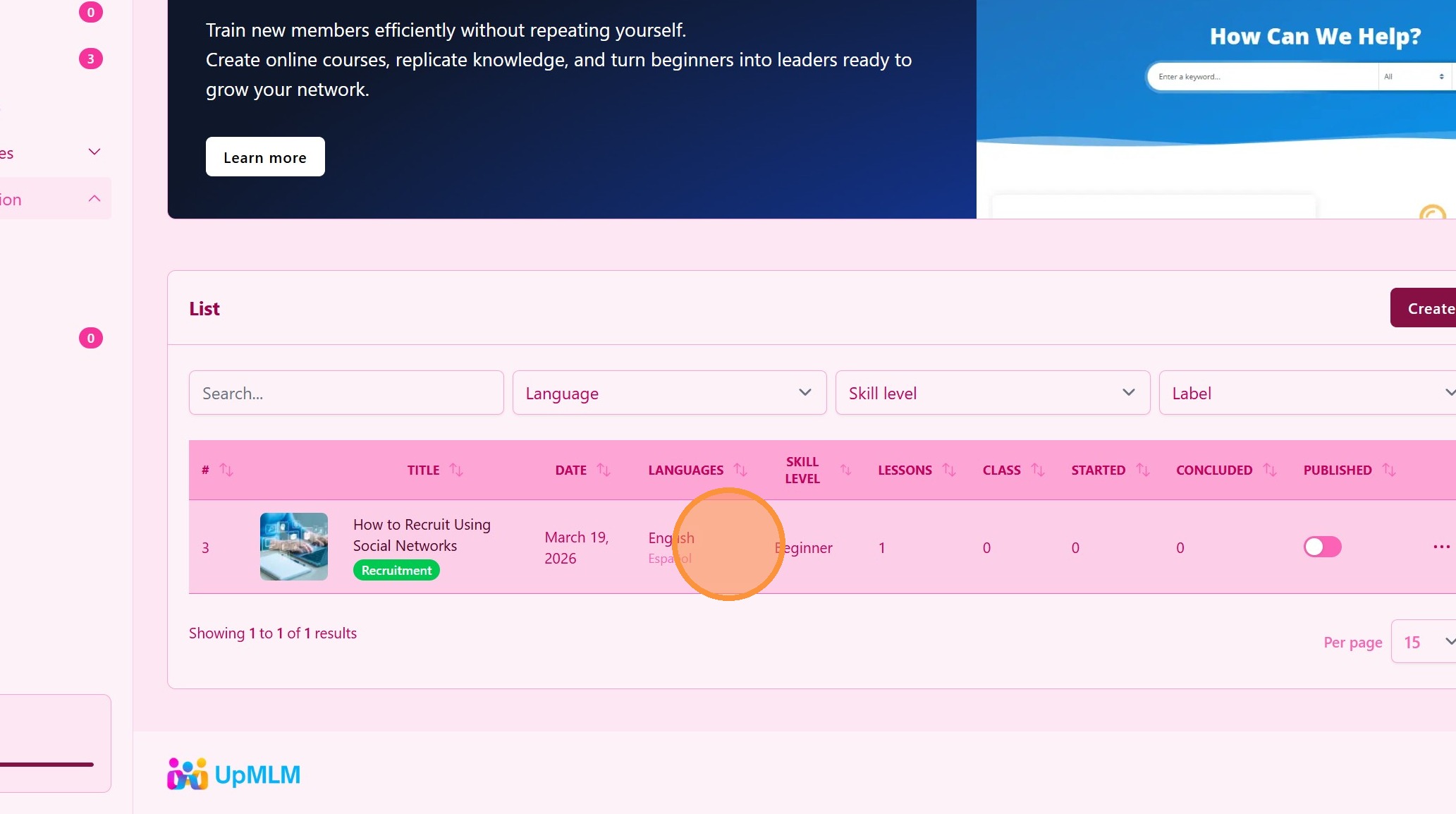
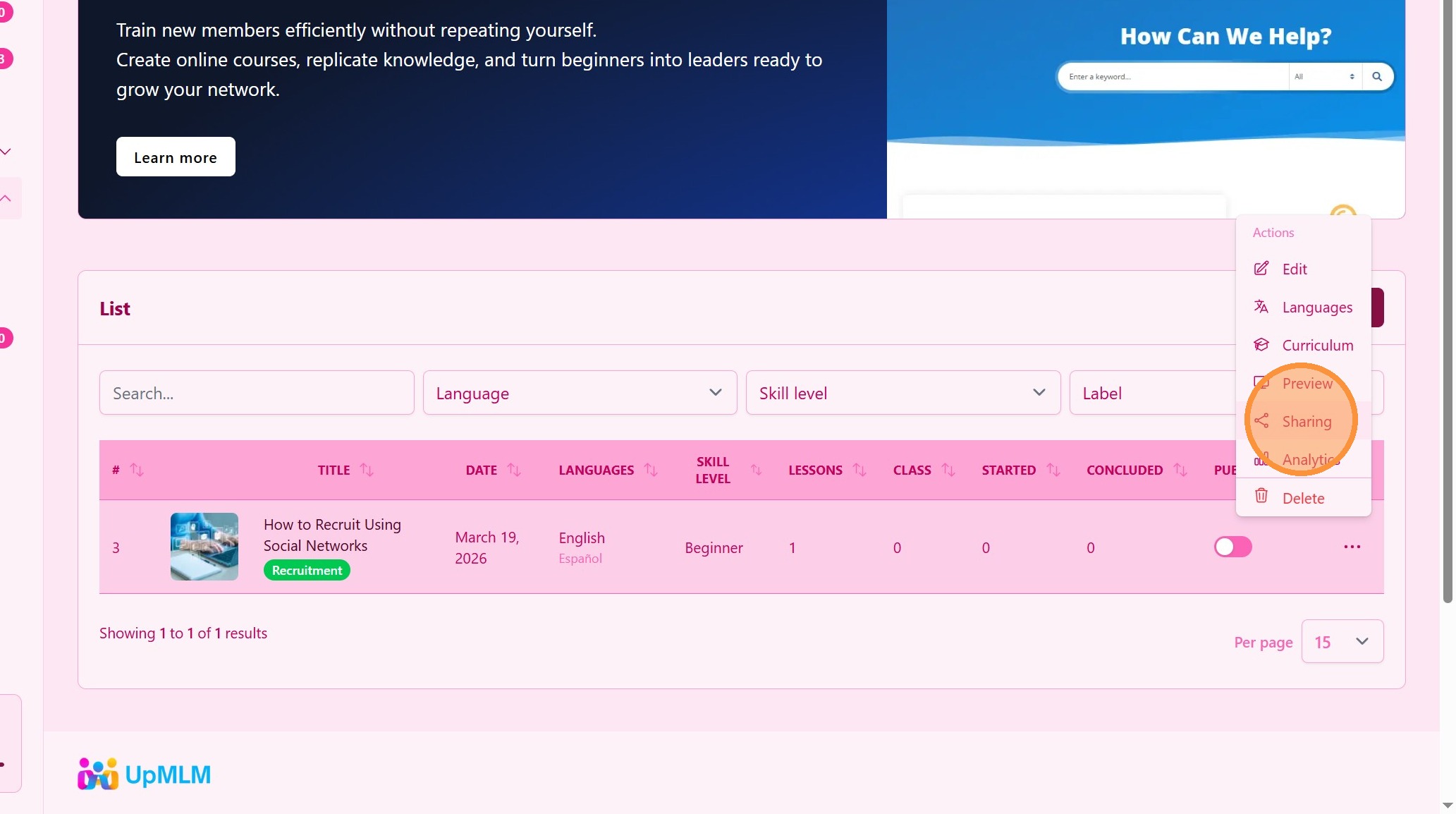
34. Sharing Settings
Click “Sharing”
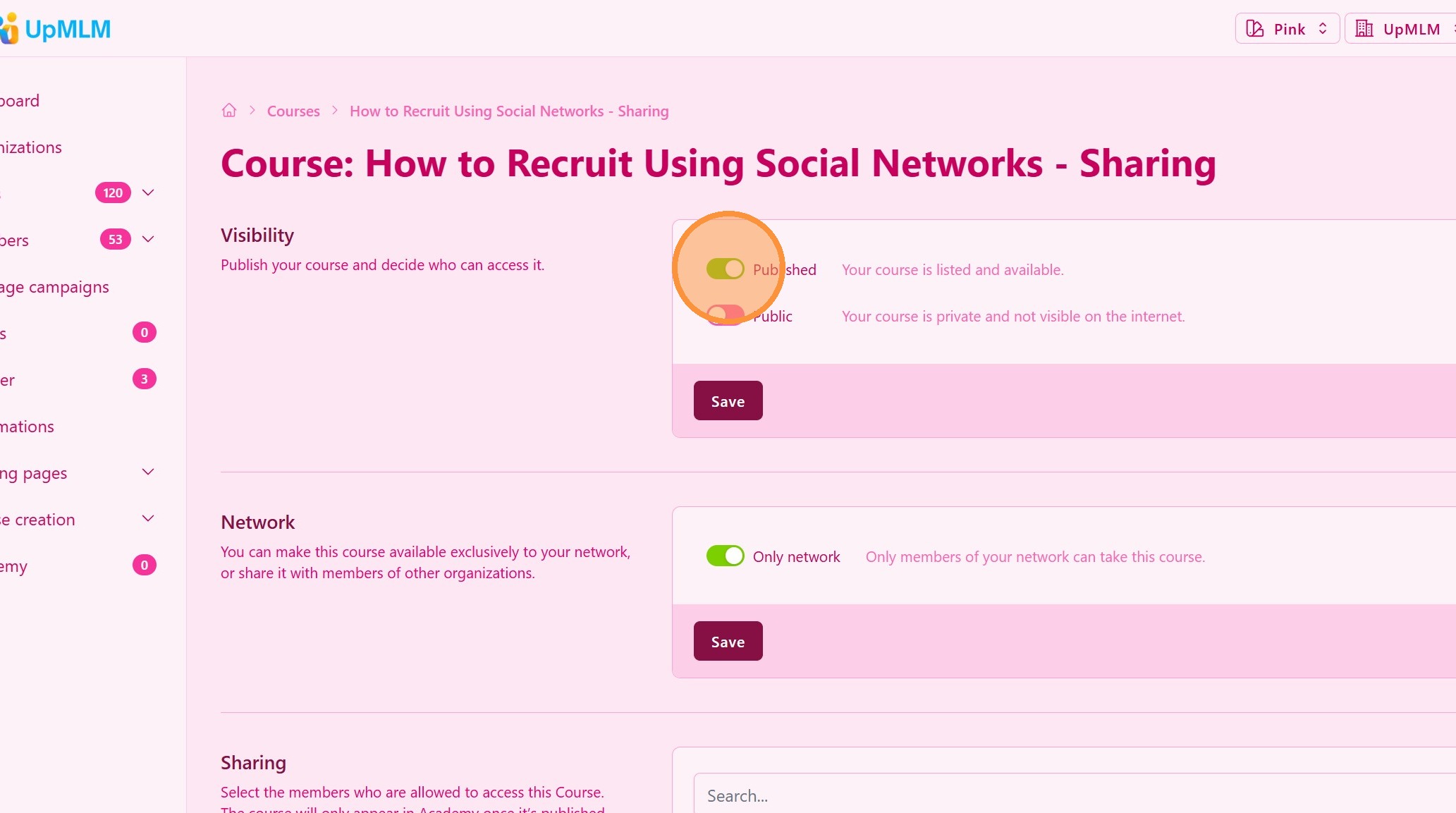
35. Set Visibility
Click “Published” to share the course only to your team members
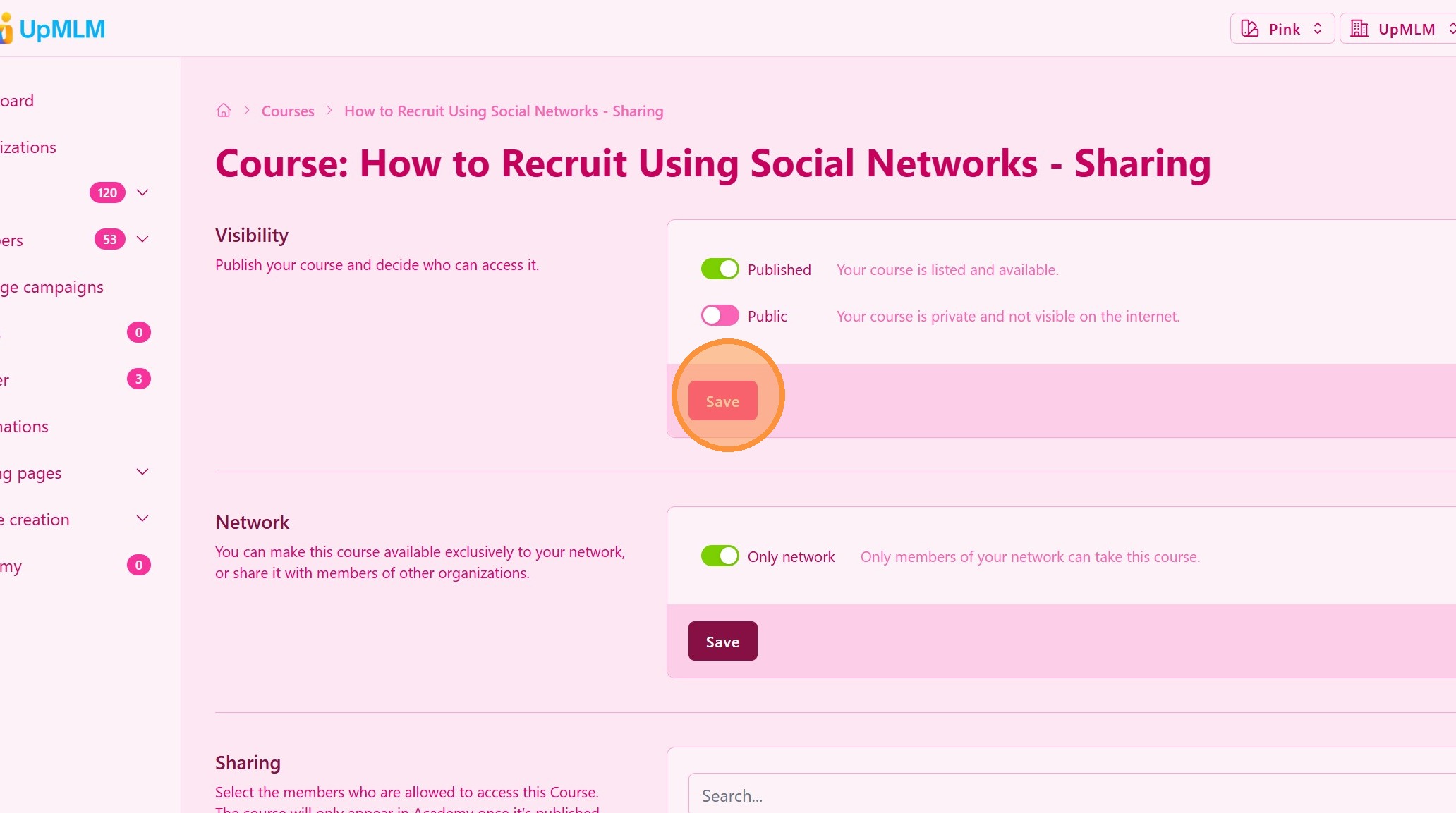
36. Click “Save”
At this stage, all your team memberr will see your course in their “Academy” section
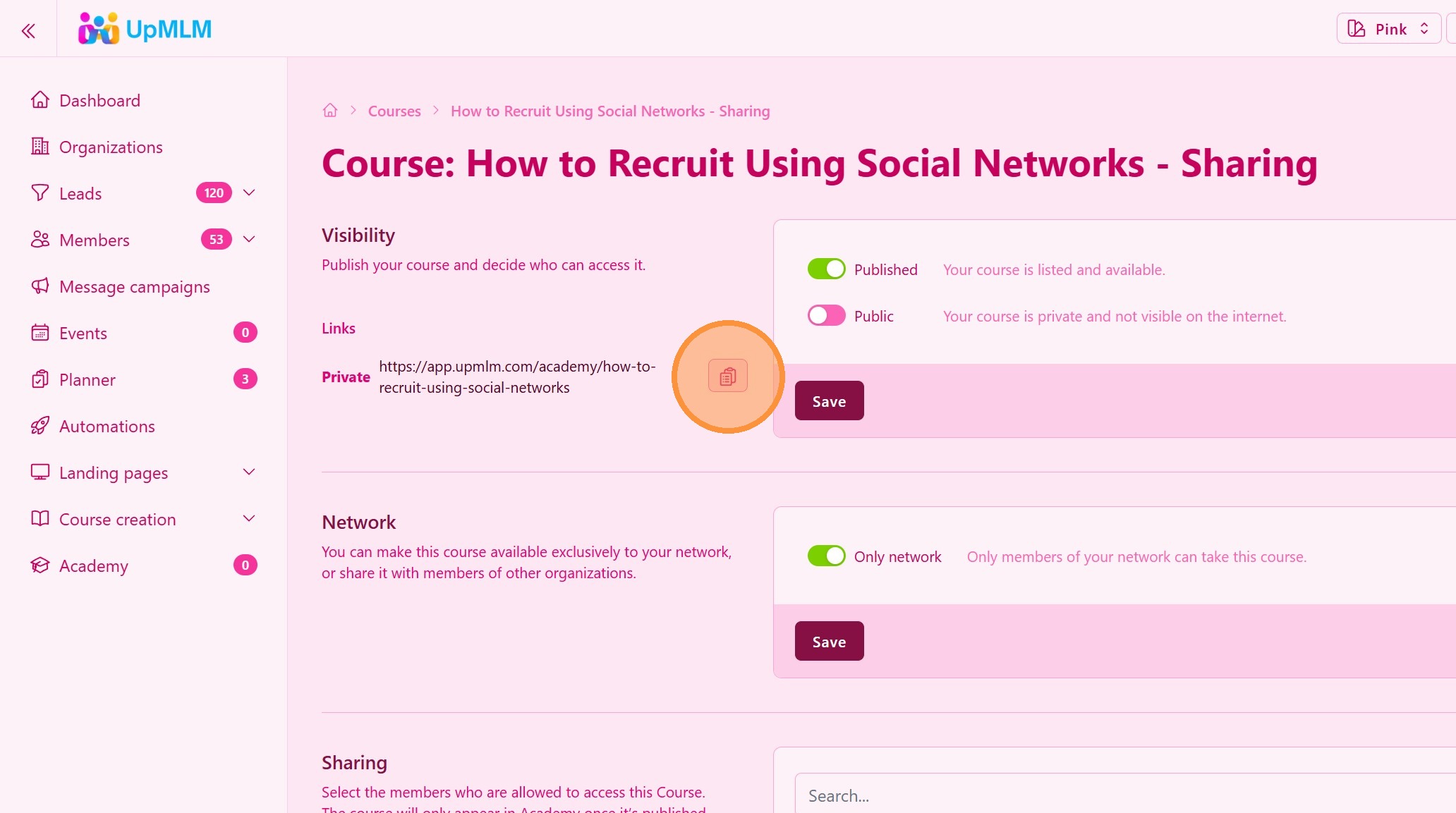
37. Course URL
Aditionaly, you can copy and share the course URL to your team members. This URL is not public, it is only visible to your team members with a UpMLM account (any account including freemium users have access to our courses)
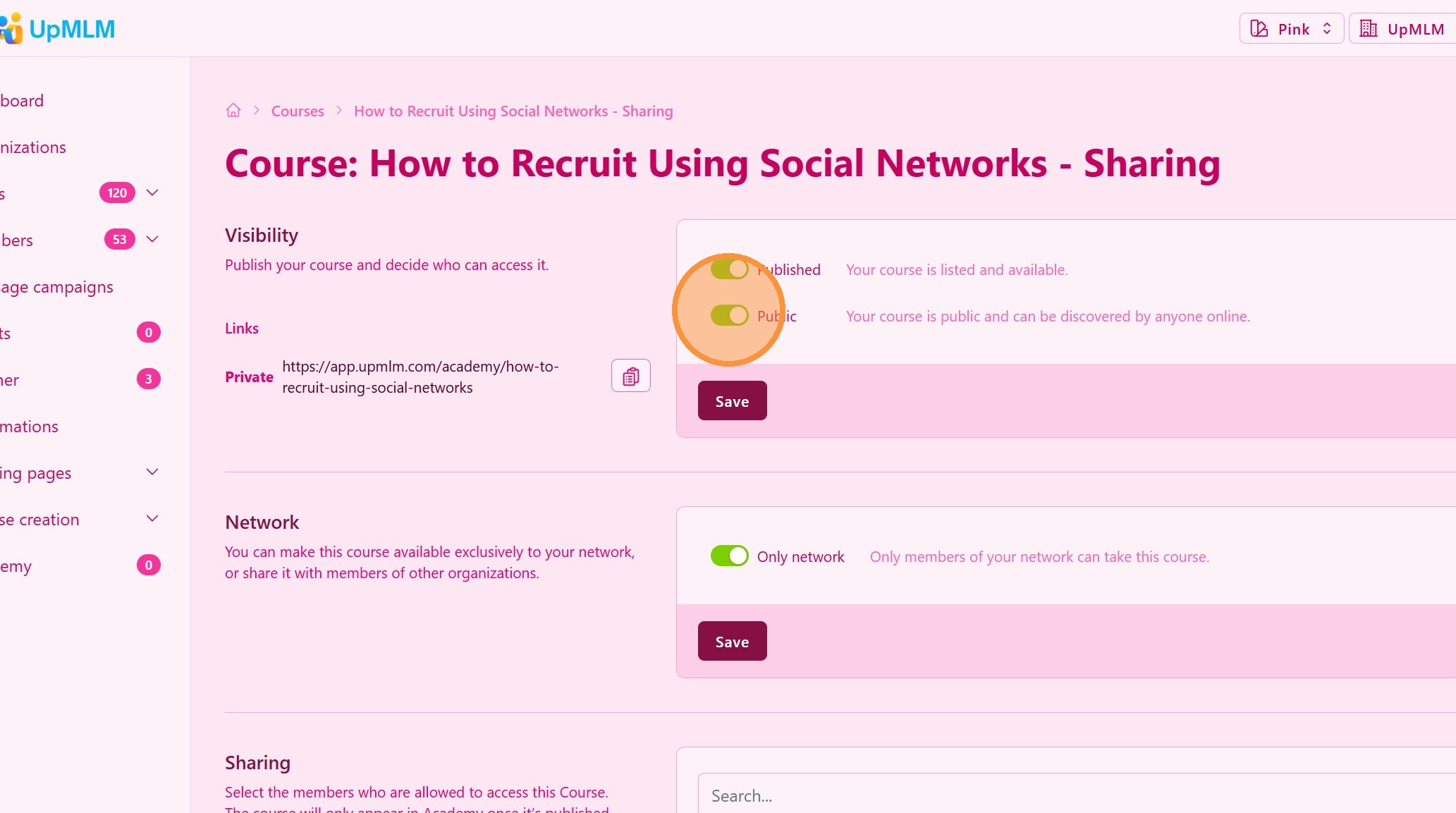
38. World Wide Visibility
Enable “Public” to make this course totaly free to anyone. Anyone can see your course. They don’t need to have a UpMLM account.
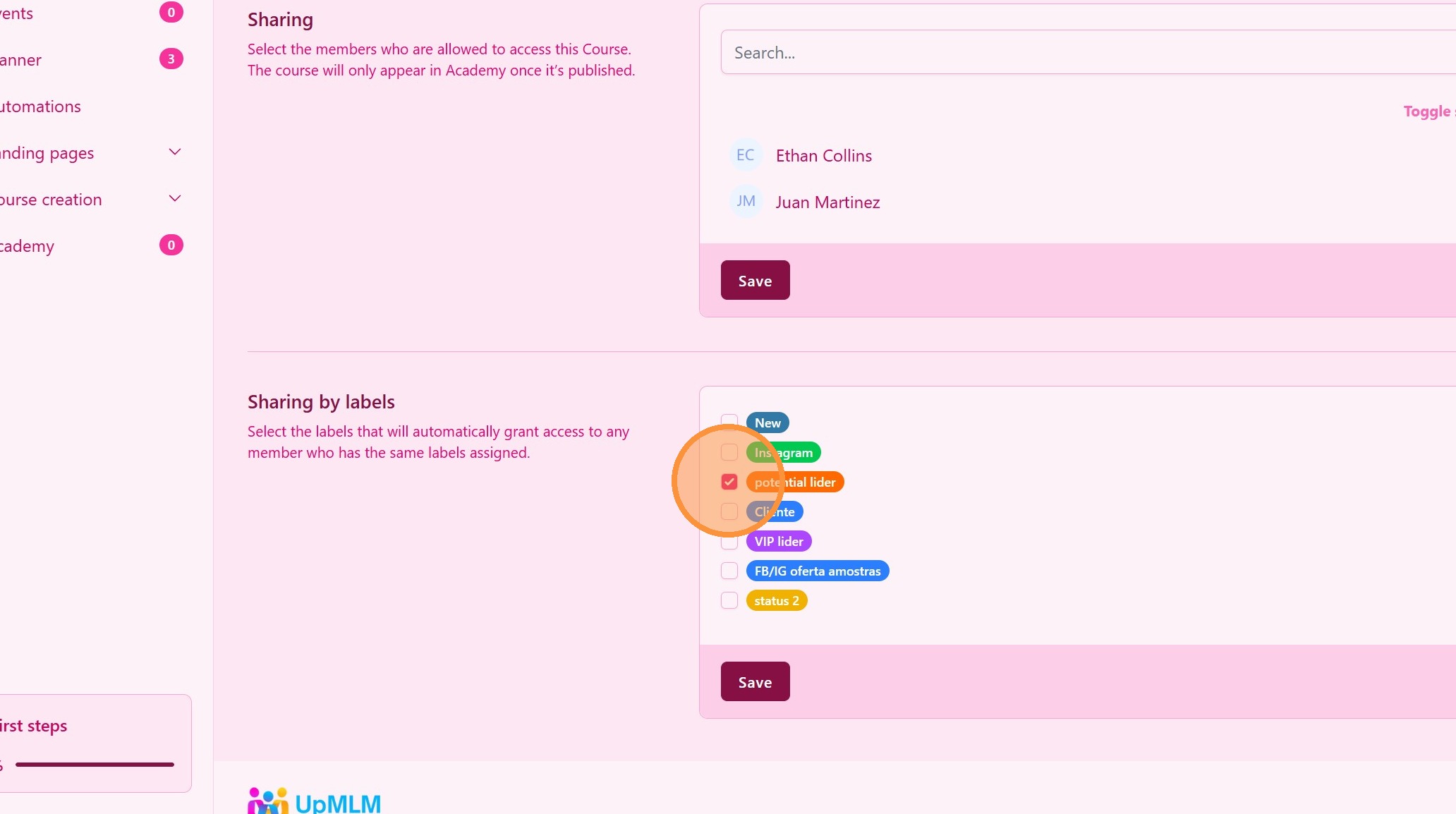
39. Restrict Sharing by Label
If you want, you can share the course only for members under a specifc label. Every time you add these labels to a member, they will have automatic acess to this course.
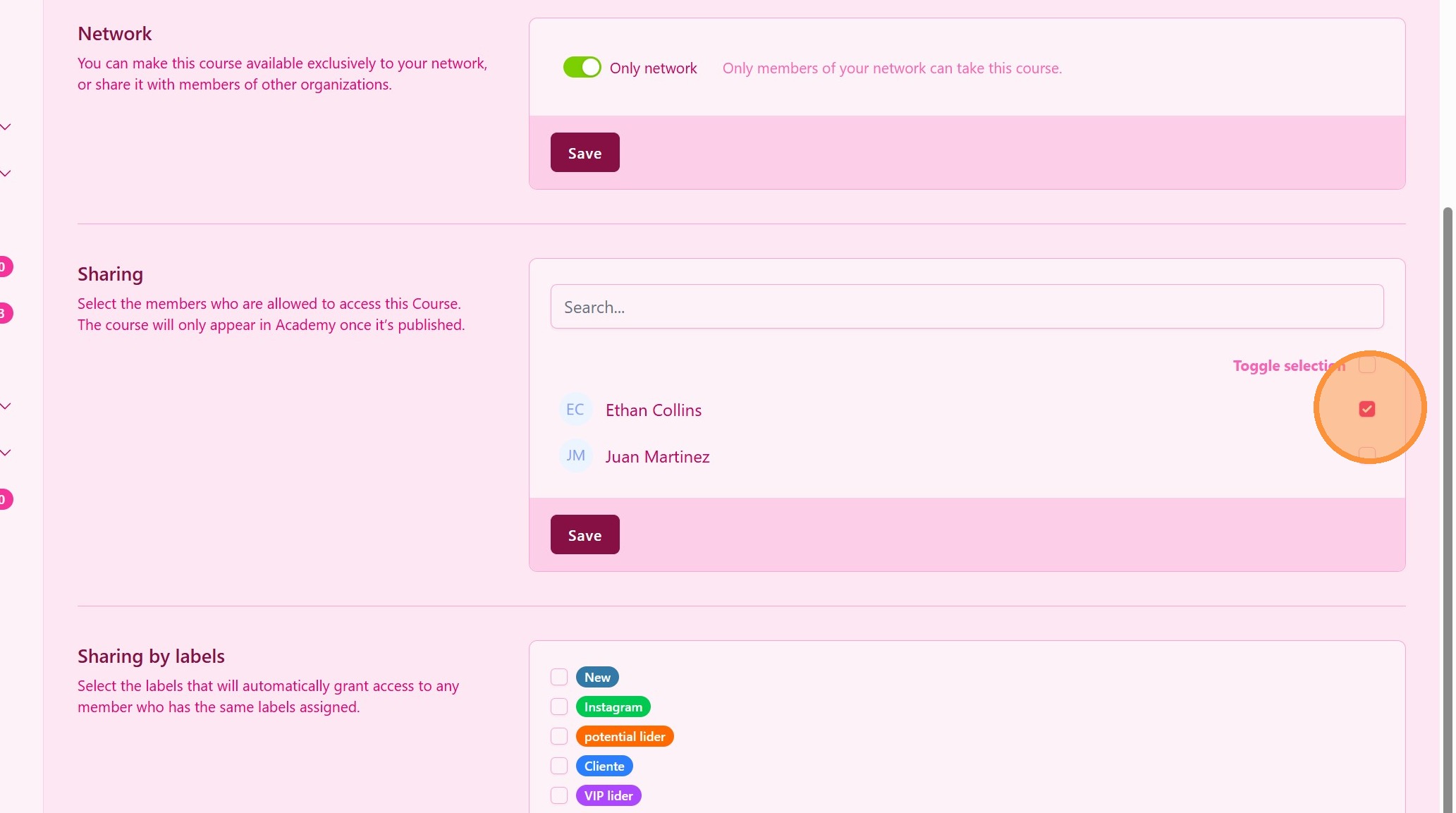
40. Restrict sharing to specific members
Select specific members to acess this course
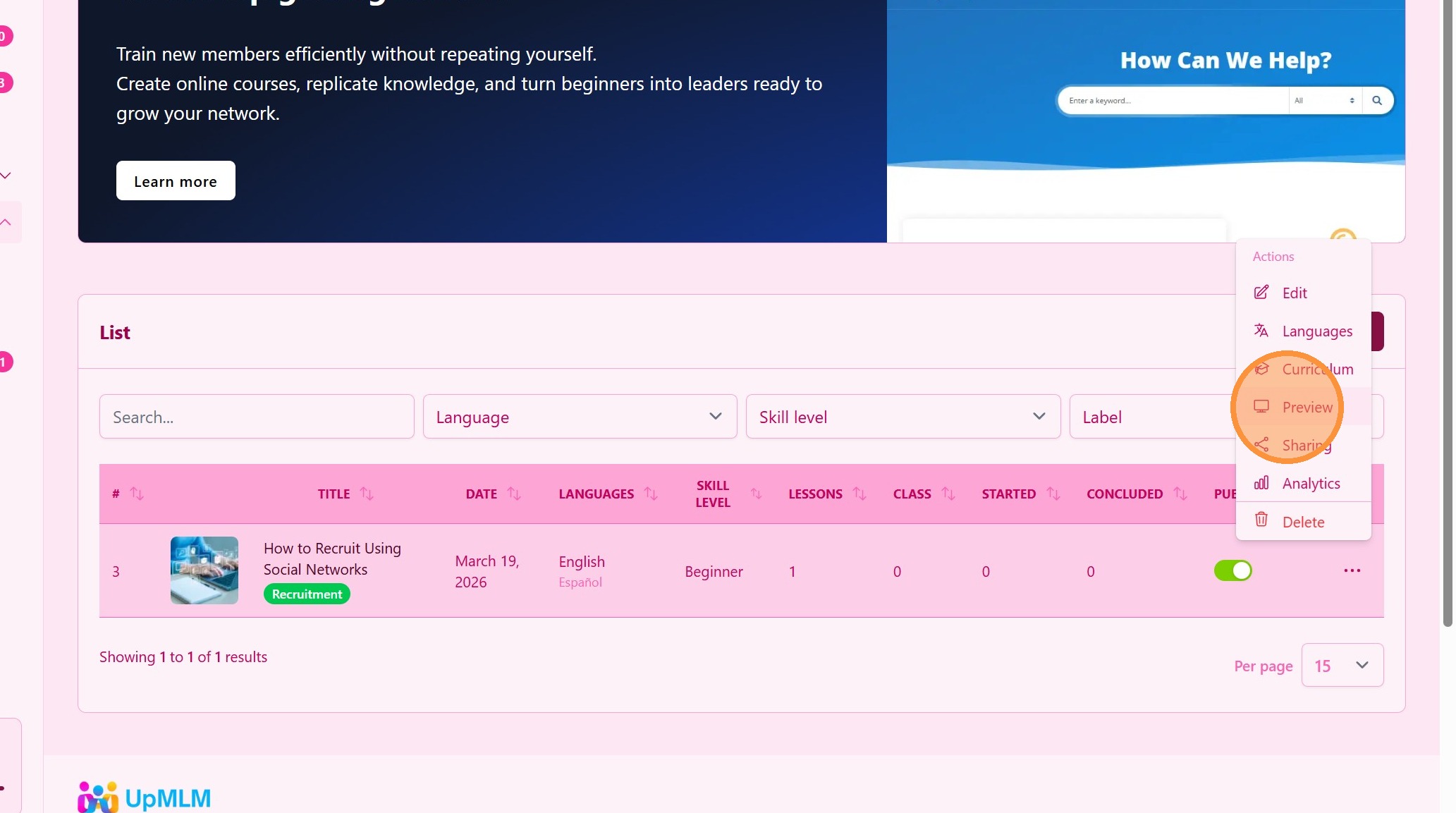
41. Course Preview
Click “Preview” to see how the course will look like
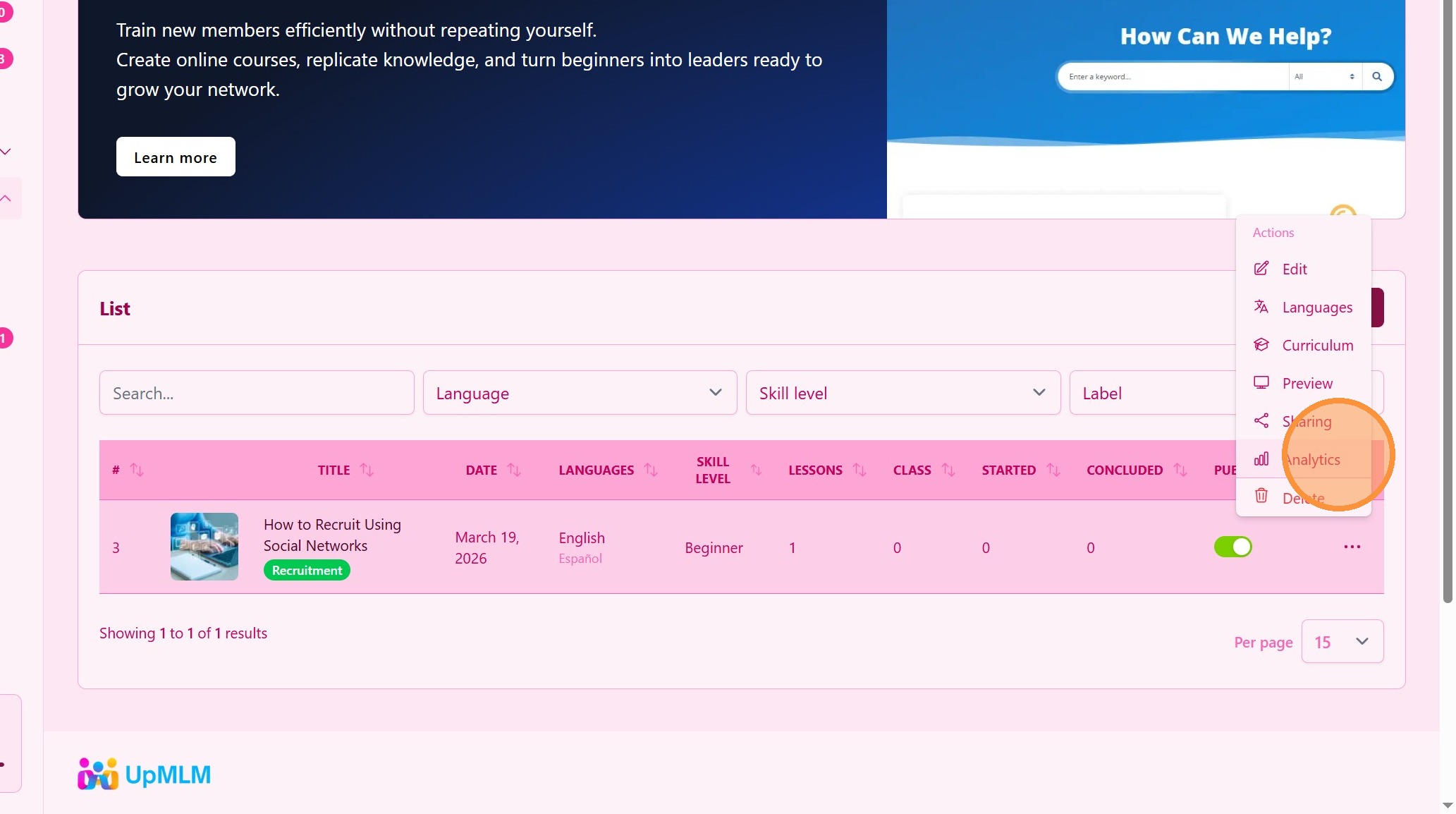
42. Course progress
Click “Analytics” to check member course participation and progress
Tip: ## Practical Tips
-
Keep structure consistent across languages: This improves duplication.
-
Start with one language, then translate: Avoid confusion during creation.
-
Use simple language: Makes translation easier and more effective.
-
Update all versions together: Keep content aligned across languages.!
Tip: ## Conclusion
Creating and editing course content with multiple languages in UpMLM allows you to train teams across different regions effectively. By structuring your content clearly and adapting it for each language, you support scalable, duplicable growth in your MLM organization.