How to Import Leads Using UpMLM
Introduction
In this tutorial, you will learn how to import leads using UpMLM. By the end of this guide, you will be able to upload contact lists, map fields correctly, and ensure your contacts are ready for follow-up and communication.
1. ### Open the Leads Section
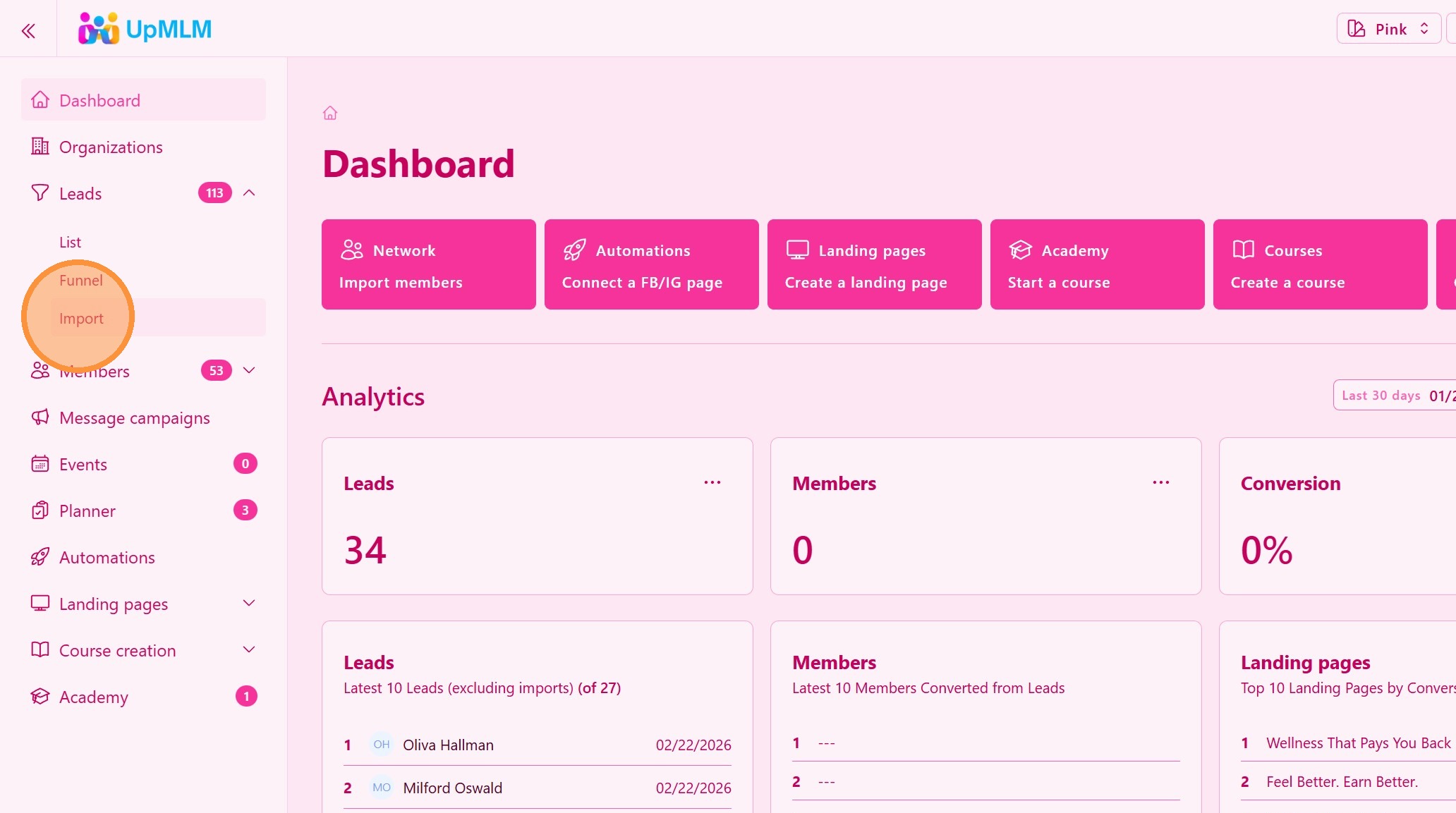
From the main navigation menu, click on Leads and then Import.
> This will open a import wizard.
2. ### Upload the Contact File
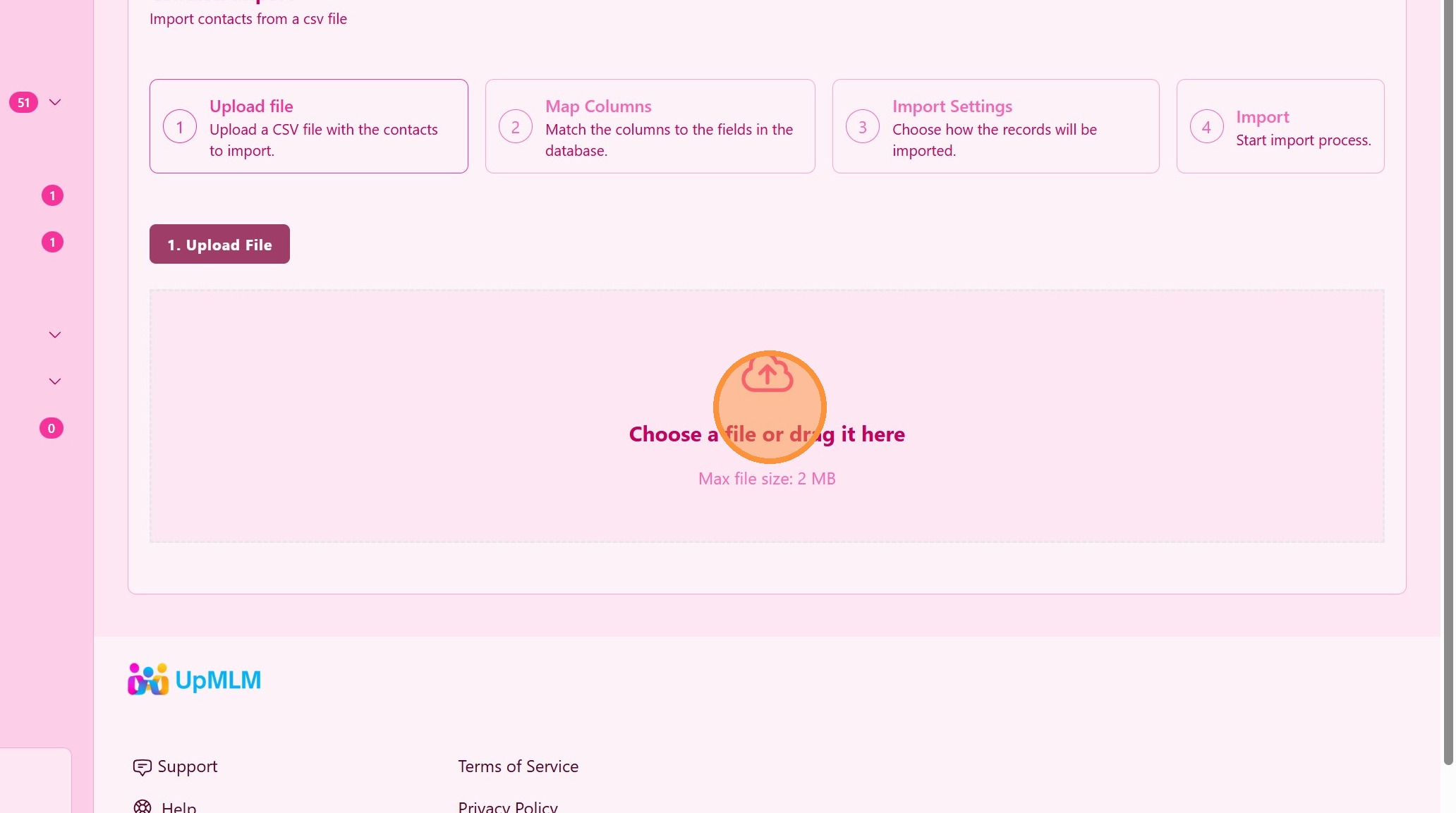
Select and upload your contact file (Exel or CSV file). Download a Excel or CSV template.
> Ensure the file follows the required format for successful import.
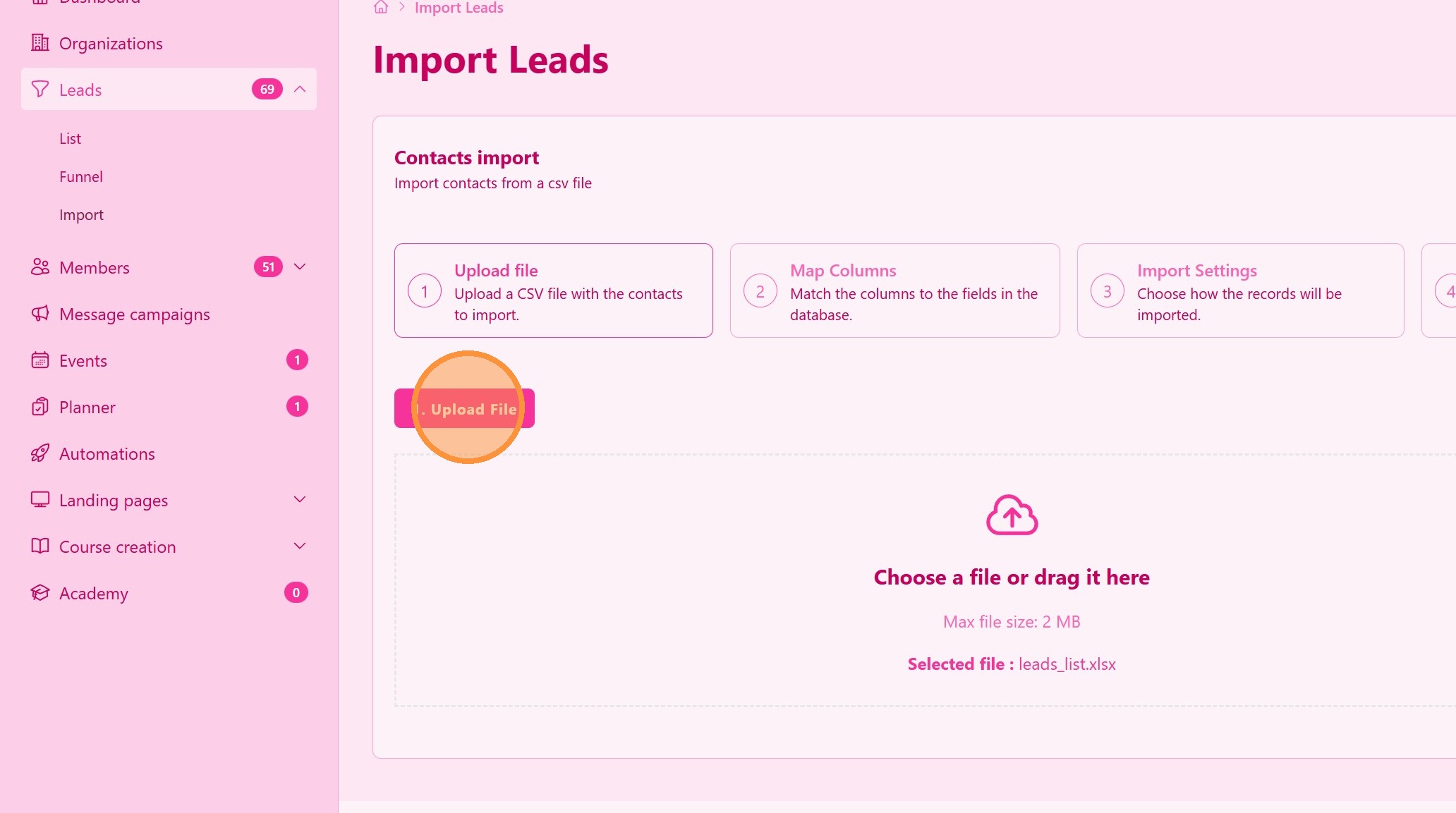
3. Click “Upload File”
4. ### Map Contact Fields
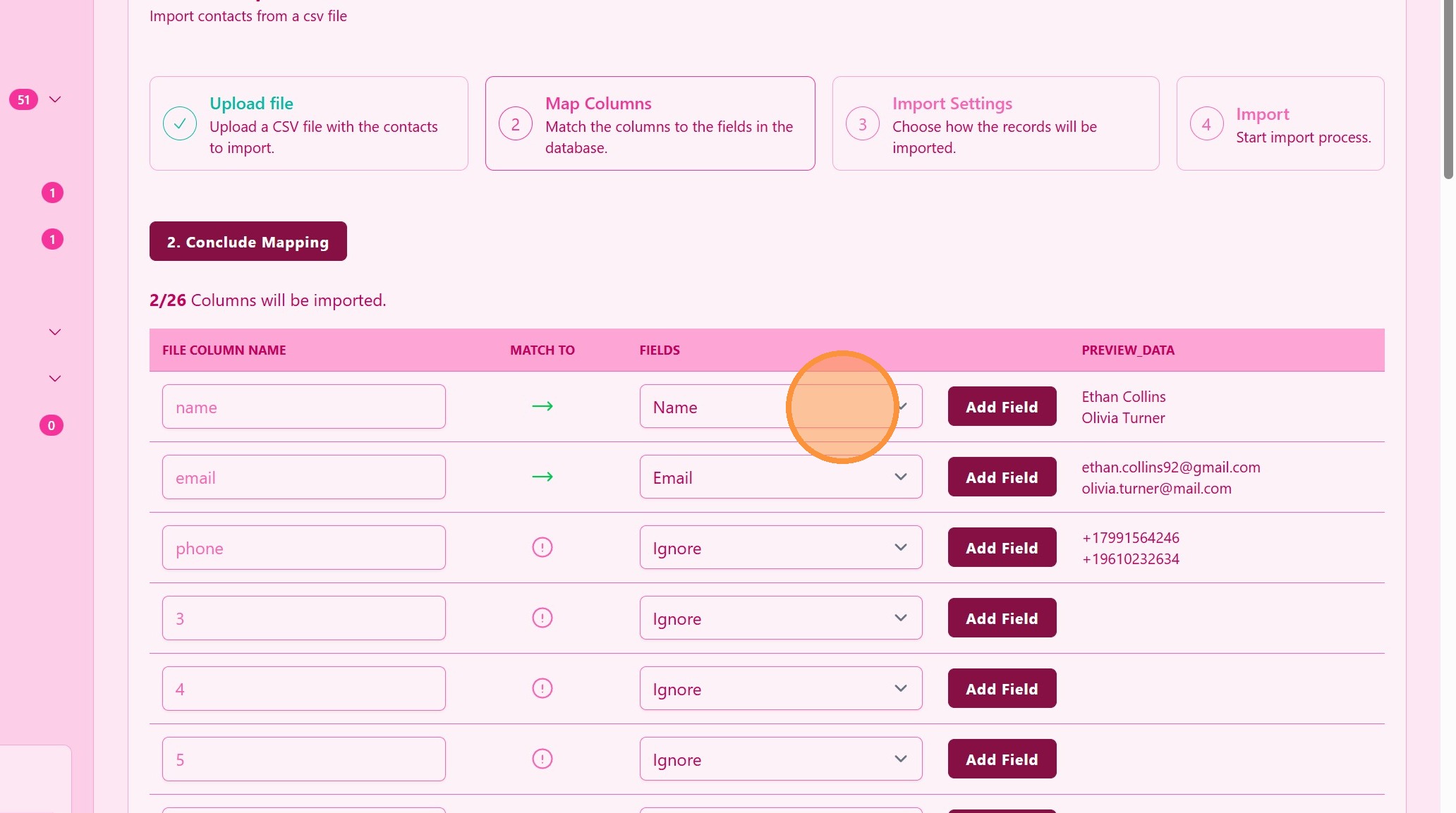
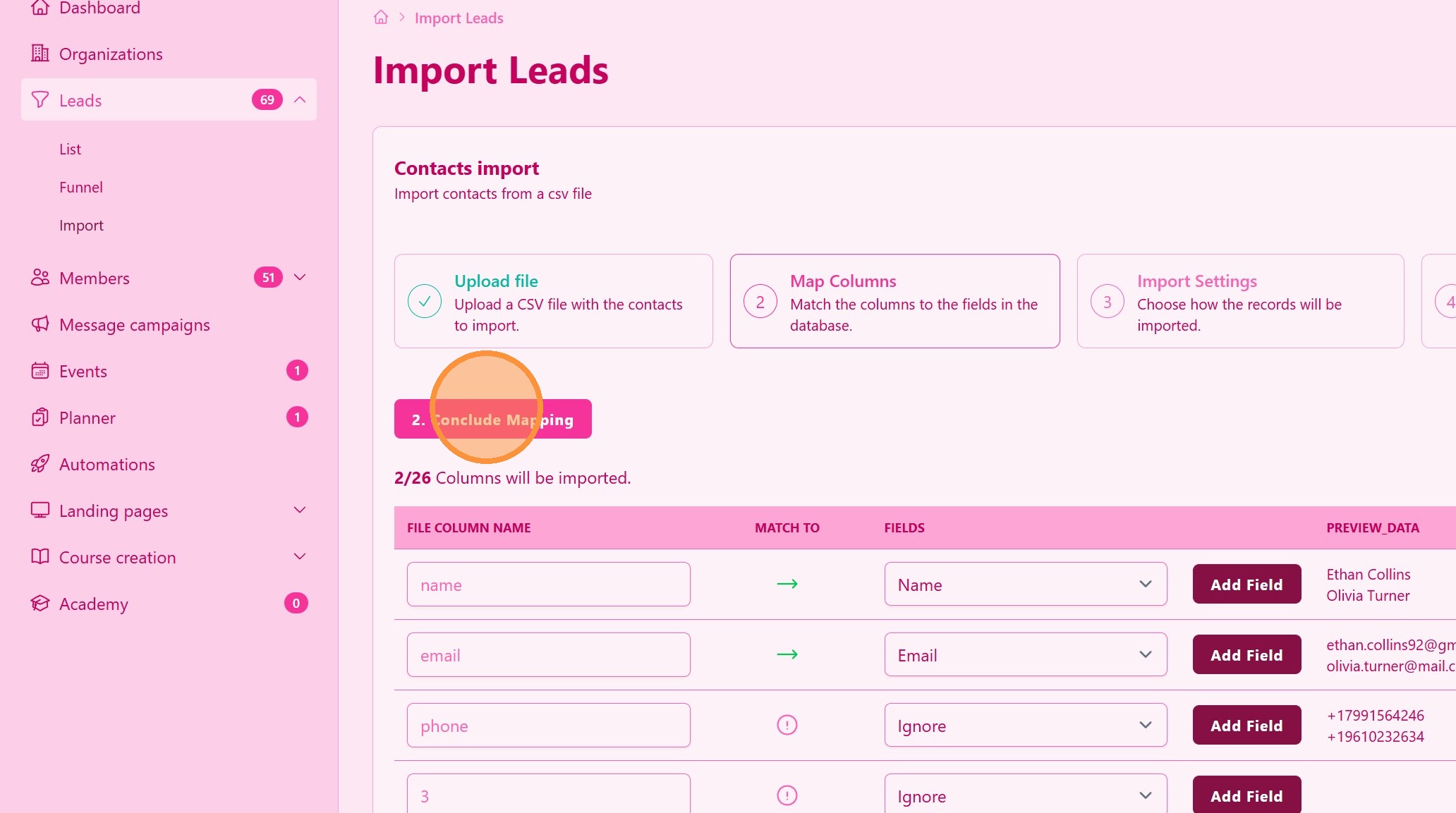
Match the columns in your file to the corresponding fields in UpMLM.
> Correct mapping ensures data is imported accurately.
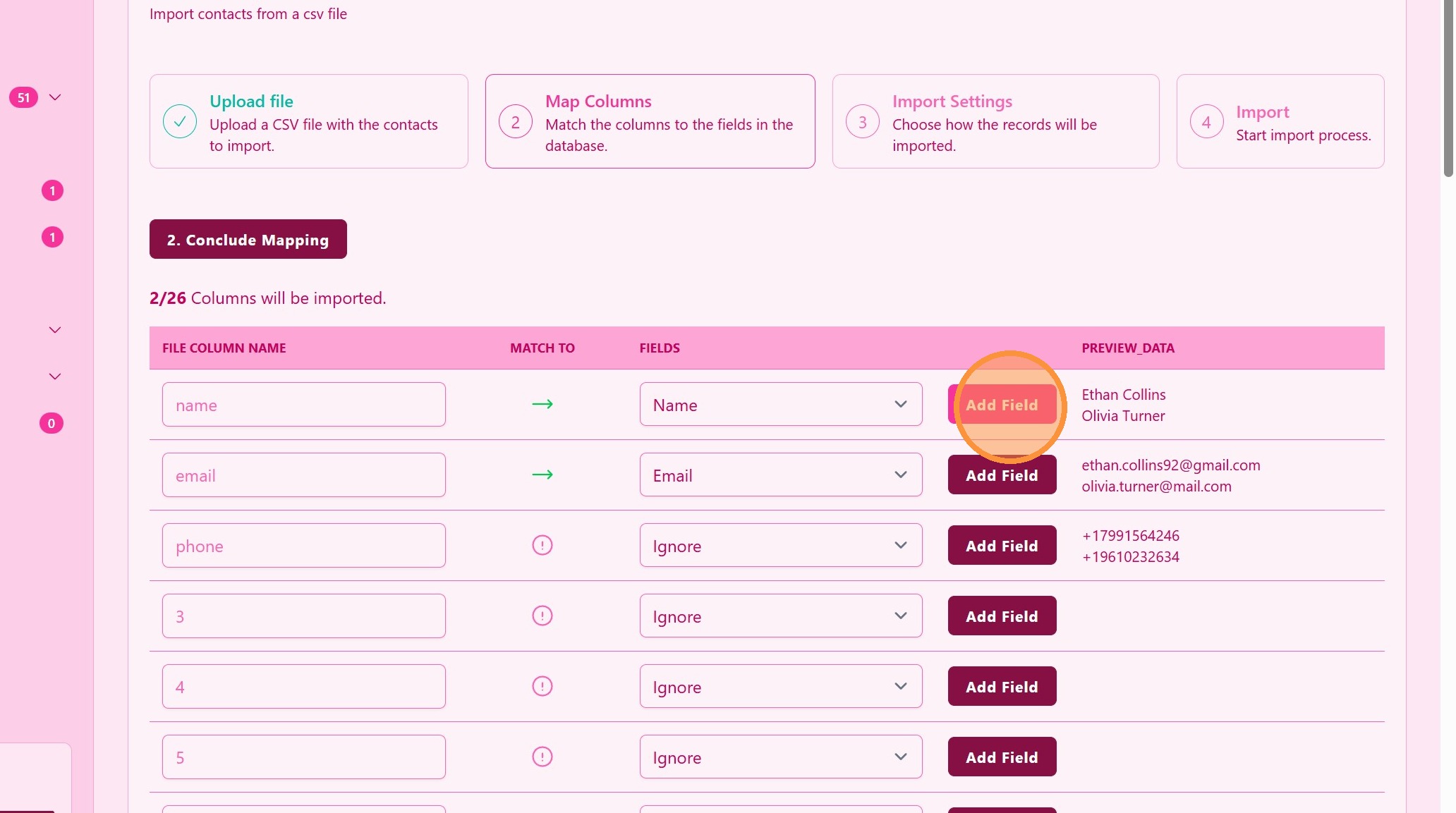
5. ### Custom Fields
Click Add Field to create custom fields that match you file data
6. ### Confirm and Complete the Import
Review the mapping and confirm the import.
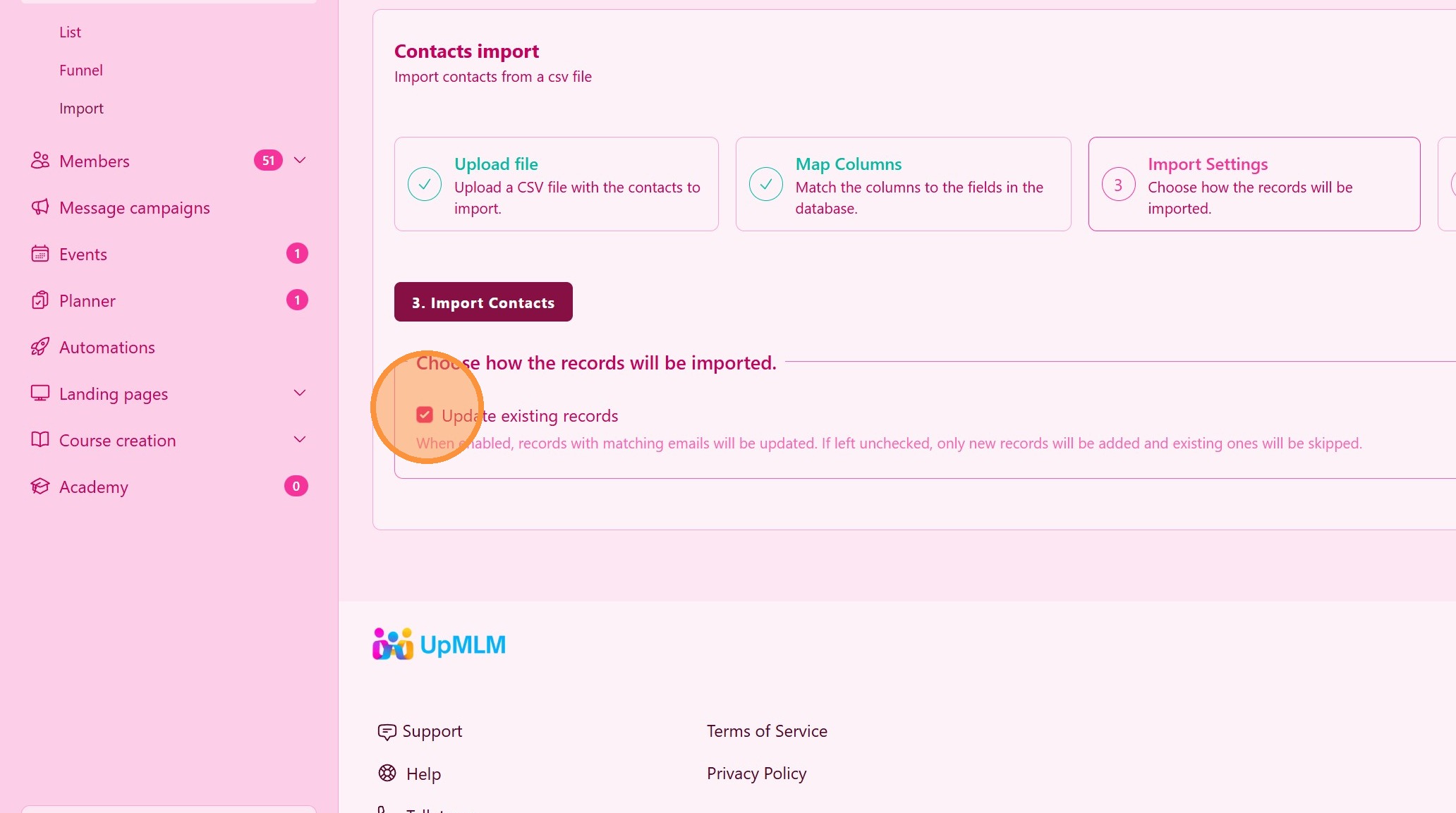
7. ### Check Update Contacts
When enabled, records with matching emails will be updated.
If left unchecked, only new records will be added and existing ones will be skipped.
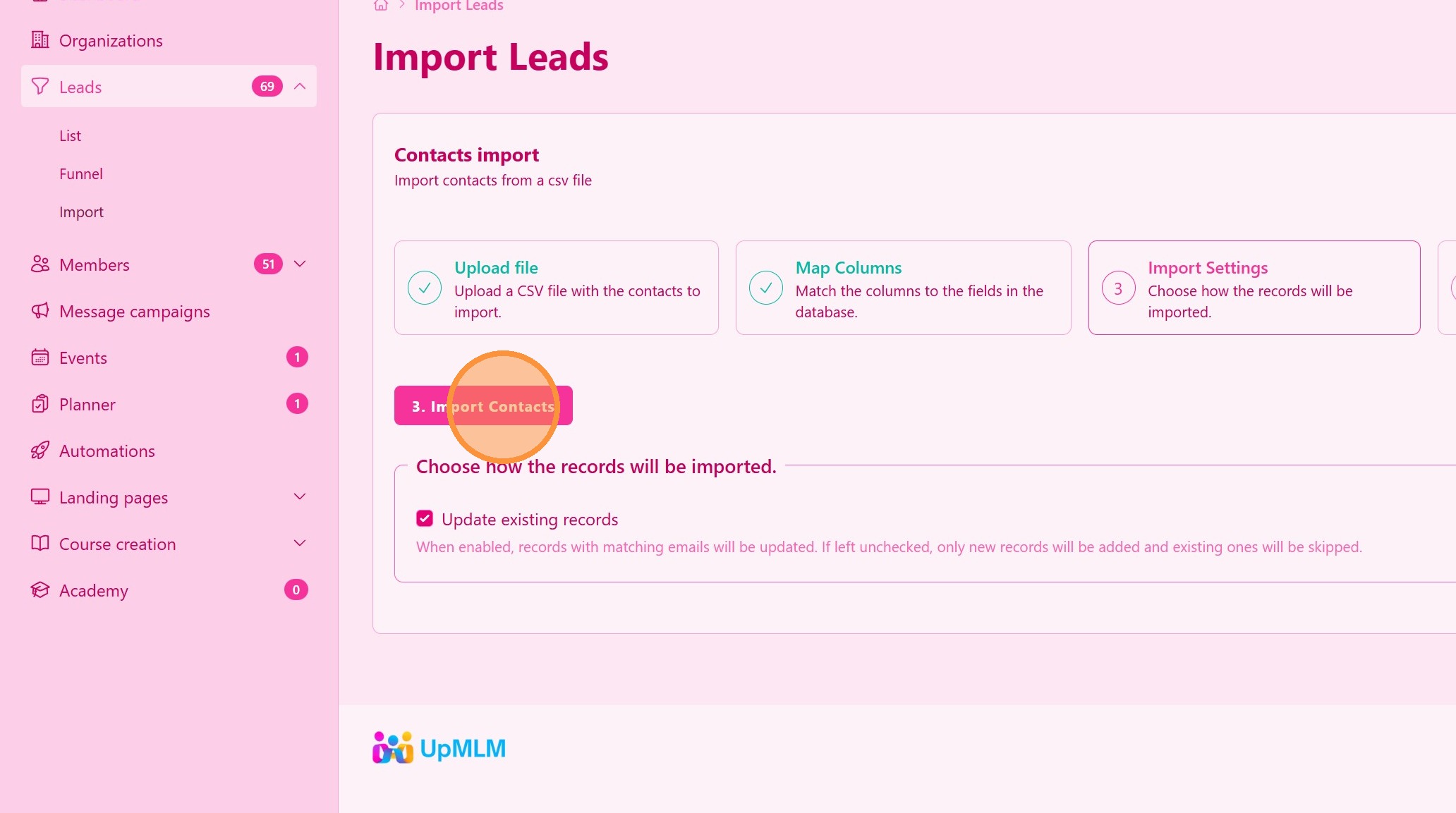
8. ### Import Contacts
Click Import Contacts to start the file upload and leads processing.
> Leads will be available on the leads table
Tip: ## Practical Tips
-
Use the recommended template: This helps avoid formatting issues.
-
Check for duplicates: Clean your file before importing to prevent duplicates.
-
Review imported data: Verify contacts after import to ensure accuracy.
Tip: ## Conclusion
Importing contacts using UpMLM saves time and helps you manage large contact lists efficiently. This feature supports organized communication and consistent follow-up with your audience.