Change System Theme Color
This tutorial explains how to customize the appearance of the UpMLM platform by changing the system theme color to better match your preferences or brand identity.
1. ### Theme Color Selector
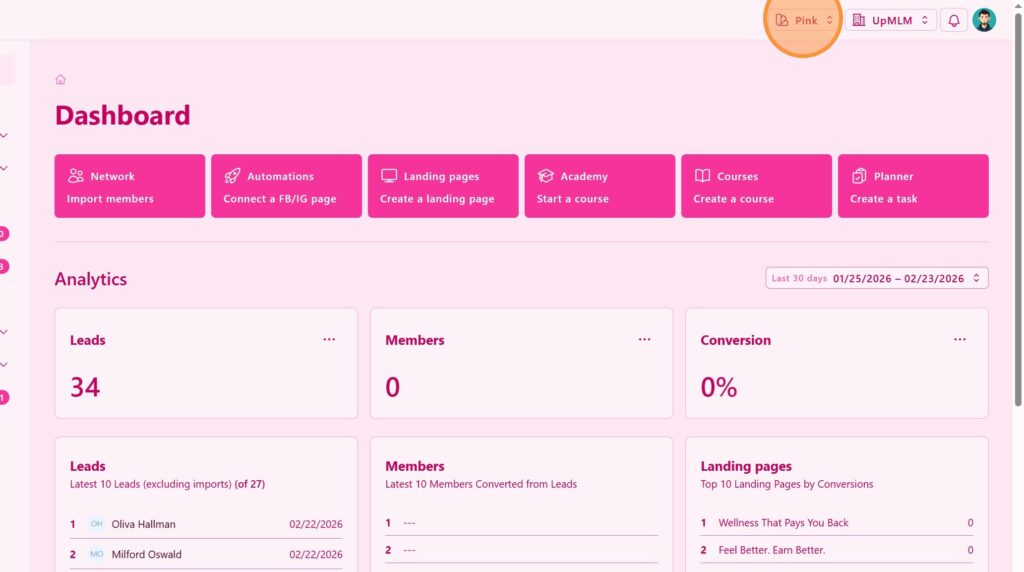
Locate the Theme Color Selector option.
2. ### Choose a Theme Color
Select your preferred color.
> The selected color will be applied across the interface, including menus, buttons, and highlights.
3. ### Preview the Changes
Review how the new theme color looks within the interface.
> This preview helps ensure the chosen color maintains good readability and visual balance.
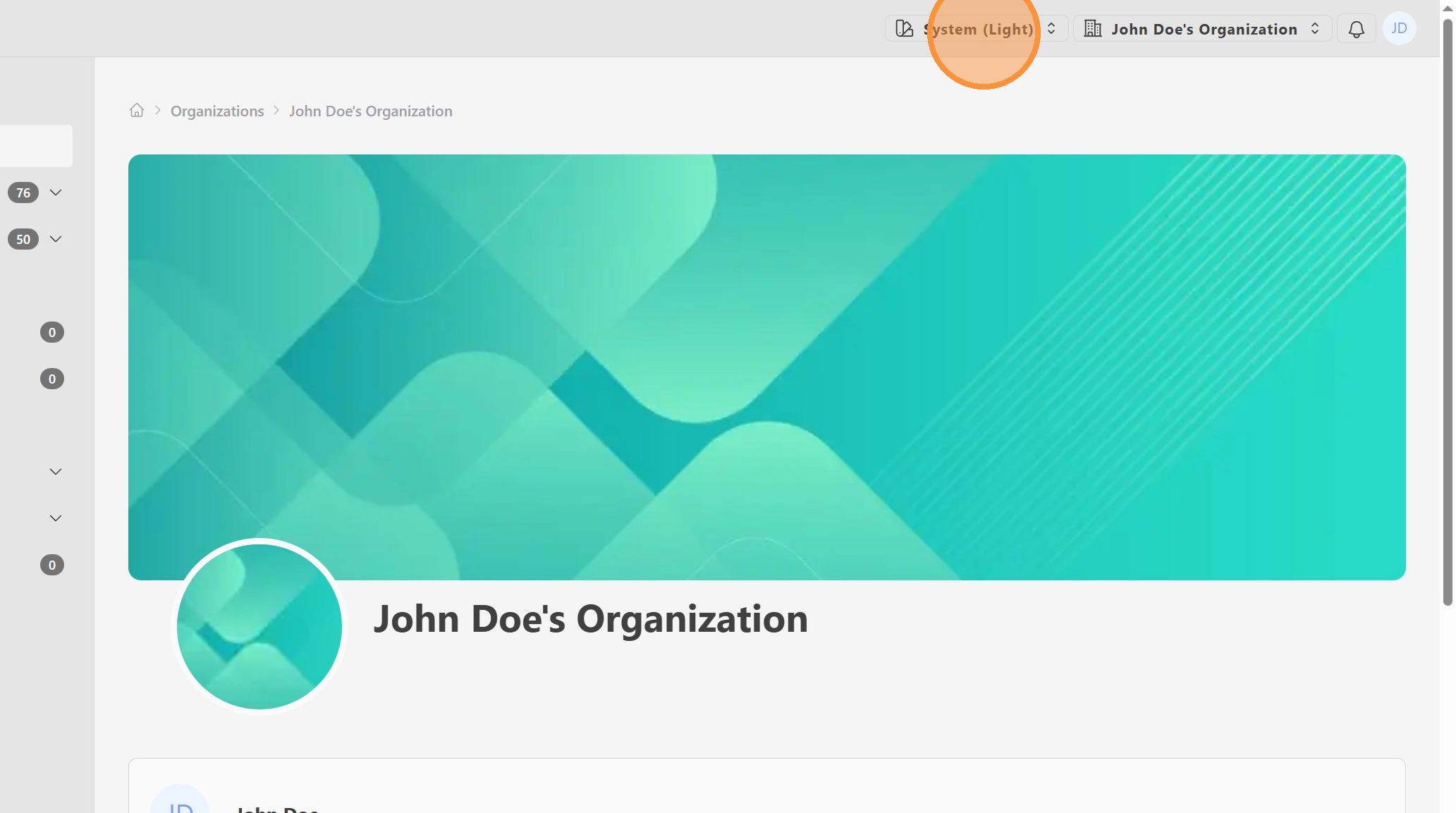
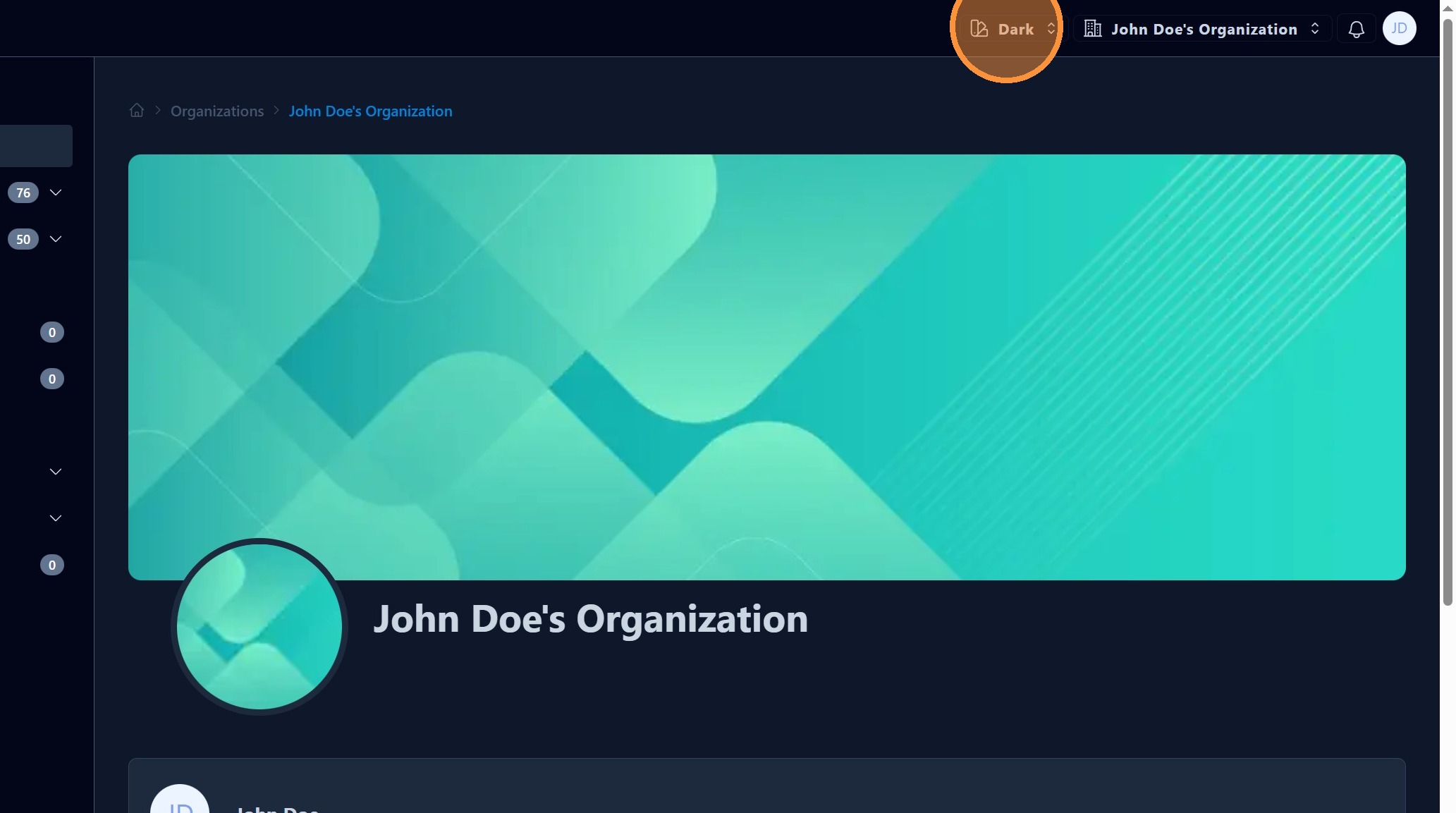
4. Dark Mode
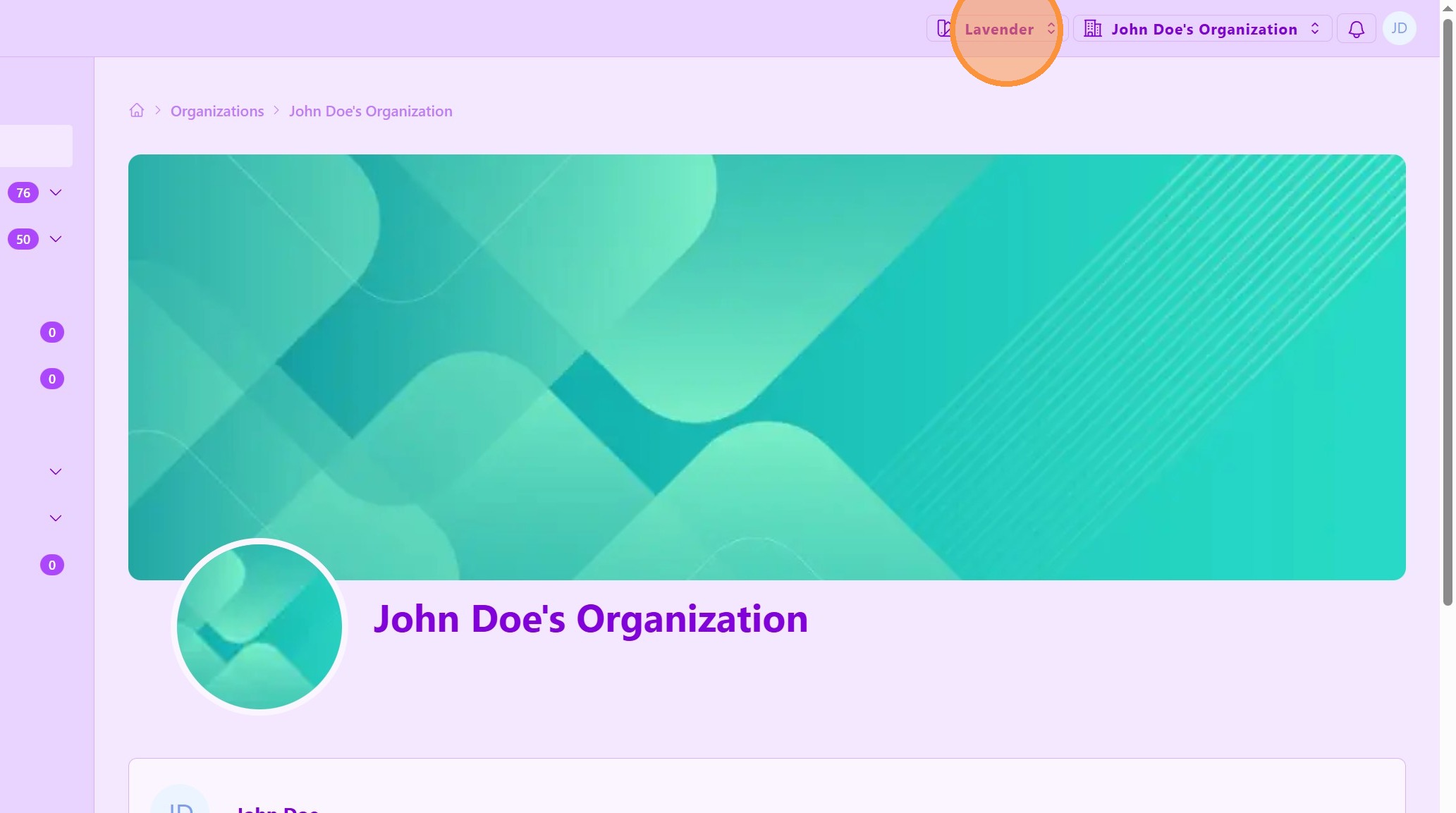
5. Lavander Mode
Tip: ## Practical Tips
-
Choose high-contrast colors: Ensure text and buttons remain easy to read.
-
Brand consistency: Use colors that align with your team or company branding.
-
Avoid frequent changes: Keeping a consistent theme helps users feel comfortable navigating the platform.
Tip: ## Conclusion
Customizing the system theme color allows you to tailor the UpMLM interface to your personal or organizational style. A well-chosen theme improves usability, branding consistency, and overall satisfaction when using the platform.