How to import my network
Introduction
In this tutorial, you will learn how to import contacts into UpMLM and send invitations to them. By the end of this guide, you will be able to add multiple contacts at once and invite them to engage with your organization on the platform.
1. ### Start the Import Process
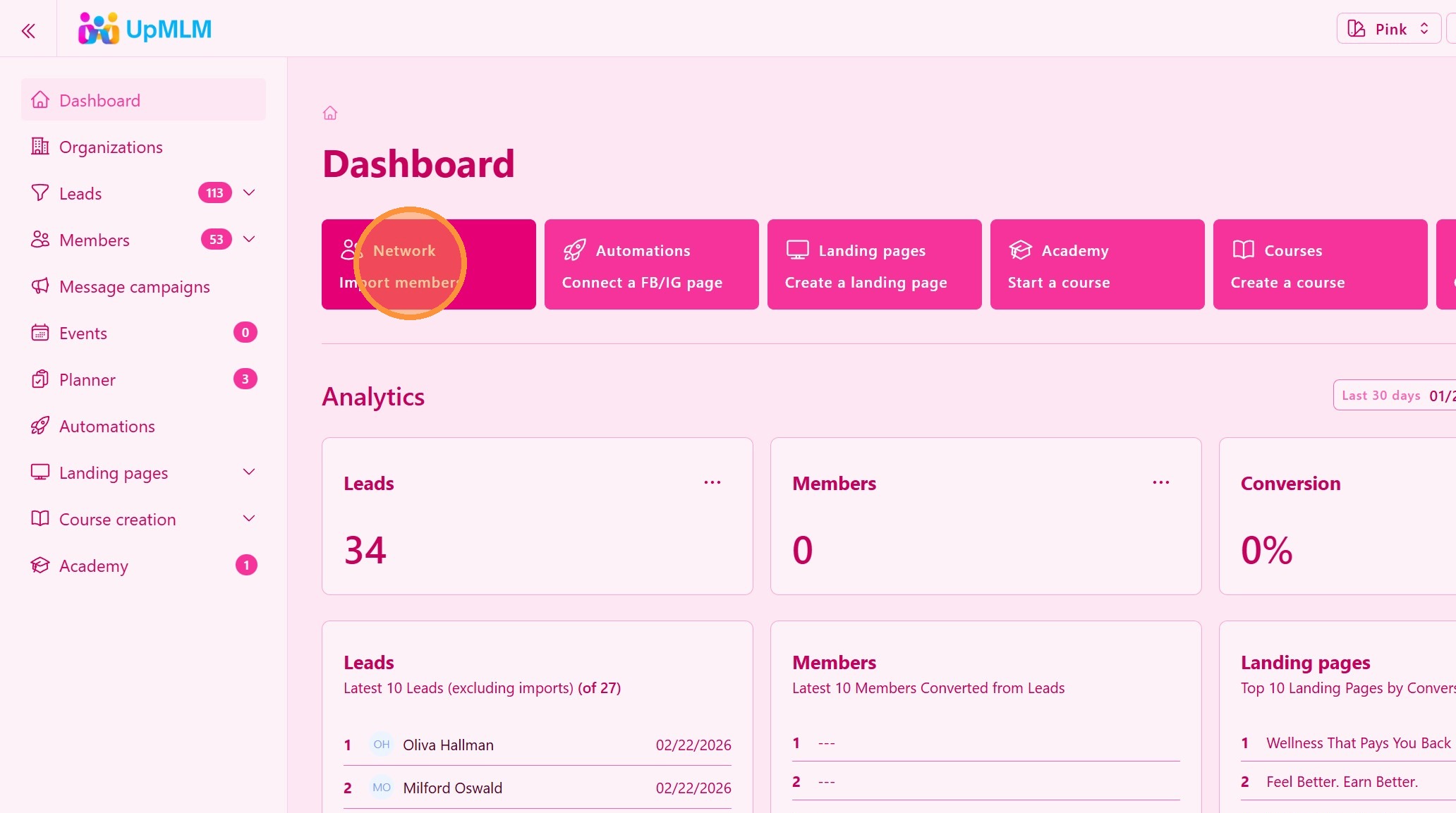
Click the Network Import Members button.
> This option lets you upload your network at once instead of adding them manually.
2. ### Choose a File With All Your Contacts
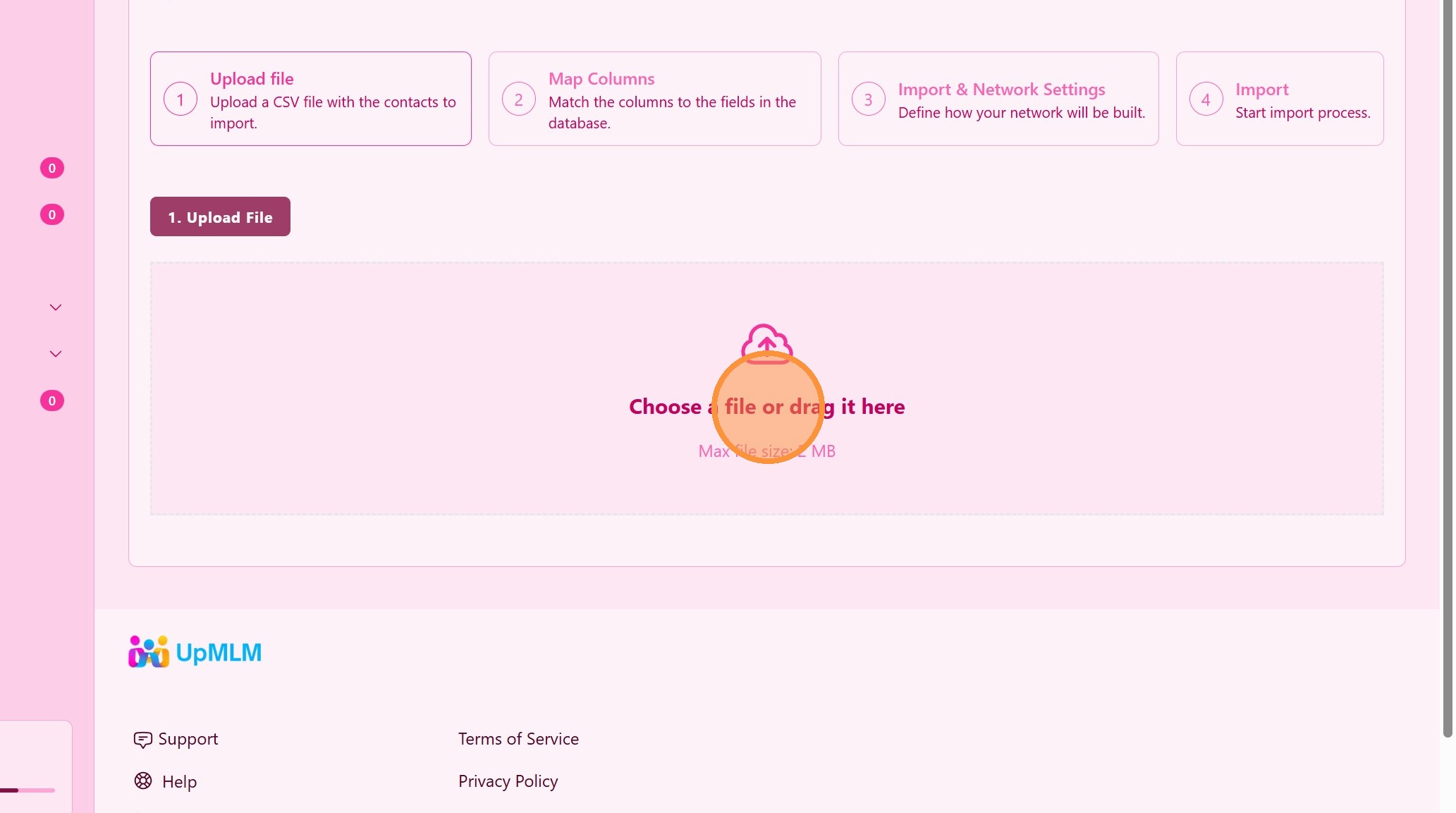
Select and upload your contact file (Download a Excel or CSV sample).
> Ensure the file follows the required format so that all fields are imported correctly.
3. ### Upload the Contact File
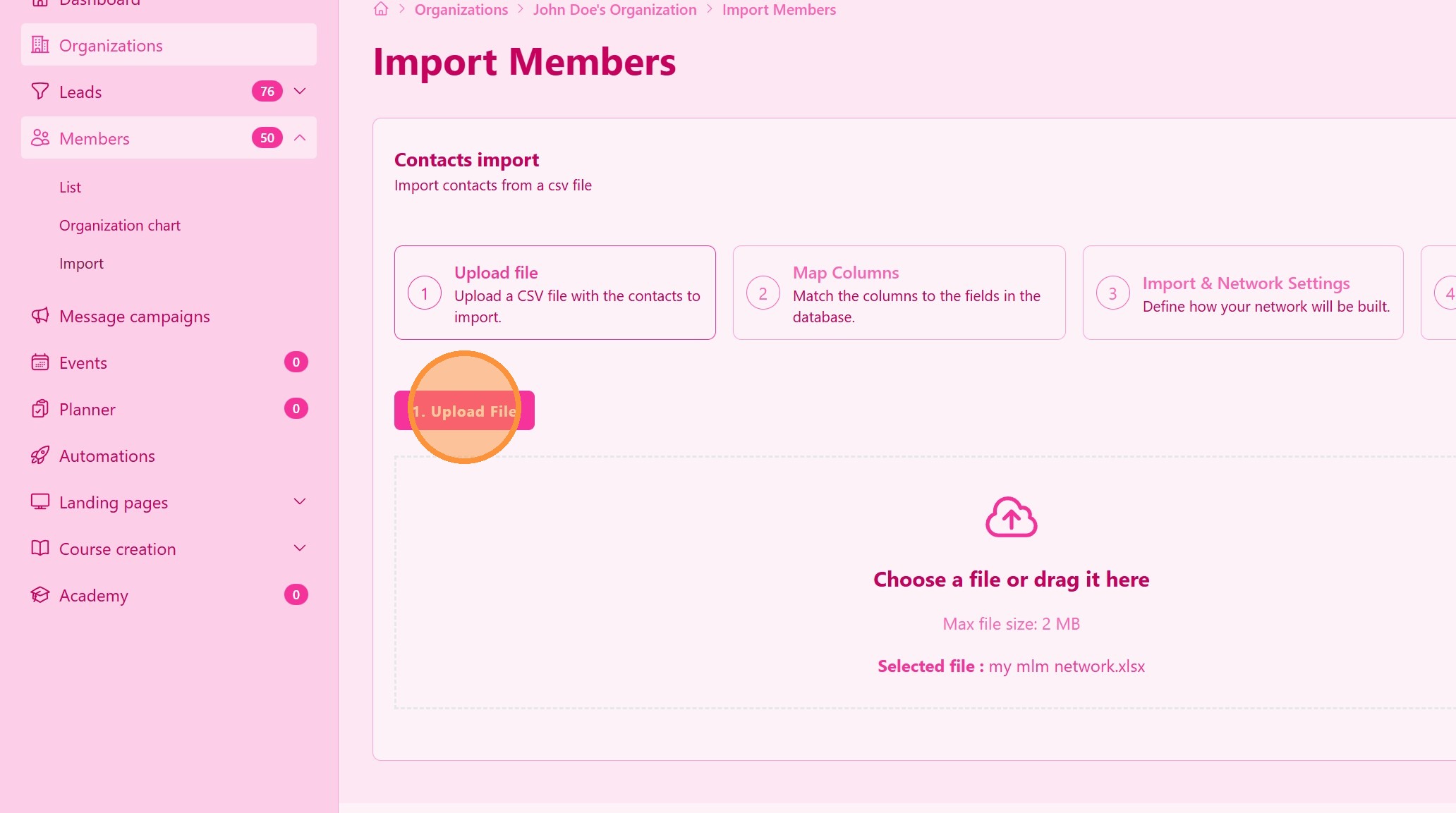
Click the Upload File button.
4. ### Map Contact Fields
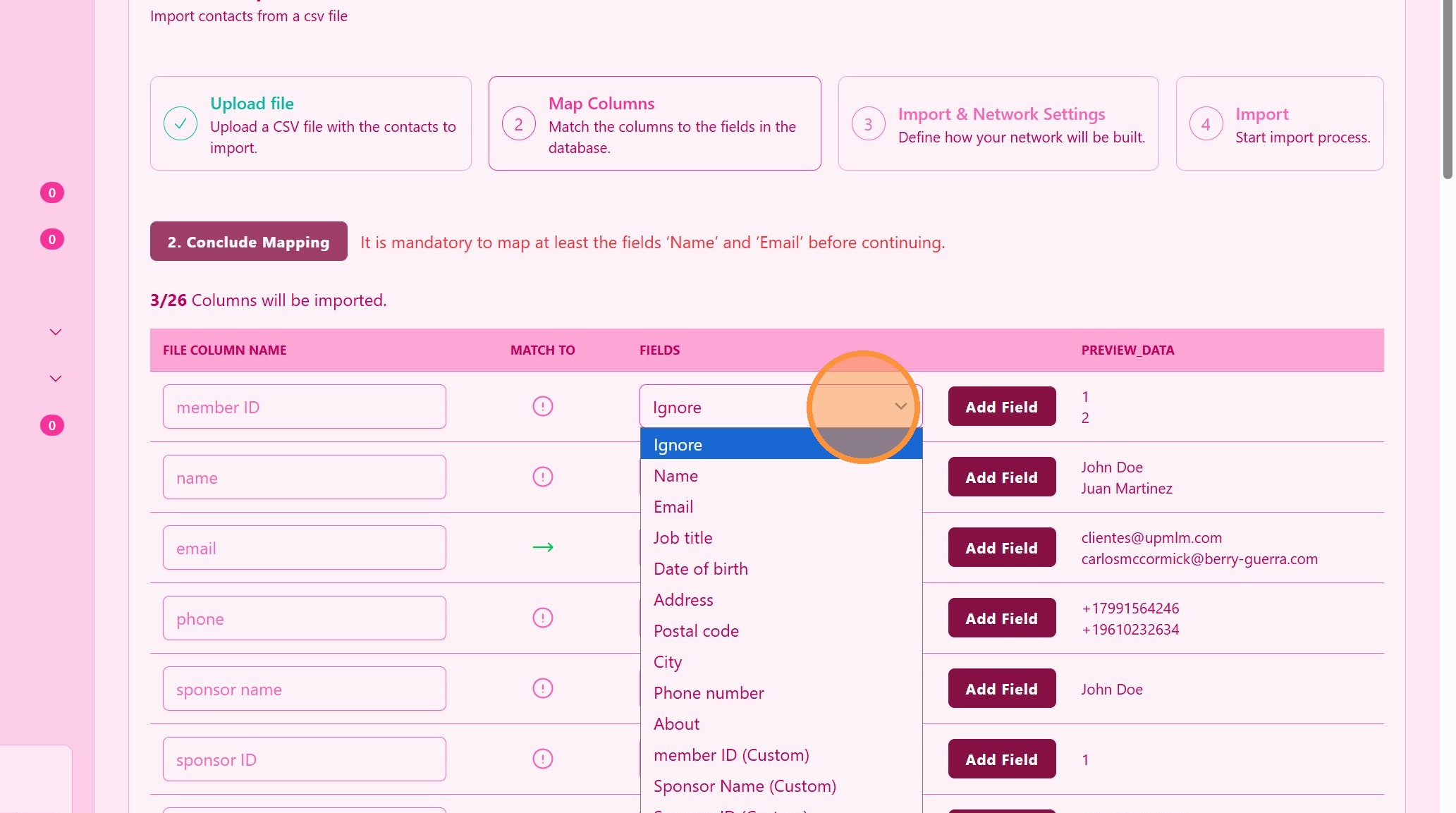
Match the columns in your file to the corresponding contact fields in UpMLM.
> Proper field mapping ensures that names, emails, and other details are saved in the correct places.
5. ### Add Custom Fields
If you dont find a custom field, click Add Field to add custom fields
> These custom fields will be available on your next import.
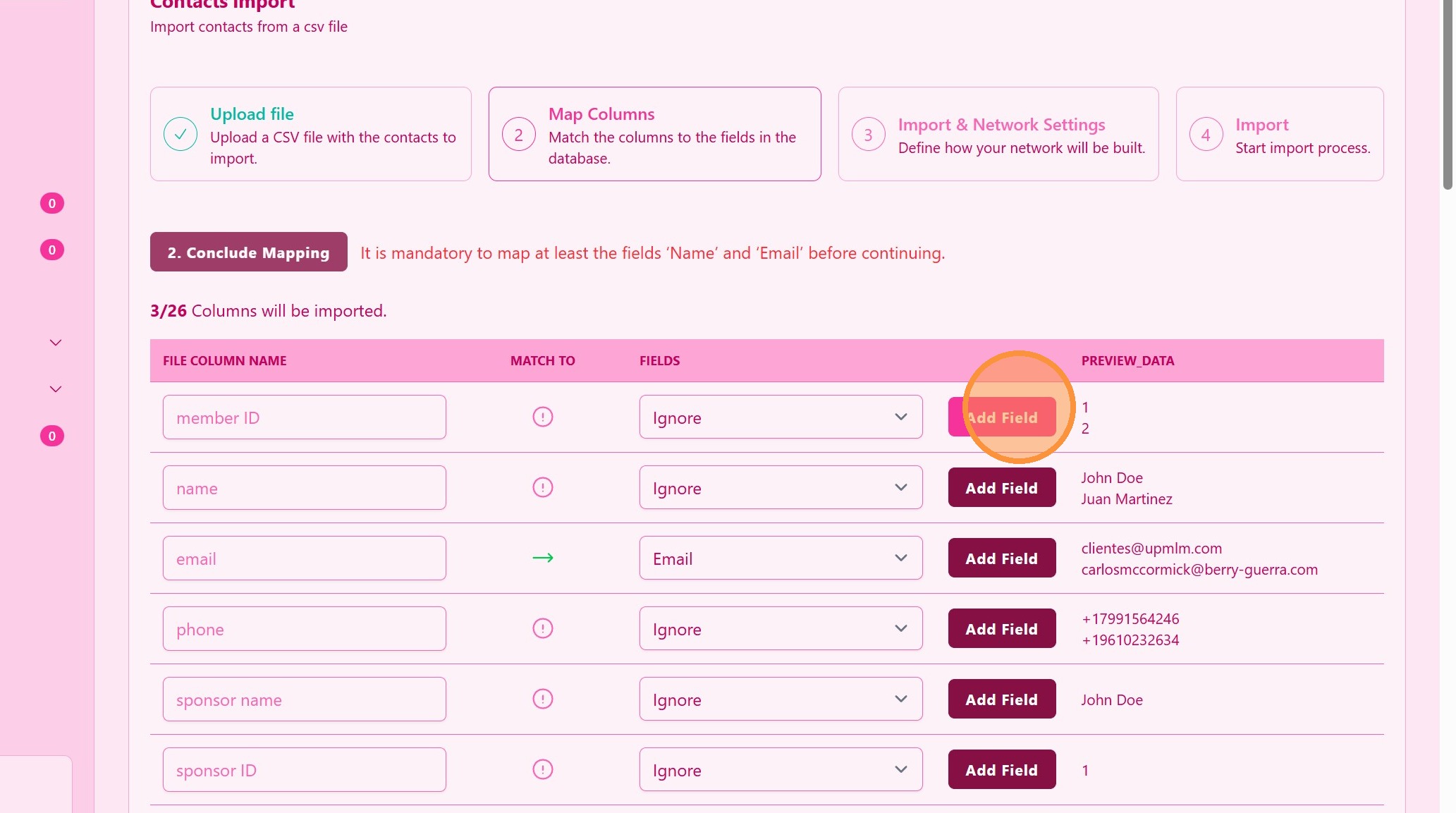
6. ### Create a Custom Field Name
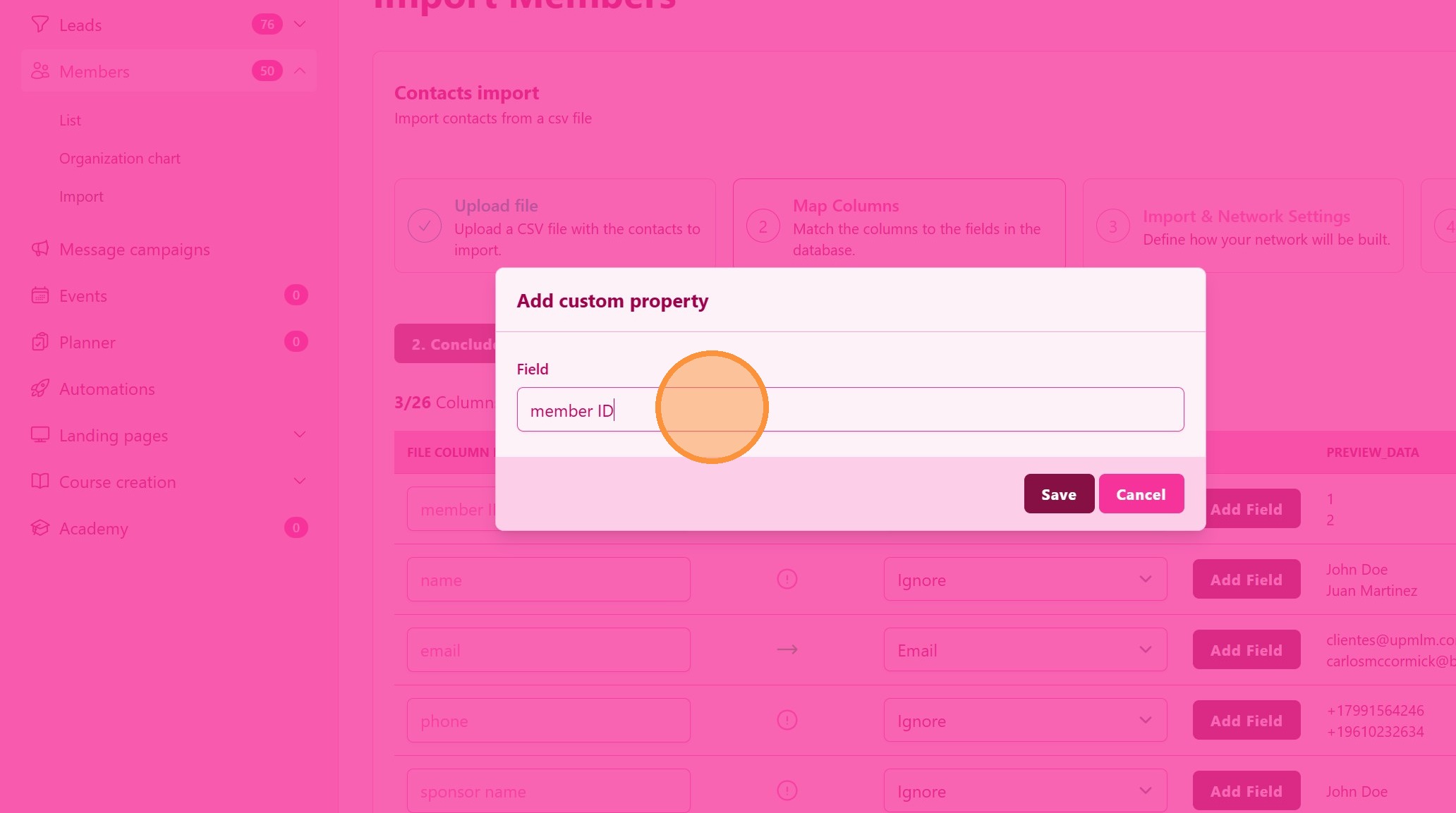
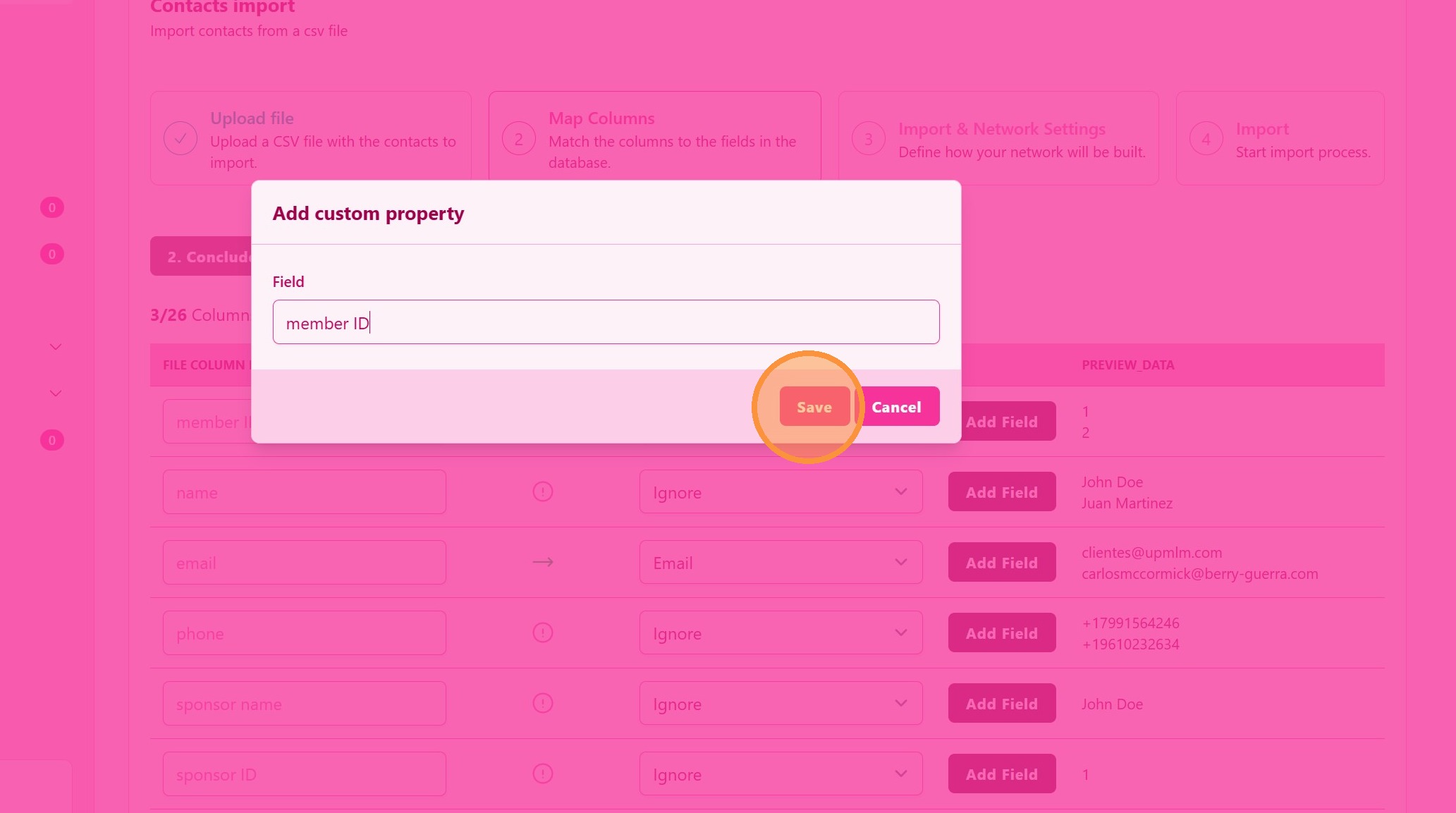
7. Click “Save”
8. Your Custom Field is Automatically Assigned
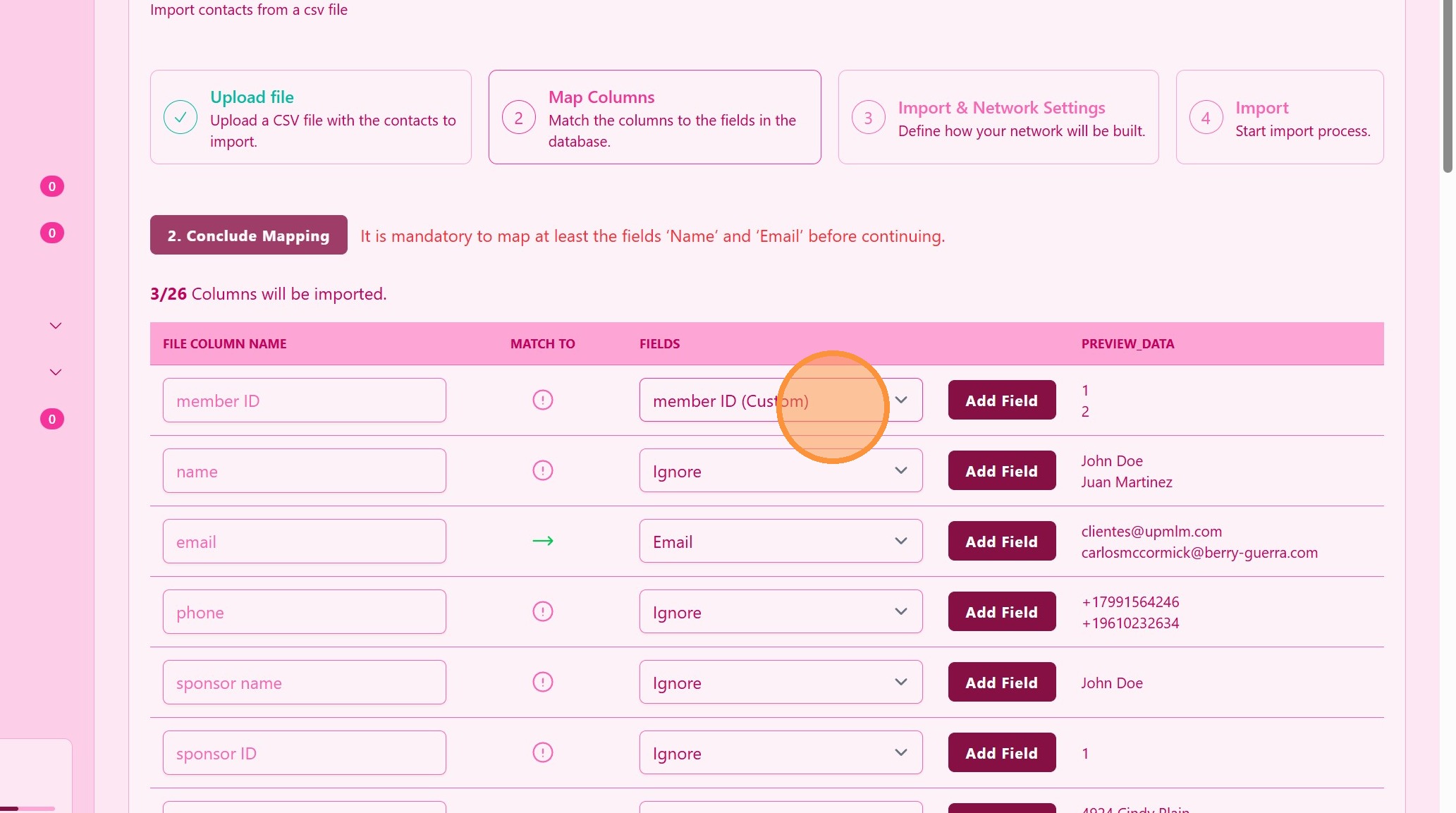
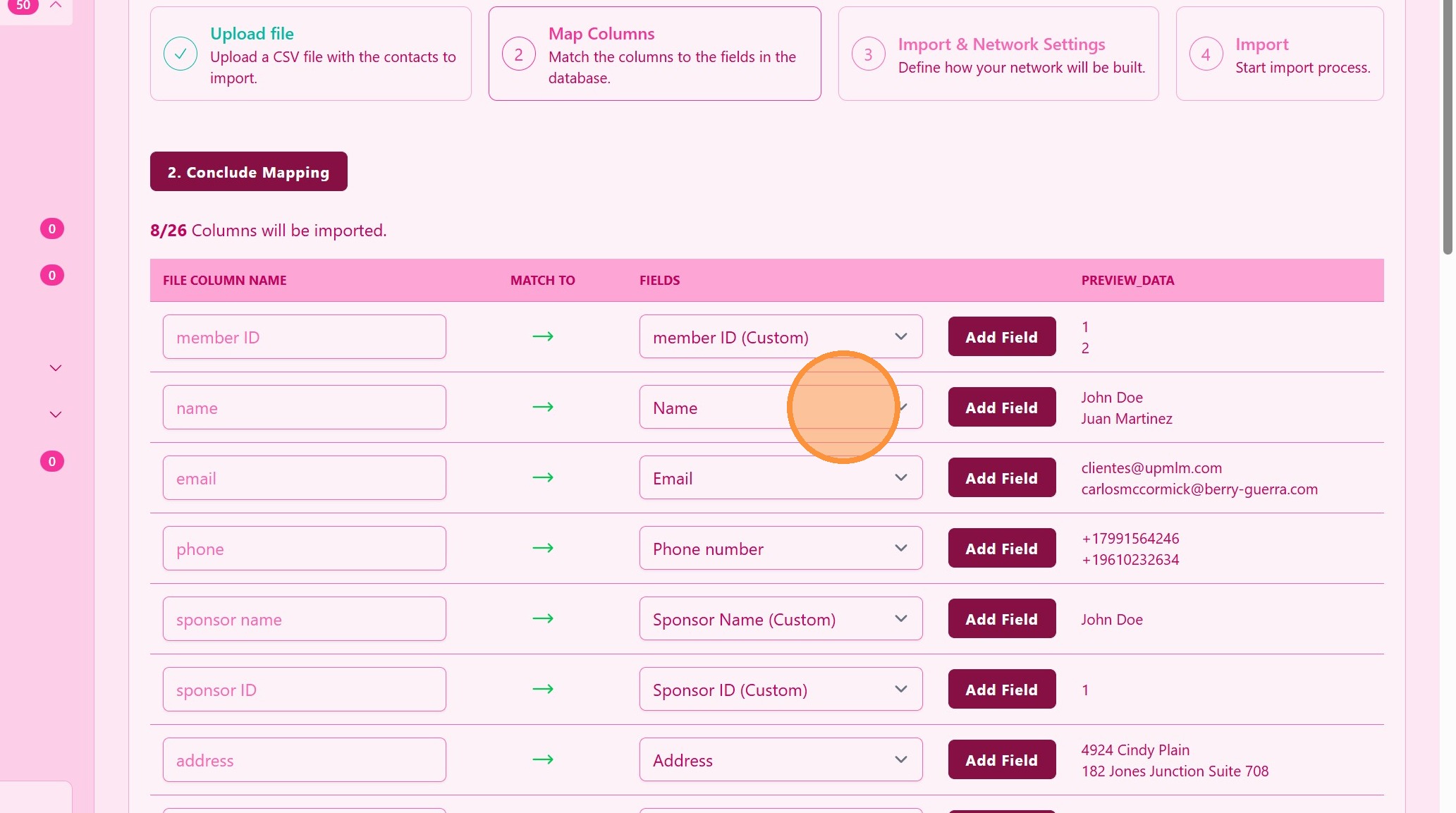
9. Match Name
10. ### Business Tree Building
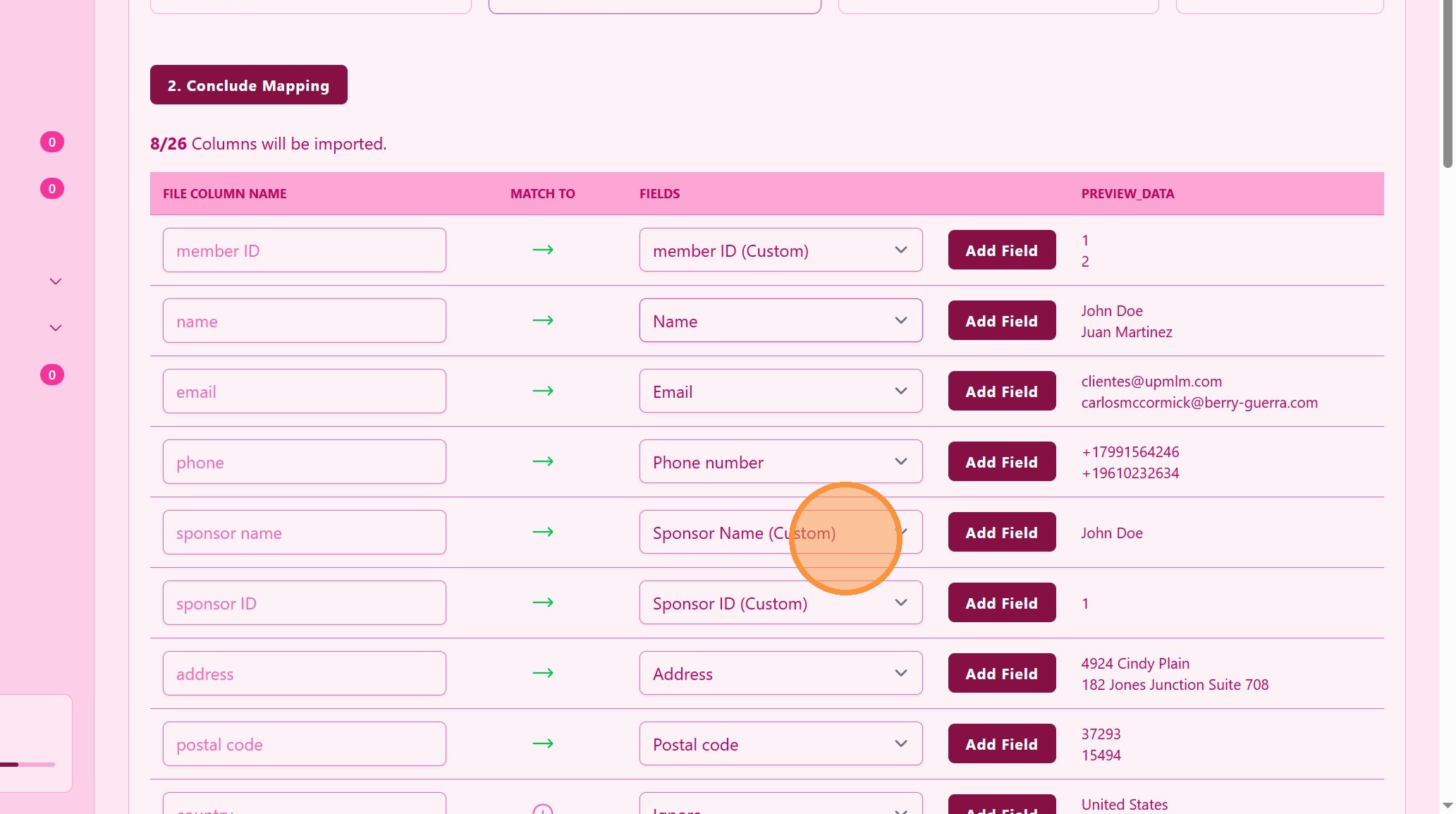
If possible, identify the field with sponsor id and/or sponsor name. This is not mandatory but very usefull for business tree visualization,
> With the sponsor info you can build your network tree!
11. ### Conclude Mapping
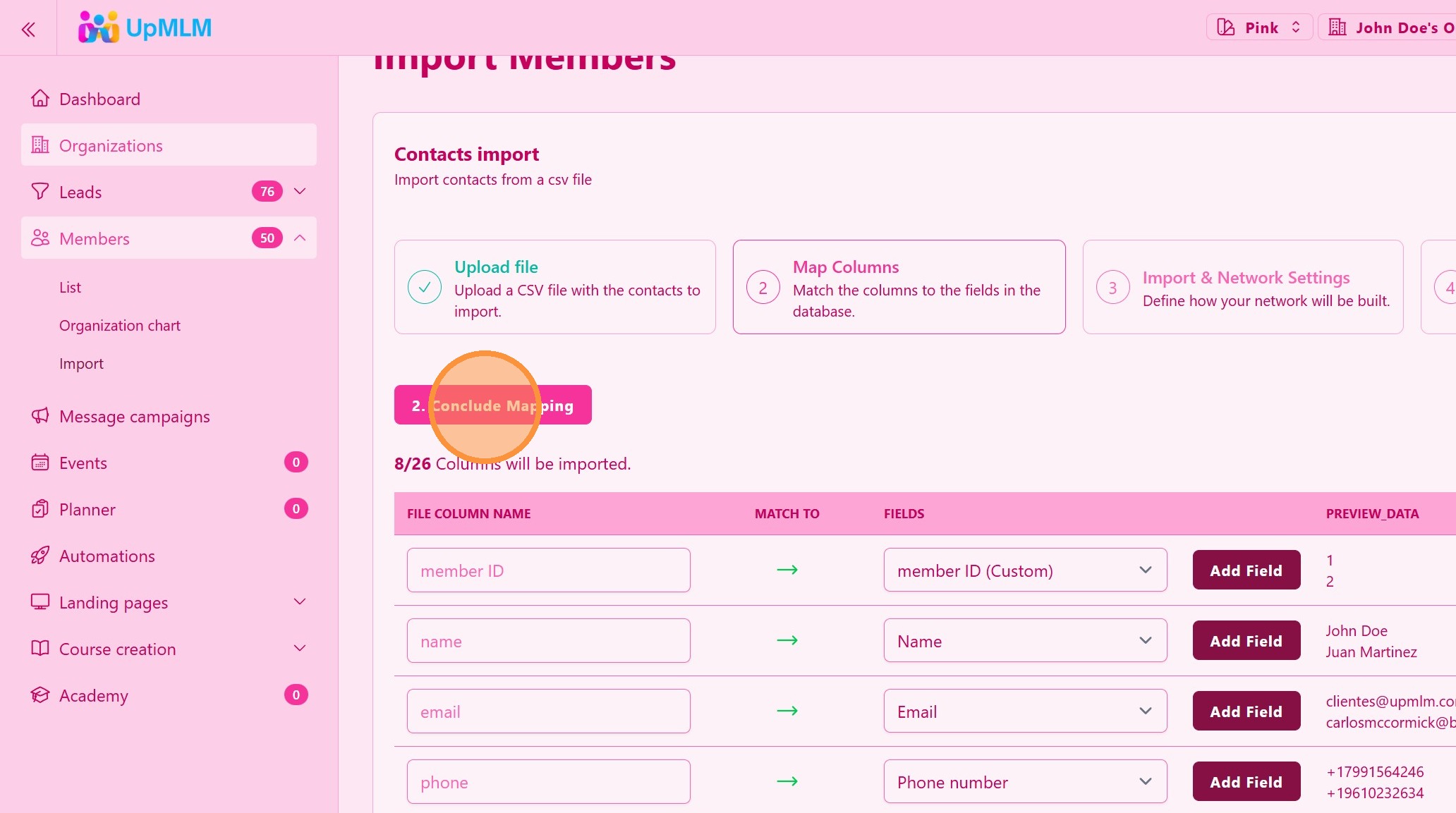
Review the field matching, remember, your file’s fields are on the left and they must match with the UpMLM fileds on the right.
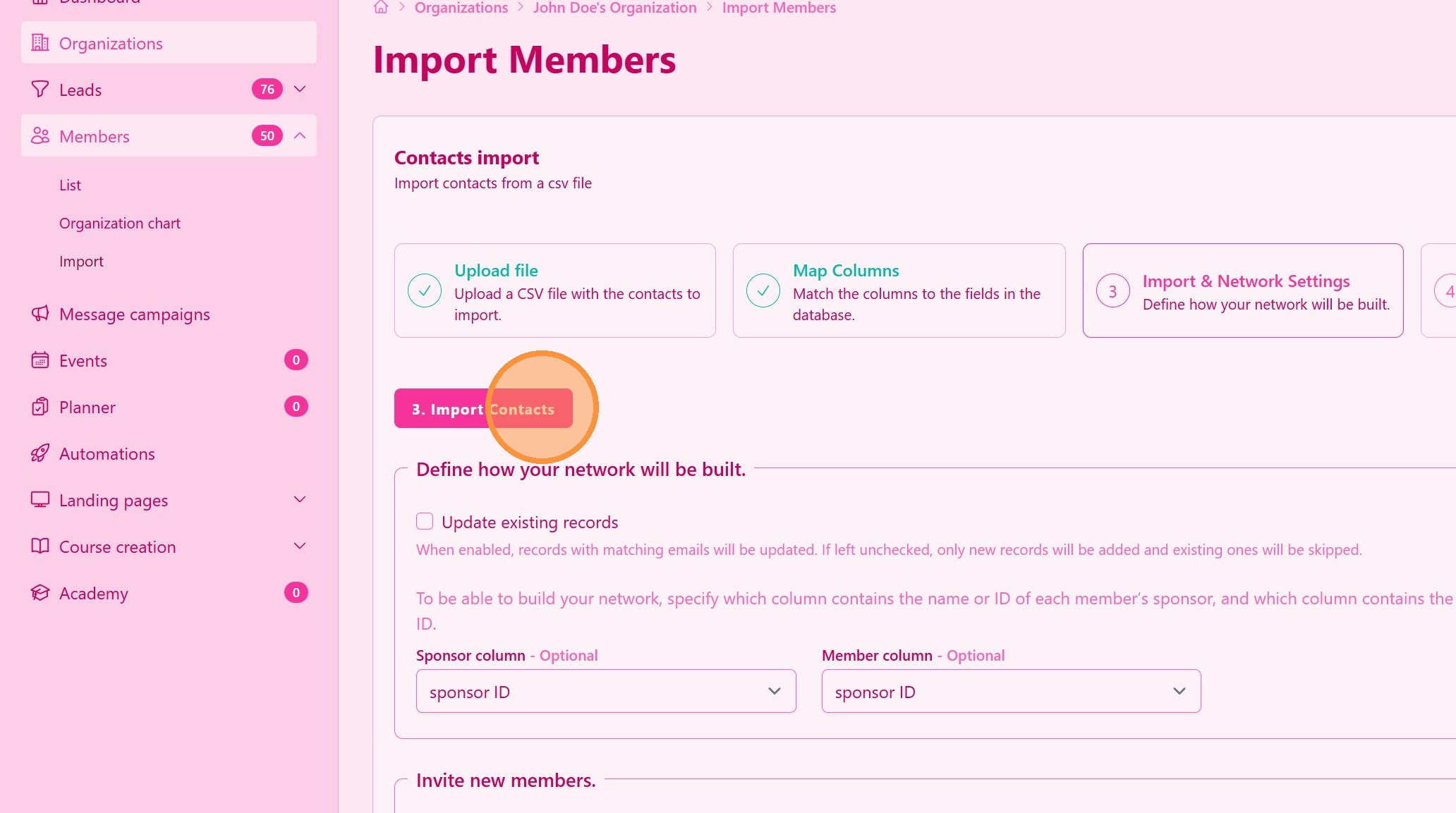
12. ### Update Existing Records
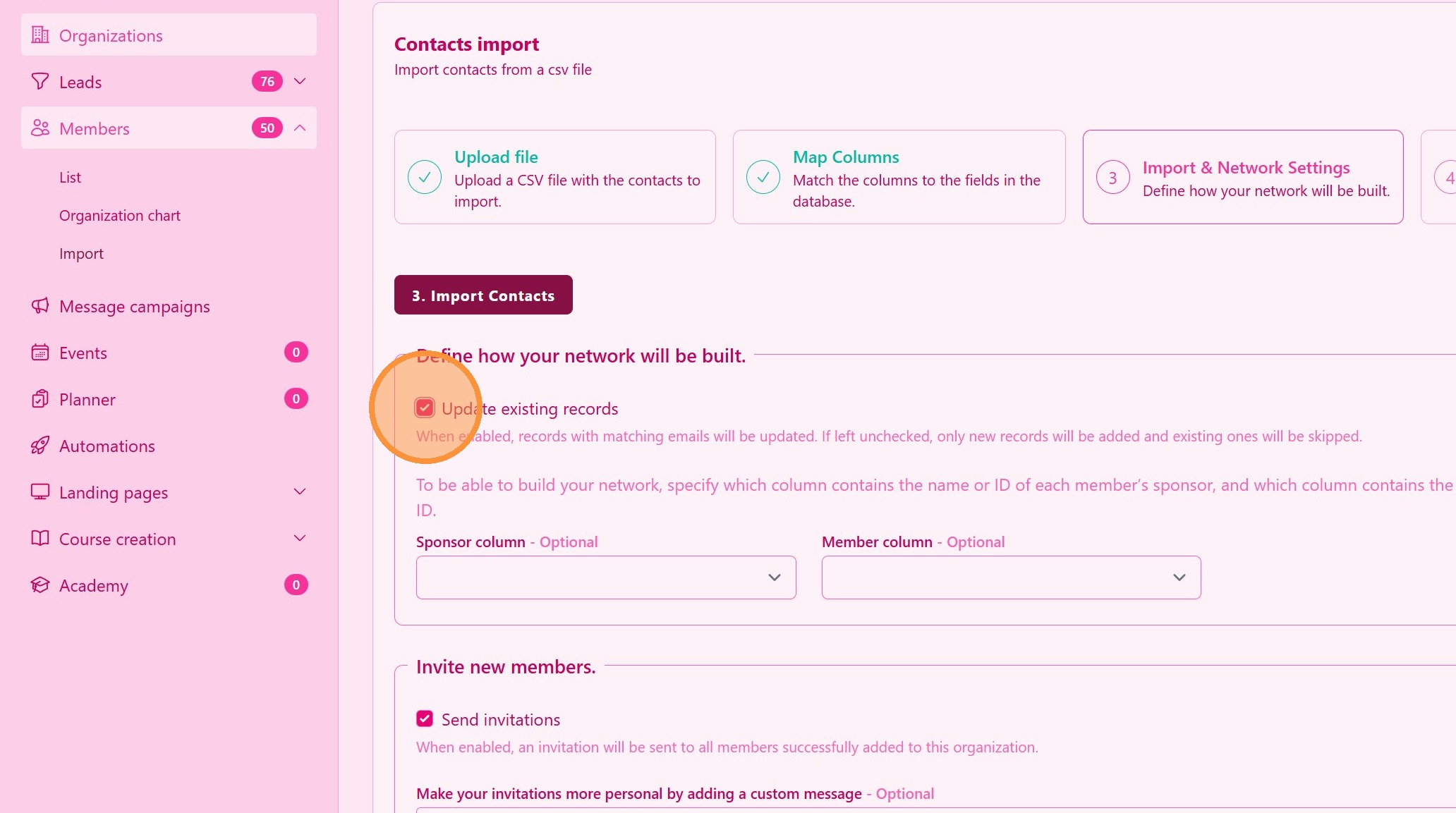
If selected, the fields you match here will be updated on the UpMLM database. If not selected, only members with new emails will be imported.
13. ### Build Your Network Tree
If you have the sponsor name, you can match the sponsor name (on the left) of every member (on the right)
> This step is not mandatory but is higly recommended
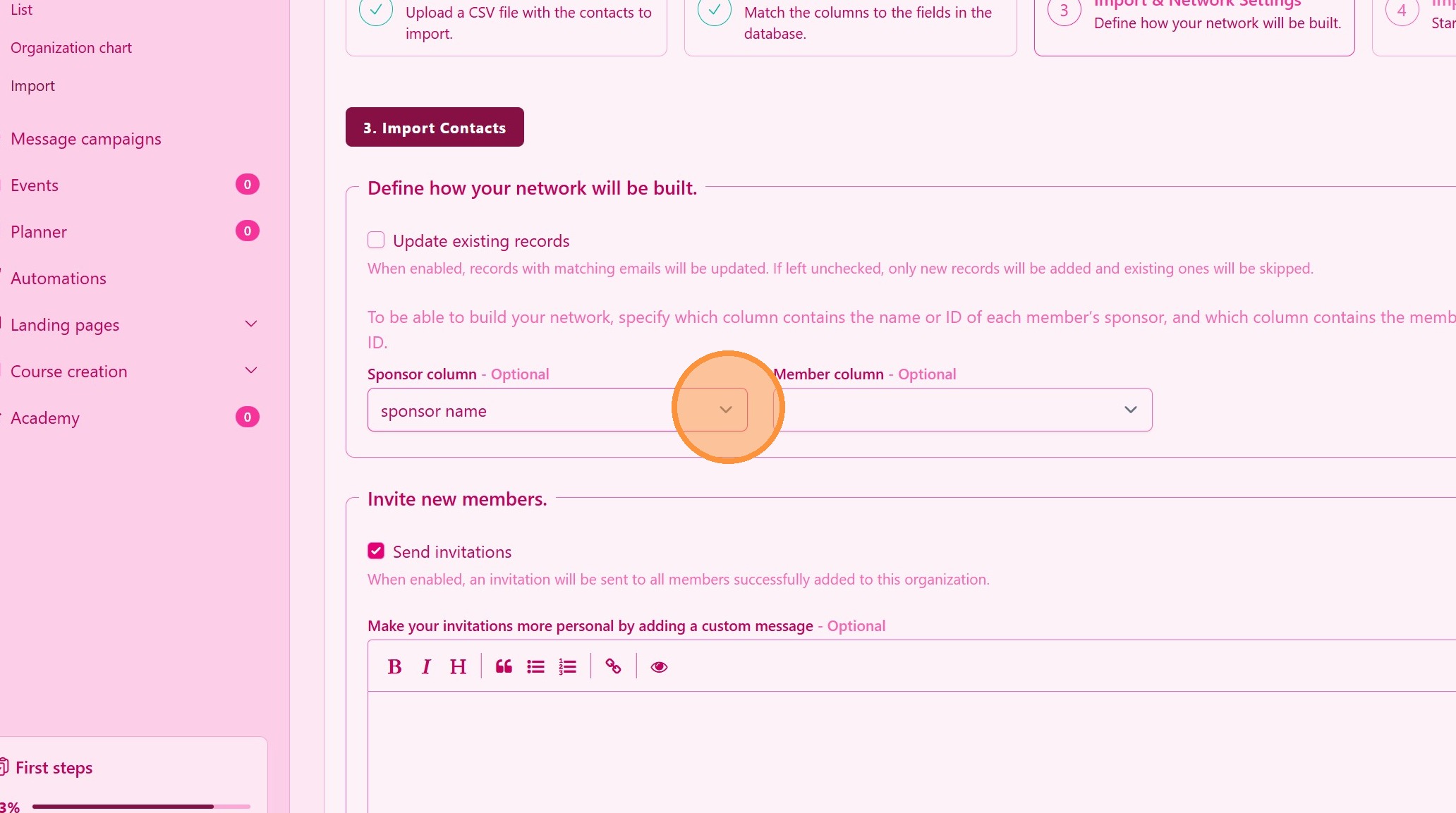
14. Click this dropdown.
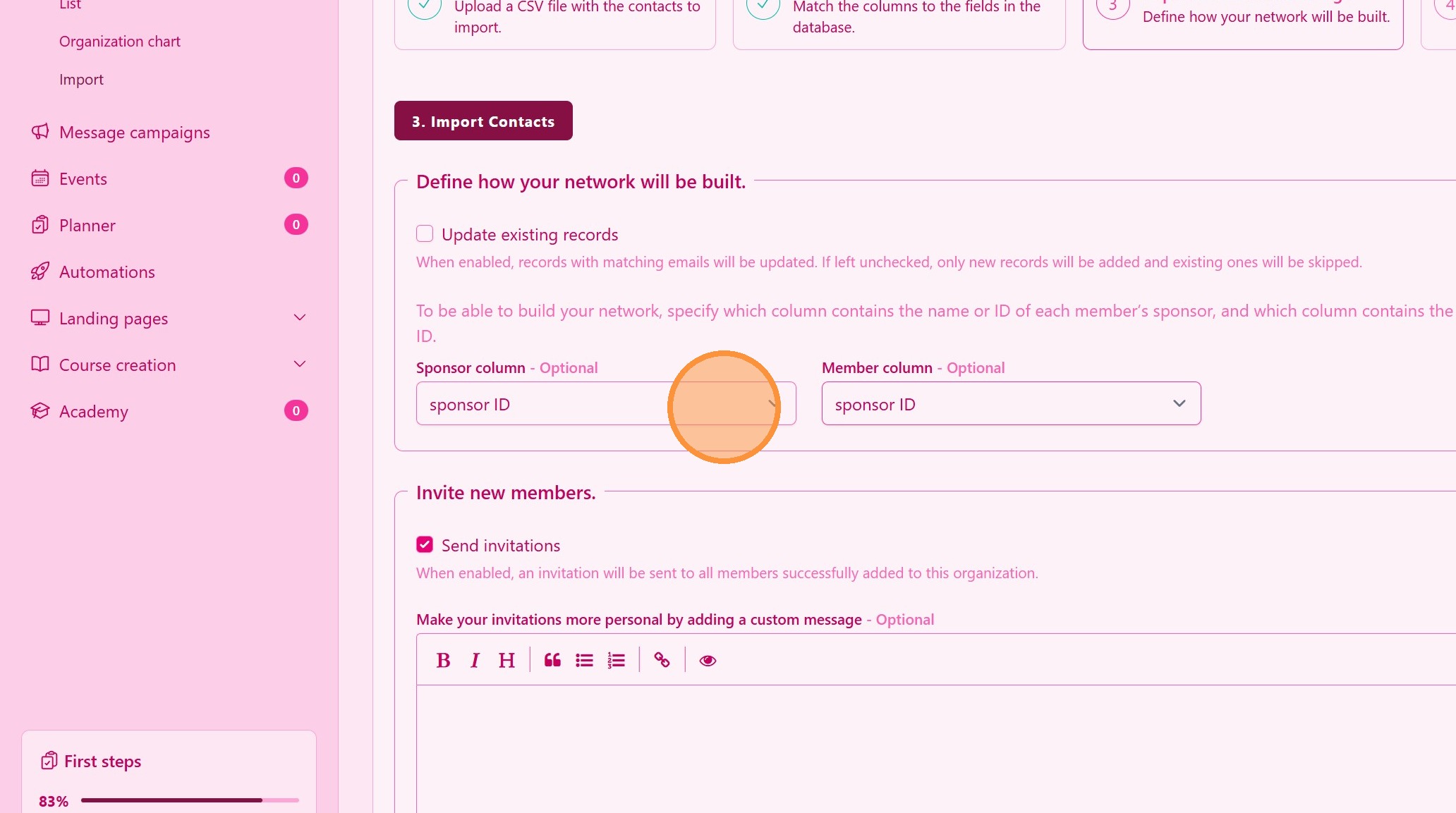
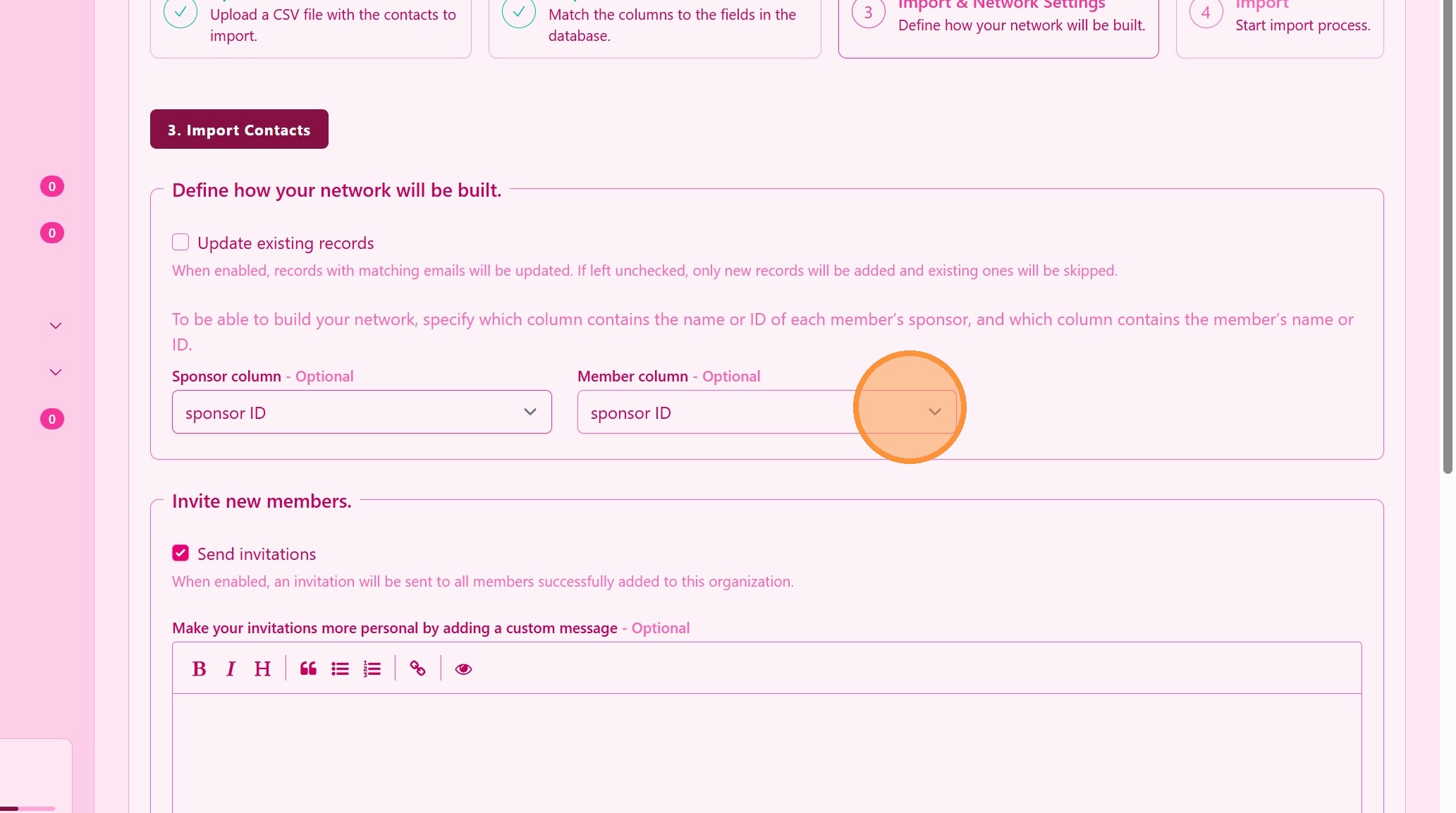
15. ### Alternative Network Tree Building
If you have the sponsor ID, you can match the sponsor ID (on the left) of every member ID (on the right)
> You cannot match sponsor name with member name or vice versa
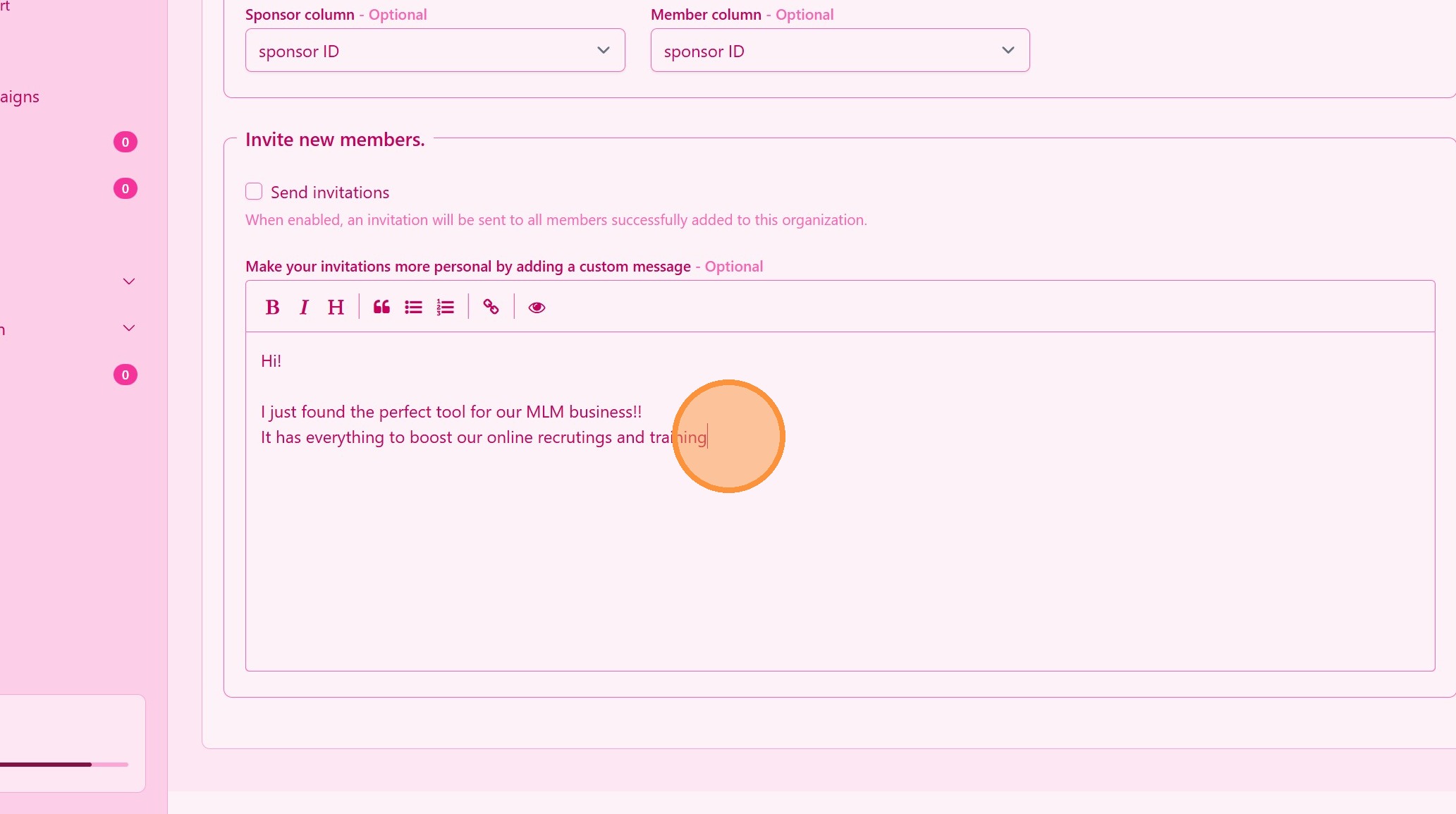
16. ### Send Invitations to Imported Contacts
After the import, select Send Invitations to your network to join for free.
> Invitations allow contacts to connect and access all your content in the UpMLM platform for free.
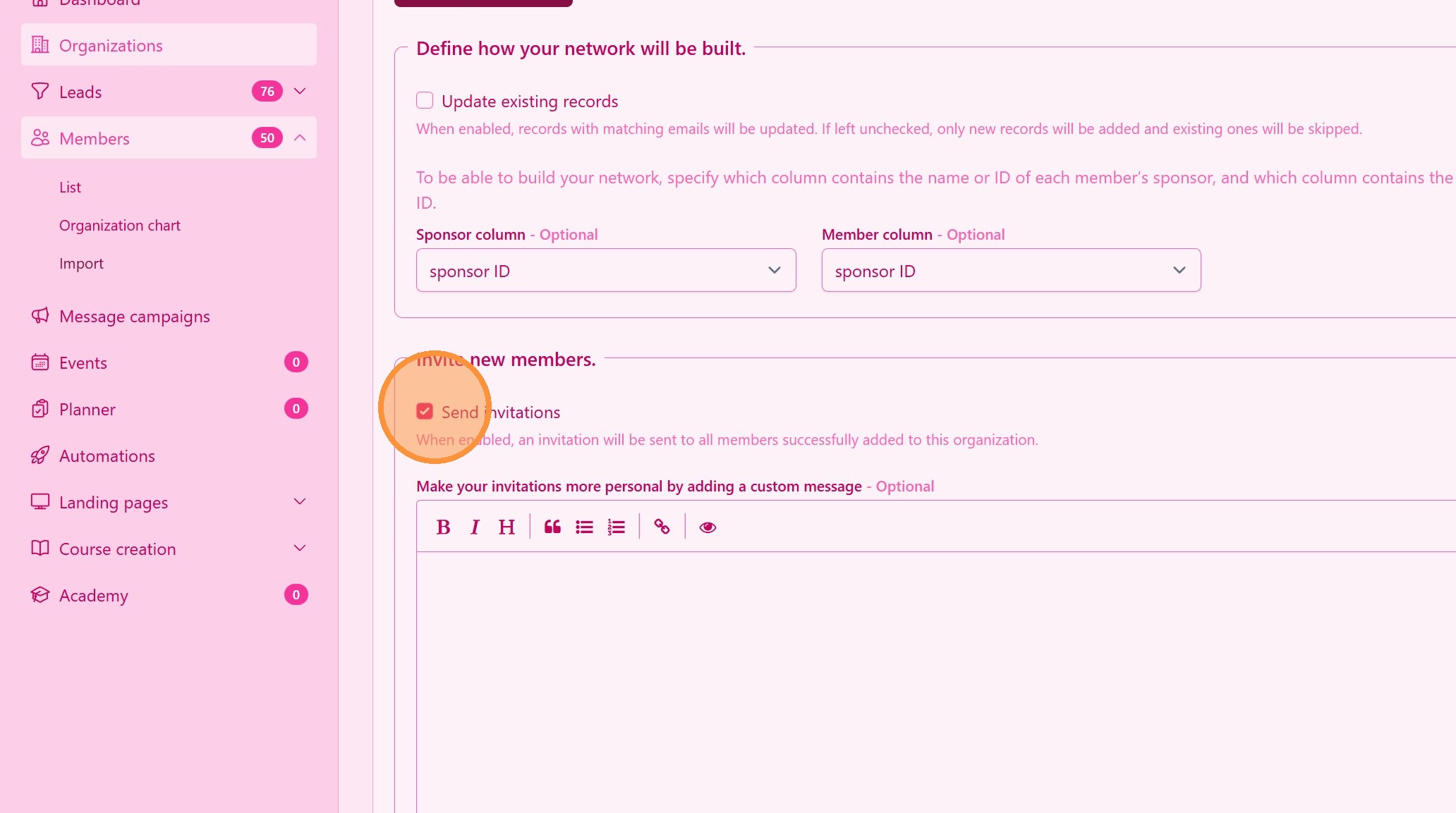
17. Create a Custom Message for Your Team
18. ### Import Contacts
Click Import Contats and you are done. You can navigate away while we process and build your network tree.
> This process can take some minutes. We will send a notification when we finish.
Tip: ## Practical Tips
-
Check your file format: We only accept Excel or CSV file formats. Download here a Excel template or CSV template
-
Avoid duplicates: Review existing contacts before importing to prevent duplicates.
-
Personalize invitations: If possible, customize the invitation message to increase acceptance rates.
Tip: ## Conclusion
Importing contacts and sending invitations in UpMLM helps you grow your network quickly while keeping your data organized. This process saves time, reduces manual work, and supports consistent follow-up with new contacts.