View Your Organization Tree in UpMLM
Introduction
In this tutorial, you will learn how to view your organization tree in UpMLM. By the end of this guide, you will be able to explore your team hierarchy and better understand how members are connected within your organization.
1. ### Open the Organization Section
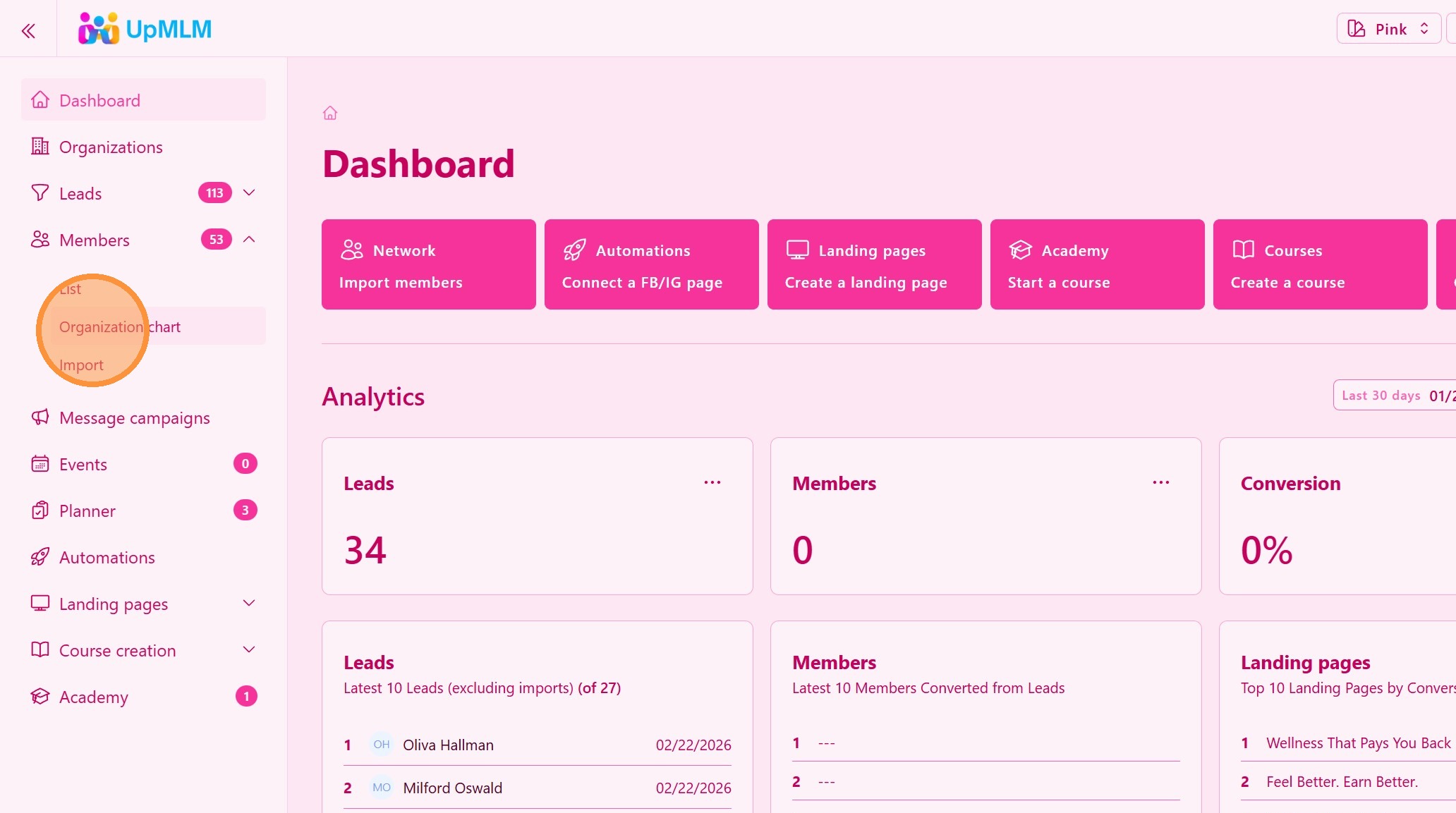
From the main navigation menu, click on Members > Organization chart.
> This section provides access to your organization structure and member overview.
2. ### Explore the Organization Tree
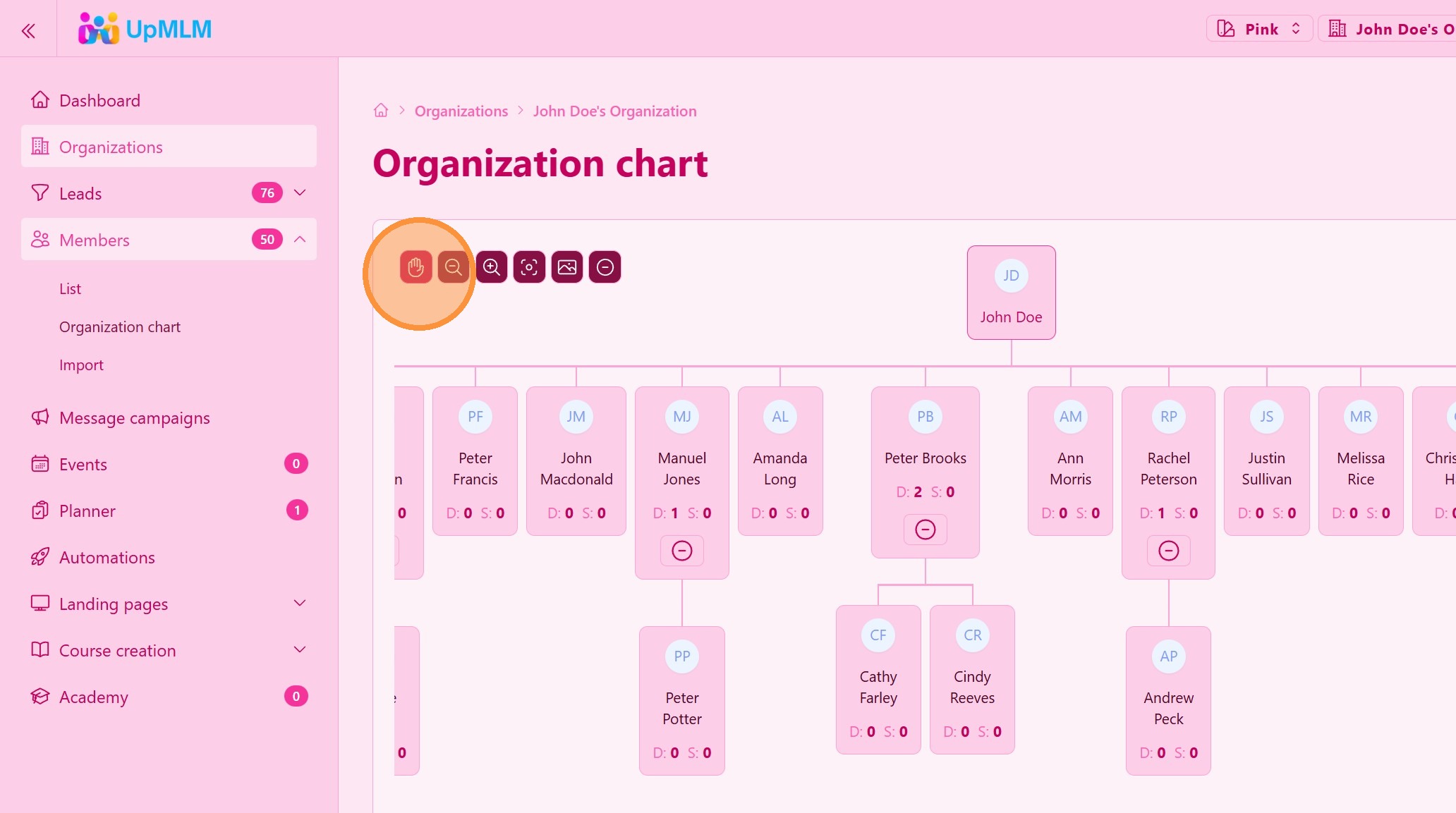
Navigate through the tree to see different levels and members.
Tools available: Pan, zoom in, zoom out, recenter, image export, colapse/expand tree
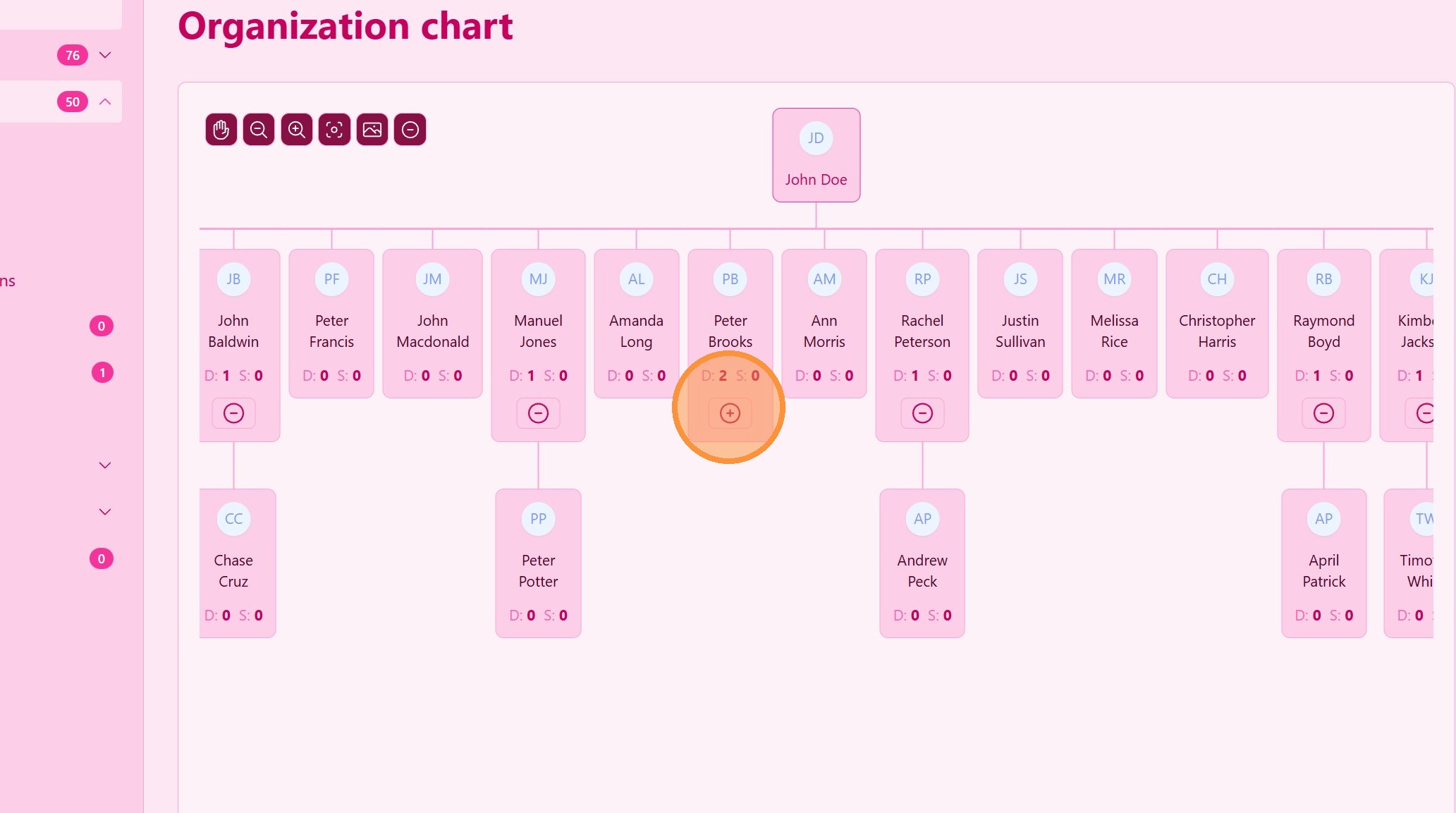
> You can expand or collapse branches to focus on specific teams or individuals.
3. Expand Colapse Groups
4. ### View Member Details
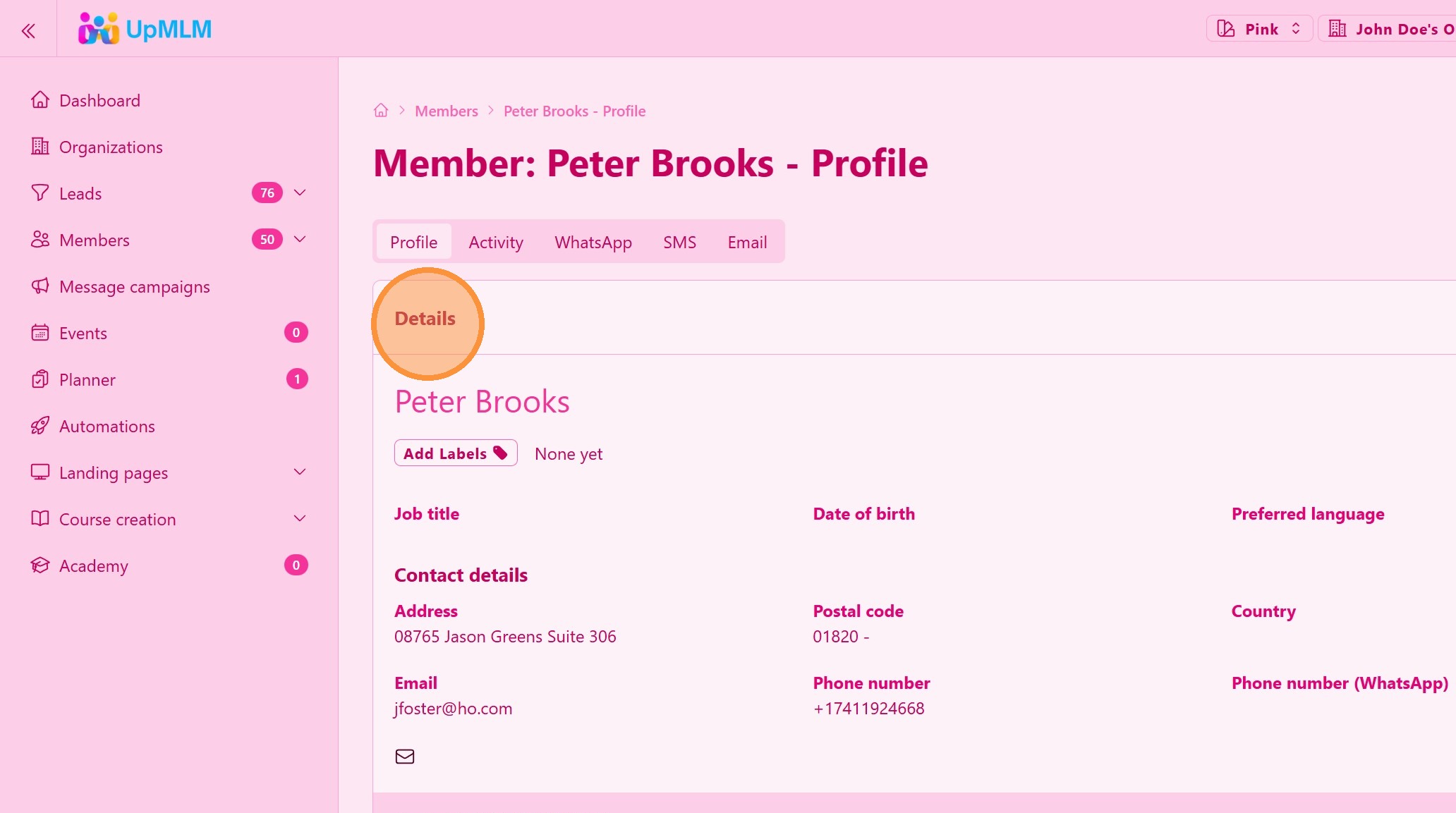
Click on a member in the tree to view their basic details.
> This helps you understand roles, placement, and relationships within the organization.
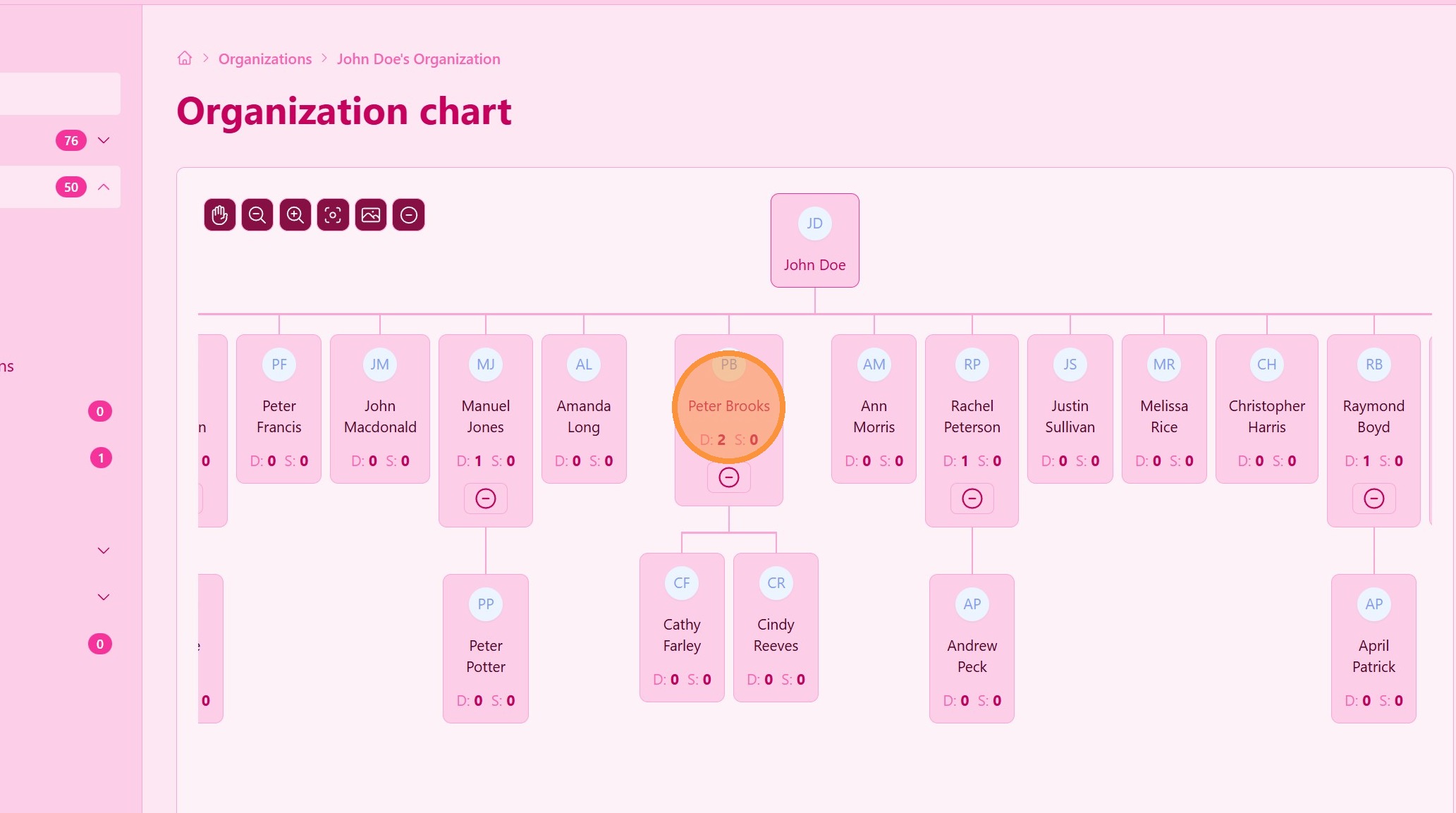
5. Member Details
Tip: ## Practical Tips
-
Use the tree for planning: Identify leadership gaps or growth opportunities.
-
Review structure regularly: Keeping track of changes helps maintain clarity.
-
Focus on depth and balance: A balanced organization supports sustainable growth.
Tip: ## Conclusion
Viewing your organization tree in UpMLM provides a clear overview of your team structure and relationships. This visual insight supports better decision-making, leadership development, and strategic growth within your organization.